


 Try for Free
 Try for Free
Last updated on 2026-01-26, by
HLS Streaming Guide: How It Works & Best Tools
Summary:
- HLS streaming is the backbone of most modern online video platforms, enabling smooth playback on almost any device. Understanding how it works and the right tools to use make streaming and downloading HLS content much easier.
HLS stands for HTTP Live Streaming. It is Apple’s way of streaming video and audio online. This technology will not send one big video file at once, but it will slice everything into smaller pieces and stream them over regular HTTP. It will let videos adjust on the fly to whatever network speed you’ve got. This will help you watch a video without buffering whether you’re on Wi-Fi or stuck with spotty mobile data. HLS runs pretty much everywhere: phones, tablets, laptops, smart TVs you name it. Ultimately you will be able to stream smoothly, even when your connection dips.
In this article, I’ll break down how HLS actually works and point out the best tools for playing, capturing, and downloading HLS streams.
Quick AccessCLOSE
How HLS Streaming Works
As we discussed, HLS breaks video into small chunks. You can stream them over the internet, and it will adapt to your network speed for smooth playback. Here’s how HLS streaming works step by step.
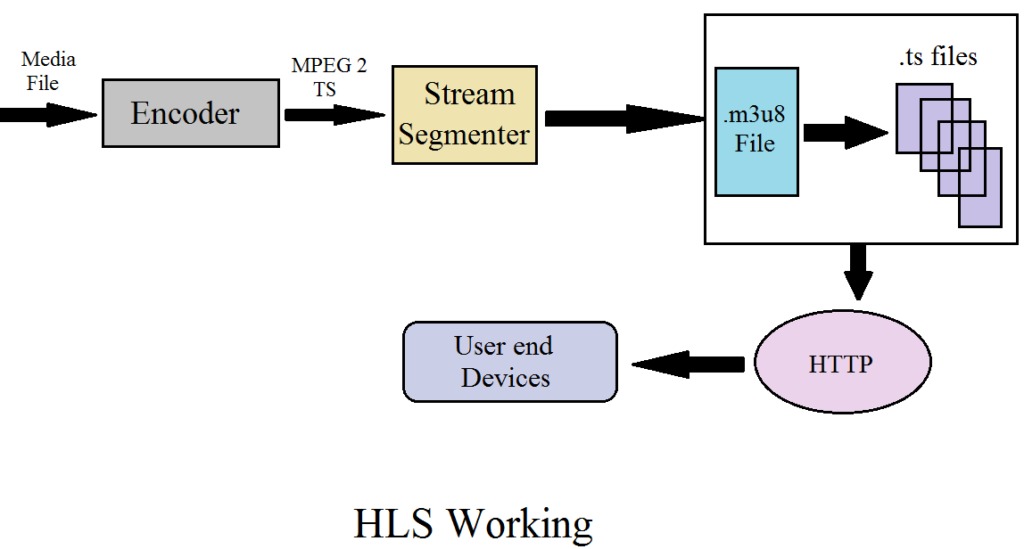
Encoding: First the video file is fed into an encoder. The encoder compresses the video and audio. It compresses video to H.264/HEVC and audio to AAC/AC-3. Next, it outputs a transport stream.
Segmenting: The output stream will then be divided into small pieces. It shall normally take between 2-10 seconds. These will all be stored as a separate media file of .ts in the server.
Indexing: The playlist file is generated by the segmenter (e.g., playlist.m3u8). It will occur providing all the segment filenames and their URLs. This index indicates to the player what part to fetch next.
Publishing: The URL of the playlist, here .m3u8, is publicized, e.g., in a video tag of a web page. Customers have the ability to stream now using this single URL.
Playback: The gamer downloads the playlist of .m3u8 and retrieves all the .ts files one at a time. In case of changes in the network conditions, the player can dynamically switch to a higher or lower bitrate playlist. This makes playback very easy, enables buffering and makes it easy to jump forward due to the fact that each segment is a distinct file.
Tools & Software for HLS Streaming
Before you can play or download an HLS stream, the first step is usually getting the direct .m3u8 playlist URL. This URL points to all the small video segments that make up the stream and allows players or downloaders to access the content directly. Without it, you won’t be able to use HLS players or HLS downloaders effectively. Fortunately, several tools and methods make grabbing these links relatively easy, whether you prefer a browser-based approach or dedicated software.
1. HLS Link Grabber
To work with HLS streams, you can use a variety of link grabbers. Here are some common link grabbers:
Common HLS Link Grabbers
- Browser Developer Tools: Pressing F12 brings up the browser’s dev panel. Head to the Network section once it’s open. Load the stream while watching that tab closely. Look for entries labeled .m3u8 at the end. A GET call appears when playback begins. That’s the playlist showing up right there. Grab its address by copying the link through a click. The copied string becomes your HLS source.
- HLS Sniffer/Grabber Extensions: Some browser tools spot streaming links without you lifting a finger. Take one made for Chrome or another built for Firefox – they just show up when live video plays. Instead of grabbing bits by hand, they collect every chunk quietly. Once gathered, the pieces join into one full clip behind the scenes. No extra steps needed, and it simply ends up ready.
- Video Downloading Tools: Grabbing videos gets easier with tools like youtube-dl, yt-dlp, or Streamlink – they pull HLS links straight from web pages. These programs usually spot .m3u8 files on their own, which simplifies everything. Instead of manual steps, they run through the process quietly behind the scenes.
- Online Debuggers: Start by checking certain web-based debug tools or browser add-ons made for coders. With that link in hand, playback or saving becomes possible through compatible streaming apps or grabbers meant for such streams.
Here are steps to get an HLS link:
Step 1: Start by loading the stream site through your web browser, then bring up Developer Tools – press F12 or select Inspect after a right-click. Go into the Network tab and prepare to filter activity as it happens. Refresh the page so traffic begins showing in the panel below. Look for entries labeled media, m3u8, or similar when data starts flowing. Pick one that plays video and open it in a new tab. If it works, you now have a direct link to the stream source.
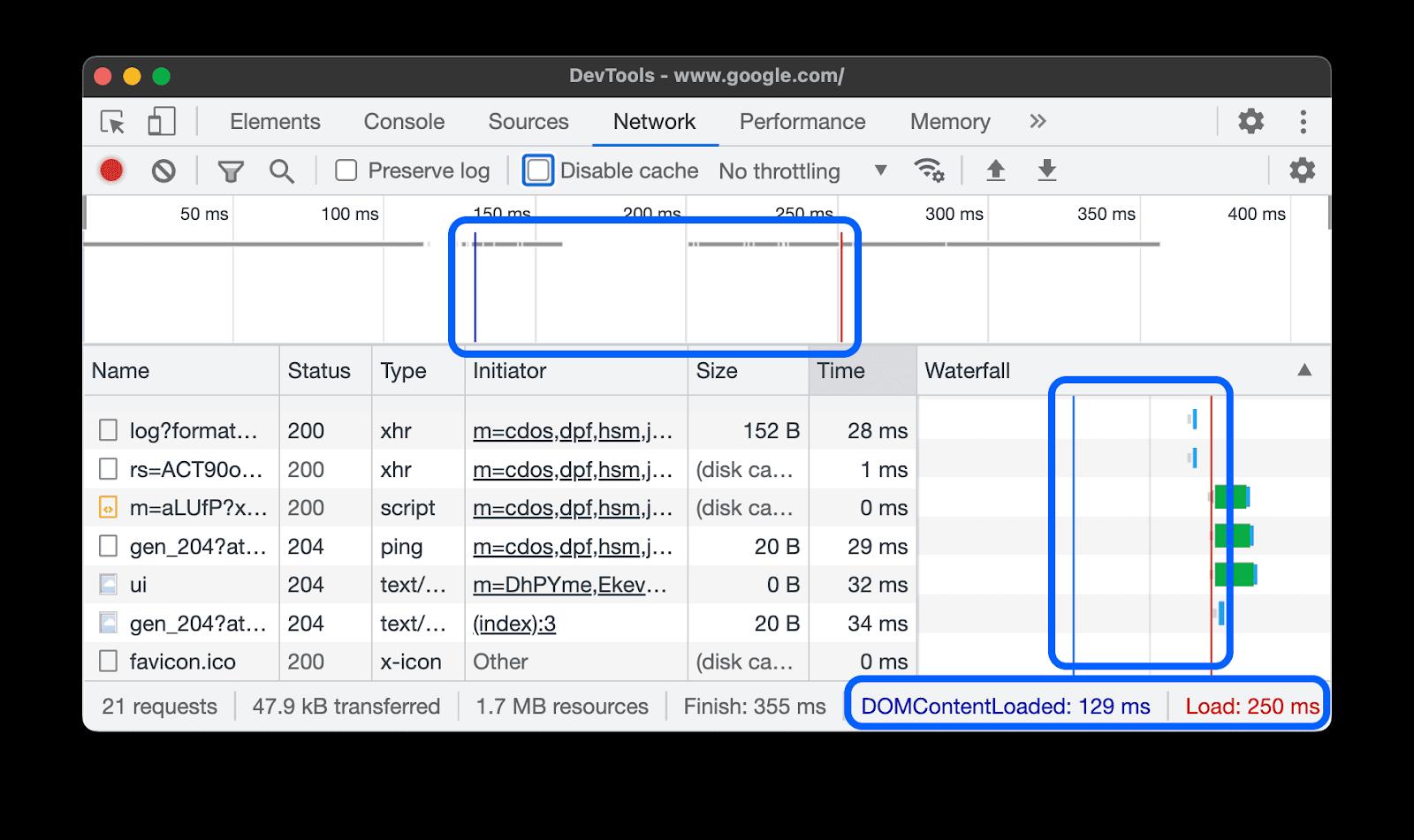
Step 2: Now open the Network section while the video plays. Look through the list, spotting any entry with .m3u8 at the end. That file is the one you need. It shows up once playback begins. Wait a moment if it does not appear right away. Focus on that specific type of request. The playlist will be listed among others. Once visible, select it for further inspection.
Step 3: Now find the GET request tied to the .m3u8 file. Hit right-click on that line, then go to Copy and grab the link address. It’s the working HLS stream.
Step 4: Pick an add-on instead – HLS Downloader works on Chrome, while Firefox users might try HLS Video Grabber. Once installed, it spots the main .m3u8 file all by itself. The playlist shows up ready, so grabbing the link takes seconds. No need to open Developer Tools at all.
Step 5: Maybe skip this part. Programs such as youtube-dl, yt-dlp, or Streamlink grab a web address then quietly pull out the HLS link behind the scenes.
Got the .m3u8 link? Try opening it in an HLS-compatible app. Or, feed it into a tool that saves streams locally. Playback later works just fine when stored on the device. Some apps grab the chunks automatically once they see the address. It runs smooth if the player supports segmented streaming format. Saved files play without needing live internet after download.
2. HLS Player
Next, you start by needing software that reads .m3u8 files. These days, lots of programs do just that; think updated web browsers or standard video apps. Some work right inside your browser, others run as separate tools.
HLS Player
- VLC Media Player (Windows/Mac/Linux): Free and cross-platform HLS player that can open .m3u8 streams directly without extra plugins.
- QuickTime / Safari (macOS/iOS): HLS is natively supported. Paste the .m3u8 link into Safari’s address bar or QuickTime’s Open URL dialog to start playback instantly.
- Web-Based Players: HTML5/JS players like Plyr, Video.js (with HLS plugin), Shaka Player, and Flowplayer support HLS in browsers.
- Online Test Players: Try tossing your HLS link into sites like Castr HLS Player or HLSStream.me, they’ll spin up a quick preview. Got a stream? These tools fire it up without asking much. Not magic, just paste, click, done. Works fast if the URL behaves. See how smooth it runs before going live.
- Command-Line Tools: Terminal apps such as ffplay, which comes with FFmpeg, or mpv are able to stream HLS when used through command line entries.
Now, let’s take VLC as an example to learn how to play an HLS stream:
Step 1: Copy the HLS playlist URL (.m3u8) from your link grabber.
Step 2: Now grab the HLS player you picked, say VLC.
Step 3: Select Open Network Stream (or similar option).
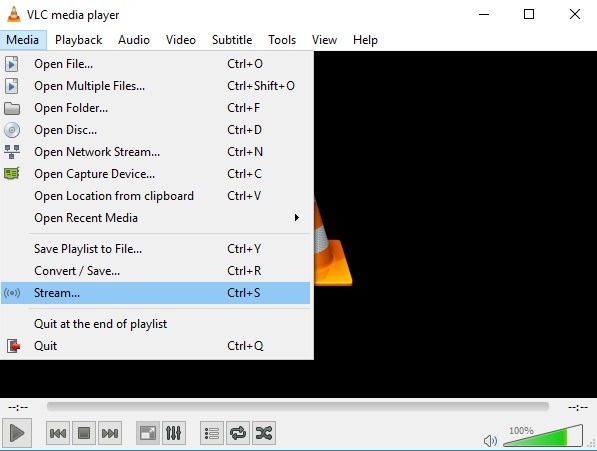
Step 4: Paste the .m3u8 link right into the box then press Play to start.
Right away, the video begins loading small chunks ahead of time. As it plays, adjustments happen behind the scenes without you noticing. Depending on how fast your internet is at that moment, quality shifts smoothly between levels. Chunks are swapped quietly, keeping things moving without breaks. A steady flow stays visible throughout the entire playback.
3. HLS Video Downloader
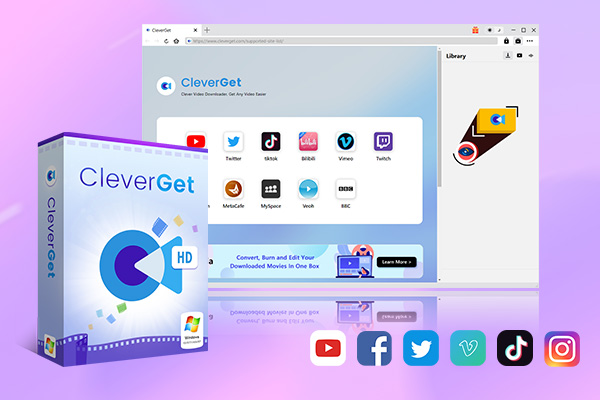
To keep an HLS stream for later viewing, try using a download tool. Among the choices, CleverGet All-in-One Downloader stands out because it works with many sites at once. This app pulls videos from places like YouTube, Facebook, Twitch, Netflix, Hulu, Disney+, Amazon – over a thousand total. What makes it different? It grabs live broadcasts too, even those locked behind protections. Instead of just one file, it downloads several at once if needed. Files land neatly as MP4 or MKV, clean of interruptions. Also, high resolution stays intact during transfers. You get fast results every time, nothing breaks down.
-
- Download online video at up to 8K with an ad filter.
- Batch download movies, TV shows, playlists, clips, live streams, etc.
- Reserve multiple subtitle and audio track.
- Convert video to MP4, MKV, MP3 or other format files.
- Record videos in background at up to 5x speed and 4K resolution.
Below are steps to download HLS streams using CleverGet:
Step 1: Download and install CleverGet All-in-One on your Windows or Mac computer. Fire up the program, then pick the HLS/M3U8 Downloader piece inside. Once open, it’s ready to go.
Step 2: Start by grabbing the .m3u8 address using your HLS tool. Then, place that link into CleverGet’s entry field – hit Analyze after. Once you do, different quality options pop up automatically.
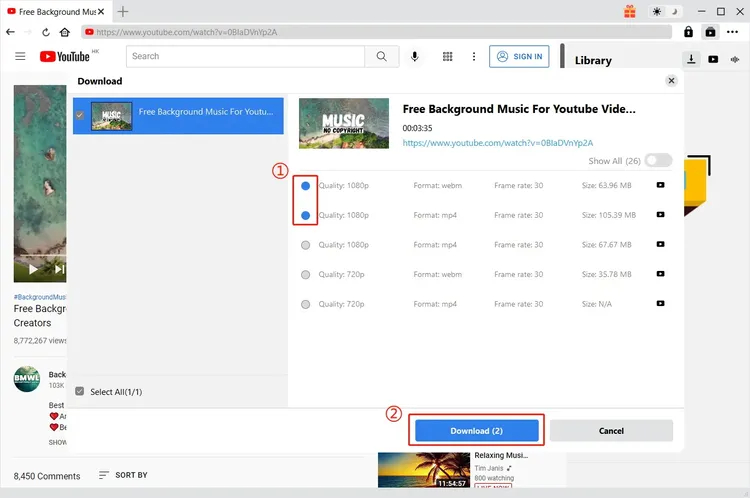
Step 3: Pick your preferred quality, then go with either MP4 or MKV. Subtitles might be an option – audio choices too, when they’re there.
Step 4: Once you hit Download, the tool pulls every piece of the video. It stitches those parts together – turning them into one full file. That file lands right where you chose. Now the streamed content plays any time, no connection needed.
FAQS
Q: Which devices or browsers can play HLS streams?
Most current gadgets handle HLS without issue. Apple’s Safari runs it straight out of the box. Google Chrome relies on HTML5 and MSE to make it happen. Firefox and Microsoft Edge do the same through similar web standards. Even VLC manages playback across different systems, including Windows machines, Macs, and Linux setups. Mobile phones find it easy to keep up, so do tablets and larger screens at home. Smart televisions process these streams smoothly day to day. Desktop computers have no trouble either when updated regularly.
Q: How can I download HLS streams?
A string of tiny video chunks makes up an HLS stream, each one storable on its own. Software such as CleverGet, ffmpeg, or youtube-dl/yt-dlp grabs those pieces from the web. Some streams come locked with encryption or DRM, making access trickier than usual. Special tools might step in when standard downloads hit a wall.
Q: Why is my HLS stream delayed?
Most of the time, regular HLS holds on to several chunks of video before showing them. That is why live videos using it tend to lag about ten to fifteen seconds behind what is happening now. LL-HLS, a newer version, cuts that wait down sometimes just two to five seconds. The older system will always carry a delay, simply because of how it adjusts quality while streaming.
Conclusion
One way to handle online videos? Try HLS. This format changes quality while you watch, depending on your internet speed and screen size. It splits movies or shows into small chunks sent through regular web links. That trick helps avoid breaks during viewing, no matter what gadget you use. Live events might show up a few seconds late, yet most gadgets still play them without trouble. You get subtitles, switchable picture clarity, plus ads if needed all built right in. Need to check a stream or keep a copy offline? Tools exist for that too. Programs such as VLC open these files directly; others help capture the data step by step. Even developers find value here, learning how things move from server to screen. Knowing how this system runs makes using streamed media less guesswork.
-

Most Popular Facebook Story Viewers Rank & BeyondPatrick Murray/2026-06-03
-

Is YouTube Smart Downloads Good or You Should Try Something Smarter?Patrick Murray/2026-06-03
-

How to Save Money on Discovery Plus SubscriptionSunny Wen/2026-05-28
-

ScreenRec Review: Is It Truly Free and Watermark-Free?Sunny Wen/2026-05-28
-

Can You Still Get a Free Trial on Discovery+?Sunny Wen/2026-05-20
-

Easy Guide: How to Burn Amazon Prime Videos to DVDs?Patrick Murray/2026-05-09
-

Where Are Amazon Prime Video Downloads Stored on PC/MobilePatrick Murray/2026-05-08
-

Sling TV or FuboTV: Which One Should You Pick?Sunny Wen/2026-05-11
-

Can You Share a Disney Plus Account with Different Households?Sunny Wen/2026-04-16
-

How to Use Loom Video Recorder for Quick Screen RecordingSunny Wen/2026-04-16
-

How to Download OnlyFans Videos from Messages?Patrick Murray/2024-05-09
-

[2026] What is OnlyFans Media not Loading Issue & How to Fix?Patrick Murray/2024-02-21
-

How to Download OnlyFans Videos on Android/iPhone/PC?Patrick Murray/2024-06-28
-

How to Download Private YouTube Videos Without AccessPatrick Murray/2025-02-12
-

How to Download YouTube Members-Only Videos?Cassie J./2024-05-08
-

Latest List of the Best Free Movie Websites[2026]Patrick Murray/2024-05-07
-

[2026 Update] How to Download All Media from OnlyFans?Patrick Murray/2024-02-26
-
TK2DL: Features and Uses of this TikTok & Twitter DownloaderLeia Liu/2024-09-05
-

10 Best HDHub4u Alternative Sites for Movie DownloadPatrick Murray/2024-03-06
-

How to Turn Off Age Restriction on YouTube?Patrick Murray/2024-03-04
 English
 Deutsch
 日本語
日本語 French
 한국인
한국인 Italiano