


 Try for Free
 Try for Free
Share article:


How to Use Loom Video Recorder for Quick Screen Recording

2026-04-16 ・ Related to: Free Screen Recorder
60 Views
Summary:
The core feature of Loom Video Recorder is the ability to quickly record the screen. If you are interested in its feature , you definitely shouldn’t miss this detailed explanation of Loom Video Recorder.
MenuCLOSE
Once, to explain a work process to my new colleague, I first took screenshots and then adding text instructions, yet she still didn’t quite understand; another time, I scheduled a live meeting to show a product feature to a client, but before the meeting started, the client informed me they had something come up. If you’ve experienced something similar to me, then you really should know Loom video recorder. At that time, I happened to come across a review about Loom online. After reading it, I felt it could solve some of the pain points in my work, so I started using it. This article will use my personal experience to comprehensively analyze it and provide an excellent alternative worth considering.
Why I Started Using Loom
In fact, as someone who frequently needs to collaborate remotely, compared to the Loom video recording function, I care more about the ‘after recording’ part. Here are a few features that personally attracted me to start using Loom:
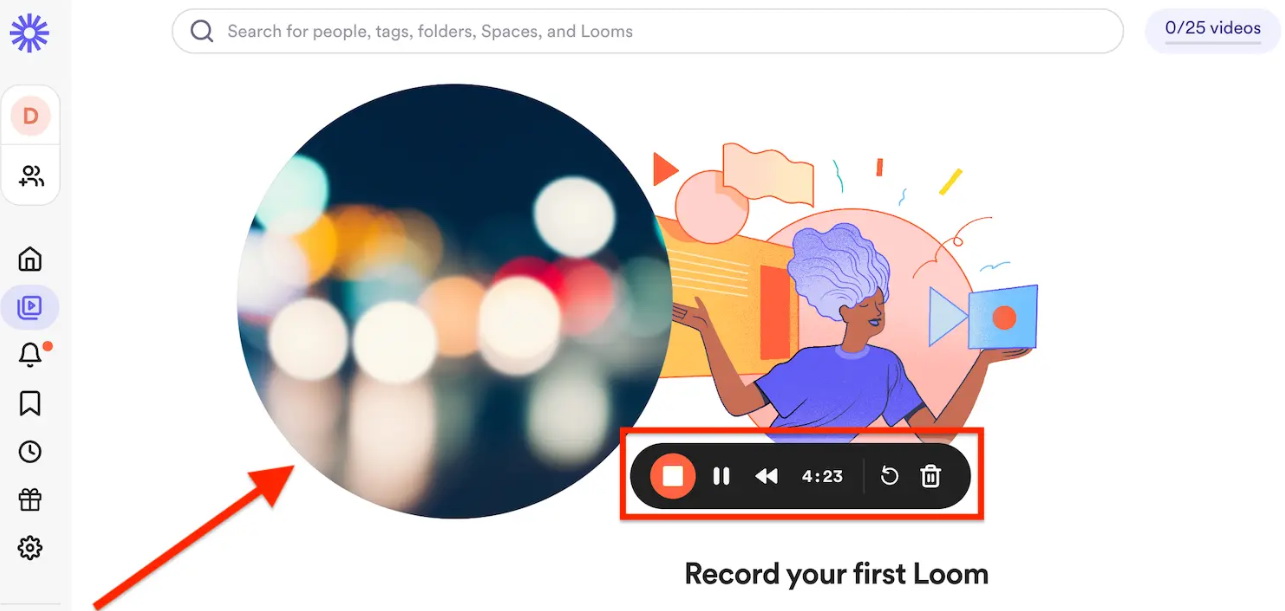
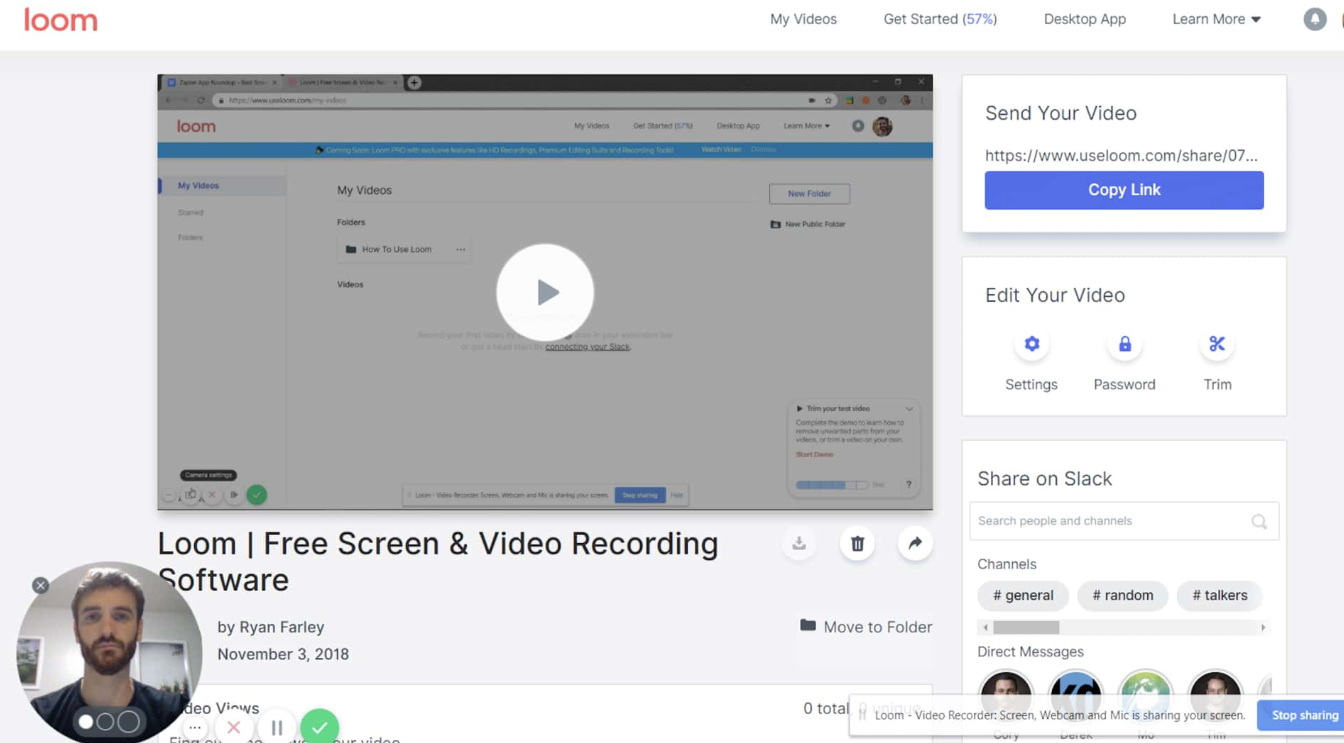
Instant sharing. After Recording finishing, Loom automatically generates a unique link, which I can paste into Slack or email, and the recipient can watch with a click.
Picture-in-picture camera overlay. Loom supports overlaying my webcam feed as a bubble on top of the screen while recording and allows free adjustment of its position and size.
Team collaboration. After recording a video, other team members can comment below the video with emojis or text, and see who has watched it and for how long.
How to Record Screen with Loom
The operation of recording with Loom is very simple. Here are the specific steps:
Step 1: Download and install from the official website.
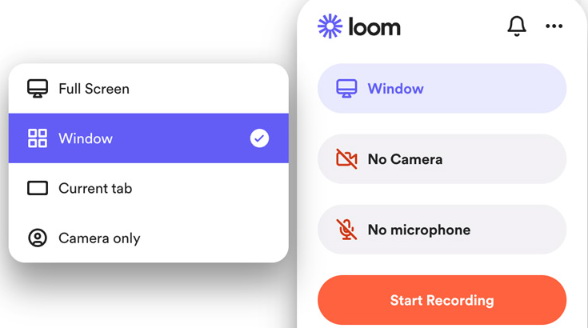
Step 2: After opening Loom, select the recording mode: screen only, camera only, or both simultaneously.
Step 3: Click “Settings” to select the audio source and also adjust the size and position of the camera bubble.
Step 4: Click “Start Recording” to begin recording.
Step 5: After recording, the video will be automatically uploaded to Loom’s cloud.
Note: Loom itself only provides screen recording functionality. If you also need to take screenshots on Windows, then you can quickly bring up the screenshot tool or window mode to take screenshots. The screenshots will be automatically copied to the clipboard for pasting.
Common Issues and Limitations
I have praised Loom so highly, does that mean it is so perfect that it has no flaws? Of course not. During my use, I discovered some obvious limitations. I will now list these limitations to help you determine whether you can accept them.
Limits
- Duration limit. Loom’s free version limits the recording time of a single video to 5 minutes, and the entire account can only save up to 25 videos.
- Must be used online. Loom’s recording and sharing rely on the cloud. If you work in an environment without the internet, you won’t be able to use Loom.
- Limited editing features. Loom’s editing tools are limited to basic trimming, adding titles, and subtitles, and cannot perform complex operations such as multi-track editing.
- Free version lacks advanced features. Features such as custom branding and team space management are only available in the paid version.
Best Alternative to Loom
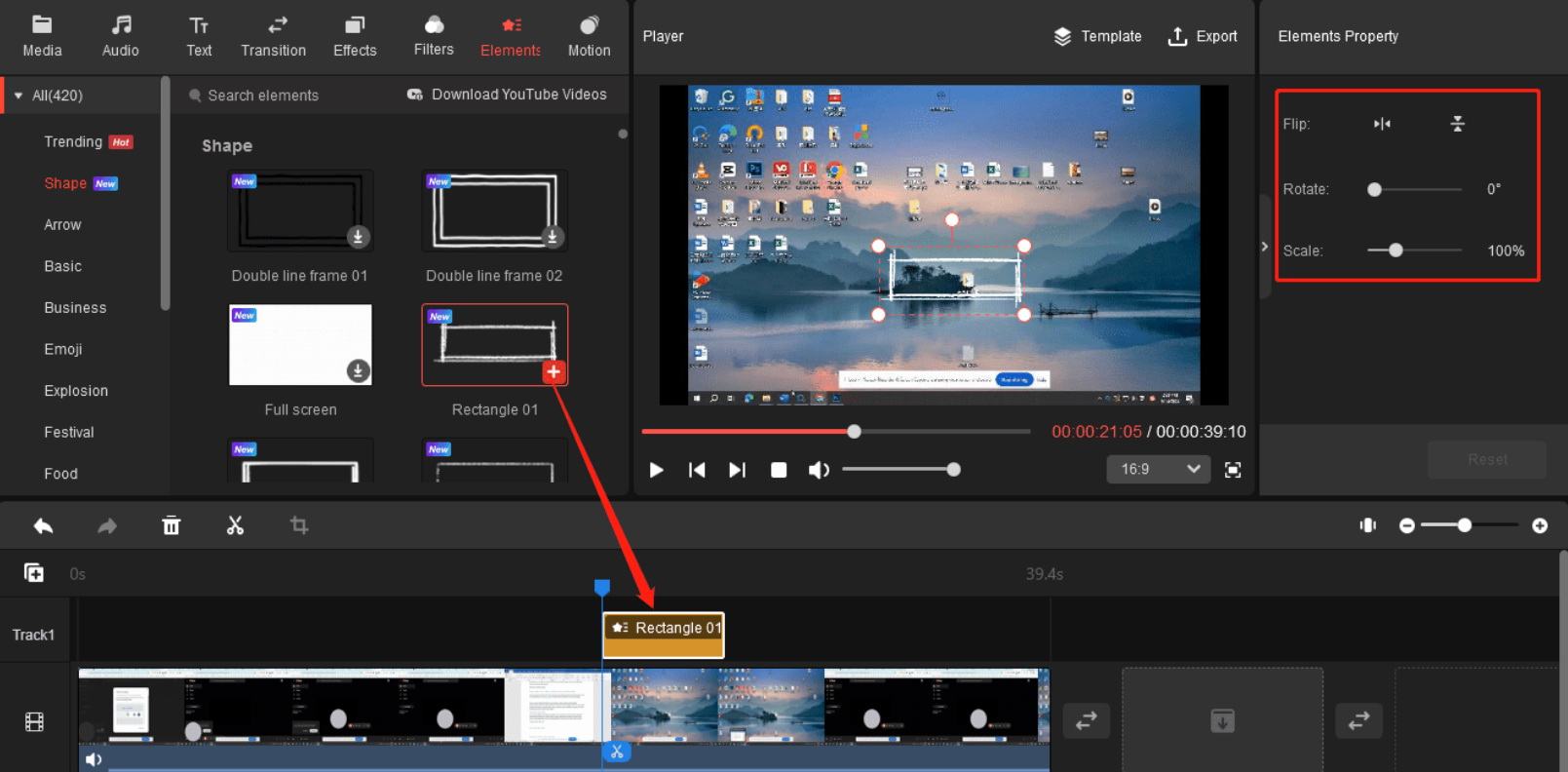
If you cannot accept the limit of Loom’s free version and hope to have a free screen recording tool that can record offline without any restrictions, then Leawo Free Screen Recorder is an option. It is a lightweight yet powerful free screen recording solution, and its core pros include: free with no recording time or watermark limitations; supports recording high-definition video up to 4K resolution at 60FPS; can record both system audio and microphone input, making it very suitable for recording gameplay. In addition, Leawo Free Screen Recorder also integrates audio recording, webcam recording, and screenshot functions. Unlike Loom, it is desktop software that supports offline recording, and the recorded videos are saved as local MP4 files, allowing you to decide how to use and share them. Therefore, if you are looking for a fully-featured and completely free screen recorder, it is undoubtedly an alternative to Loom.

-
4-in-1 screen recorder suite to record gameplay, tutorial, training video, lecture, reaction video, webninar video, etc.
- Free online recorder to record window, browser tab or entire screen online.
- Free screen recorder to record screen in full-screen or custom area at up to 4K to MP4.
- Free webcam recorder to record webcam video.
- Free audio recorder to record audio from microphone or computer to MP3.
- Free screenshot snapper to snap screenshot to JPG.
Final Thoughts
The core feature of the Loom Screen Recorder is that it combines screen recording with asynchronous communication. So if your daily work involves a lot of remote collaboration, Loom’s sharing experience and team collaboration features will be quite useful for you. However, if you need to record long videos, want to use it offline, or don’t want to pay for screen recording, then I would rather recommend you choose Leawo Free Screen Recorder, which has no time limits.
FAQs
1. Is Loom Video Recorder free?
Loom offers a free version, but it limits each video to a maximum of 5 minutes and allows an account to save up to 25 videos.
2. Does Loom record audio?
Sure. Loom supports recording both system sound and microphone audio at the same time.
3. Can you use Loom offline?
No. Loom’s recording and sharing must be used in an environment with internet access.
4. Does Loom record both screen and webcam at the same time?
Sure. Loom supports recording the camera in picture-in-picture mode while screen recording, and the position and size of the camera bubble can be freely adjusted.
5. Where are my Loom videos stored?
Loom videos are saved to the cloud by default. After recording, you can access and manage your video library through the Loom website.
Free Screen Recorder

 Try for Free
 Try for Free
 Totally free to use.
Record desktop activities to MP4 files.
Record webcam content to MP4 files.
Record audio from system or microphone to MP3.
Take screenshot with annotation.
 English
 Deutsch
 日本語
日本語 French
 한국인
한국인 Italiano