


 Try for Free
 Try for Free
Share article:


Easy Guide: How to Burn Amazon Prime Videos to DVDs?

2026-05-09 ・ Related to: CleverGet Amazon Downloader
65 Views
Summary:
Check out this guide to easily create your own Amazon movie DVDs, based on my own experience and featuring a practical workaround that really works!
Ever want to turn your favorite Amazon Prime movies into physical DVDs? This could be a great solution if you want to keep them forever. It makes sense, since the streaming content is not always permanent. So, can you burn Amazon movies to DVDs? In this guide, I will share my own experience and a practical workaround that truly works! Just read on!
MenuCLOSE
1. Is It Possible to Burn Movies from Amazon Prime Video onto a DVD?
NO. We cannot burn Amazon Video to DVD. All movies or shows on the platform are protected by Digital Rights Management (DRM). This is a highly sophisticated technology for copyright protection, and that means you can’t copy, export, or transfer the videos outside Amazon.
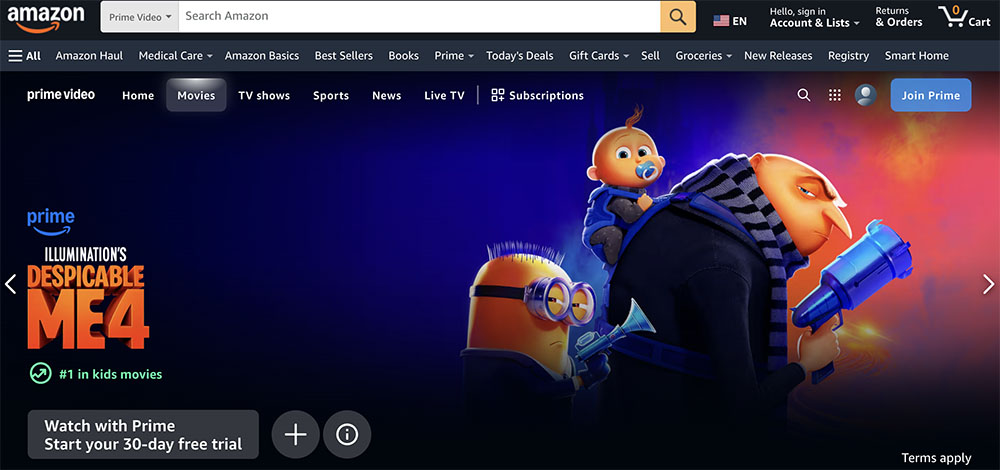
So what about the download feature? A fact to know is that the downloaded video is not a standard video file; it’s more like a virtual cache that is tied to the app itself. There is no way we can burn them to a DVD because you need actual video file formats like MP4, MKV, etc.
That’s why I began searching for alternative methods to preserve the movies. And it turns out we need third-party tools to convert downloaded content into compatible videos/DVDs. After researching and testing for a while, I eventually came up with a practical workflow that can actually create Amazon movie DVDs.
2. A Practical Workaround for Burning Amazon Prime Videos to DVD
Based on my personal experience, the most reliable way to burn Amazon movies to DVD involves two main steps: DOWNLOAD & CONVERT. Let’s dive in!
Download Amazon Prime Videos
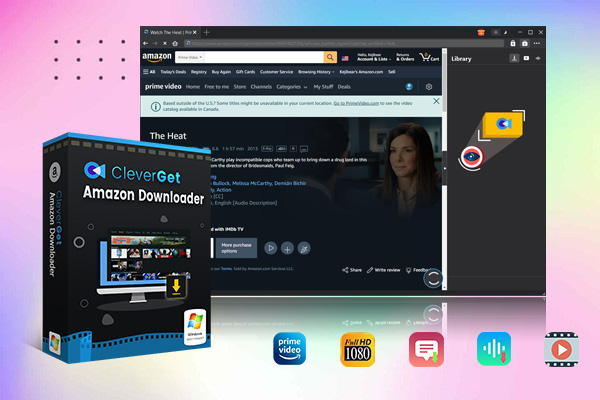
CleverGet Amazon Downloader is a truly handy tool for video downloads. I can literally download everything to MP4 or MKV files with up to 1080p resolution. Another reason that makes it outstanding is that it supports audio tracks and multi-language subtitles. With CleverGet Amazon Downloader, I can save my favorite Amazon content to actual video files that can be burned onto DVDs.
Step 1. Download and Install
Get the CleverGet Amazon Downloader for your Windows or Mac computer. Use the built-in browser to sign in with your Amazon Prime account.
-
- Download Amazon Prime video to MP4/MKV.
- Batch download Amazon Prime Video TV episodes across seasons.
Step 2. Analyze Video Source
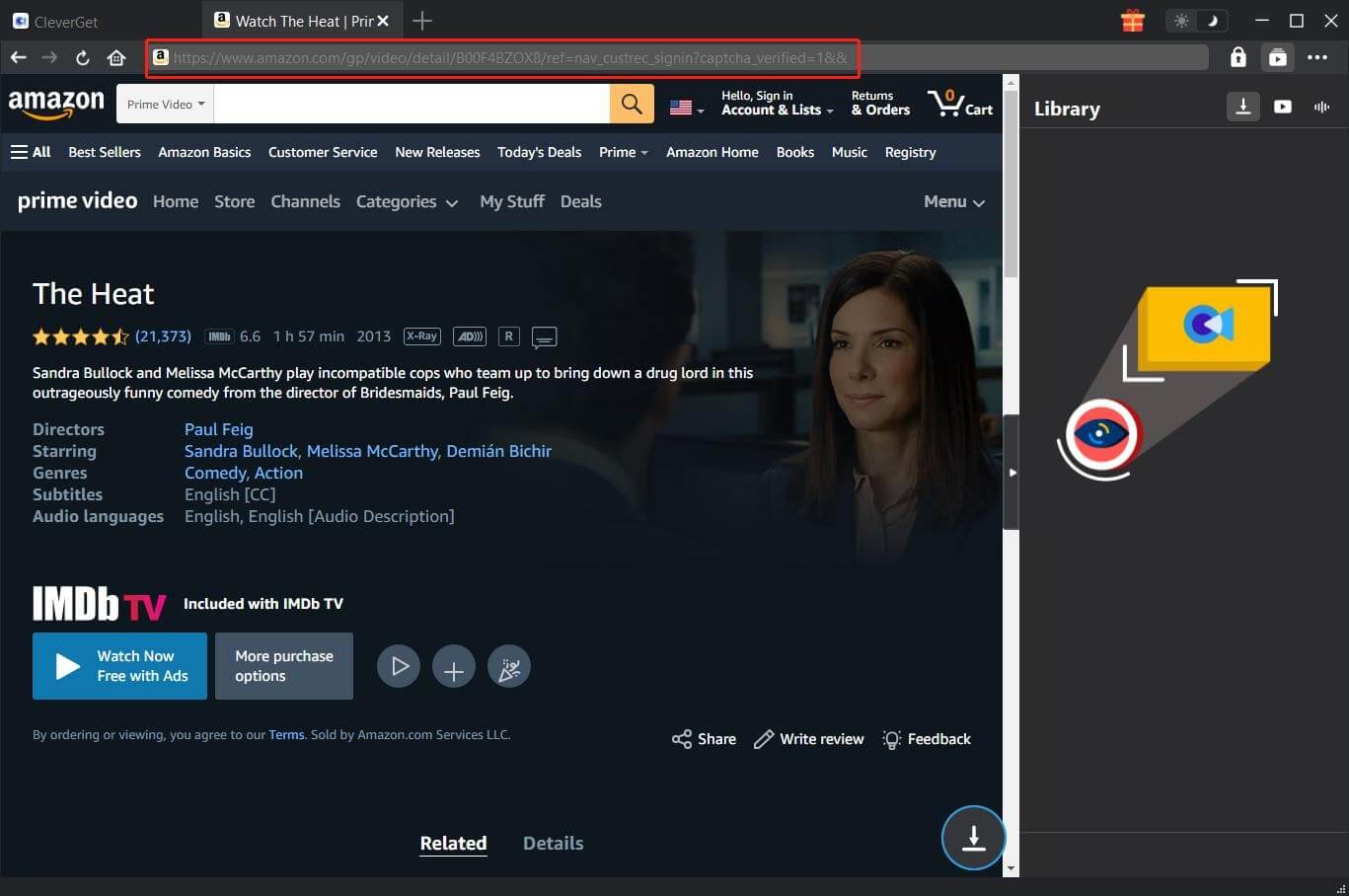
Copy the URL of the desired movie or TV show and paste it into the browser. You can find episodes and seasons for TV series available for download as well.
Step 3. Customize Download Settings
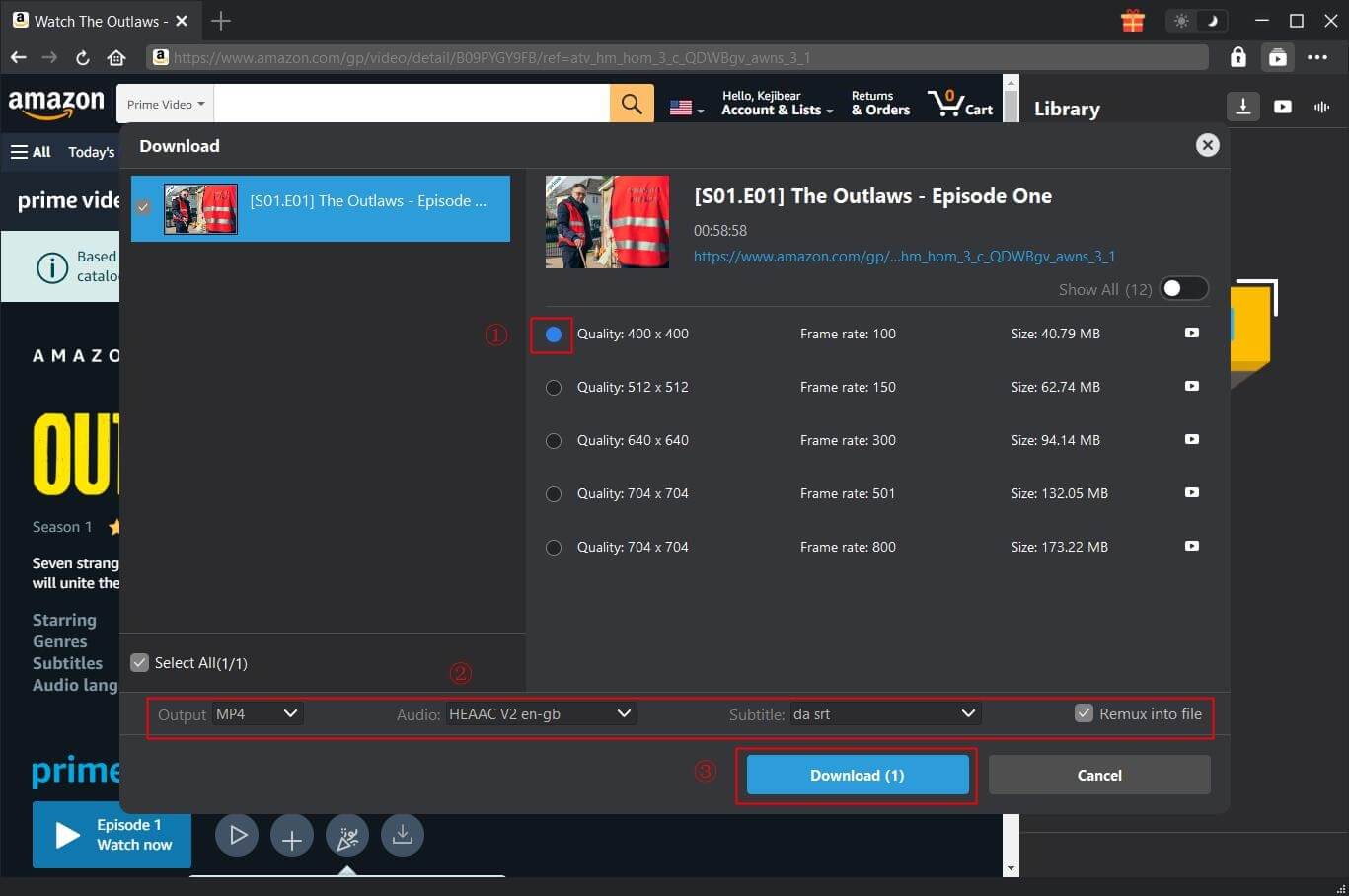
Now it’s time to select preferred settings (video quality/output format/audio tracks). You can even embed or save subtitles as SRT/SUP files. After all is set, click the “Download” button to save the videos easily.
Burn Amazon Video to DVD
Once the downloaded video files are ready, the next step is to burn Amazon movies to DVD. Here, I chose Leawo DVD Creator, a great tool that helps me make it happen easily. According to its official website, it even supports a menu and rich customization options. The processing speed is super-fast, and the output quality is solid. Based on my user experience, I would say it’s a truly reliable solution for creating Amazon movie DVDs.
Step 1. Get Leawo DVD Creator
Download the software for your operating system. Install and open the DVD Creator module from the interface.
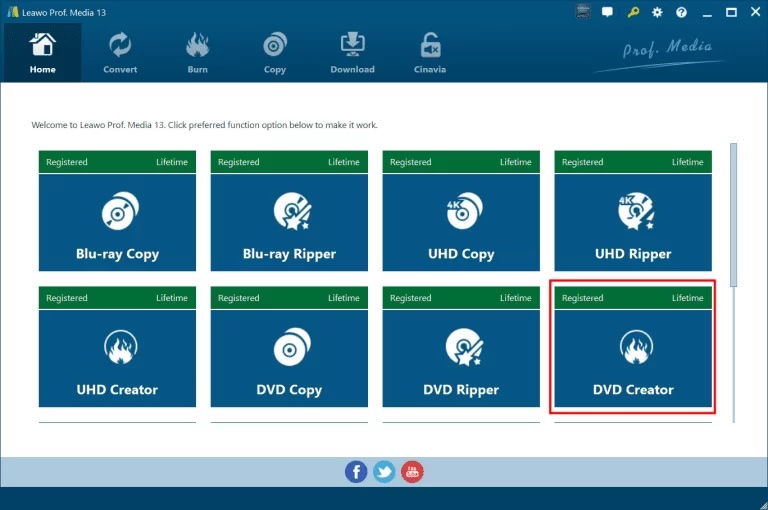
Step 2. Import Downloaded Videos
Then you need to import the source first. Click the “Add Video” button or drag and drop the downloaded MP4/MKV files into the interface.
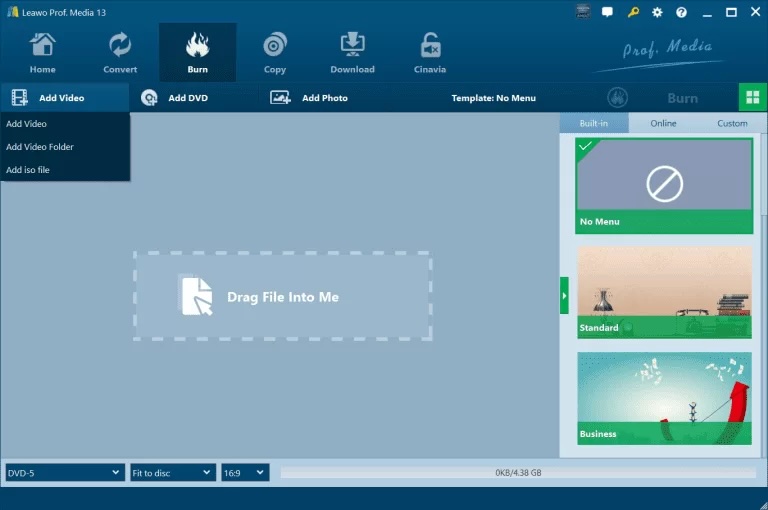
Step 3. Set DVD Parameters
Then check the bottom section. Here, you need to choose the DVD formats (DVD-5/DVD-9). DVD-5 is for standard-length videos, DVD-9 is for longer hour videos. Don’t forget to set the aspect ratio and enable “Fit to Disc.”
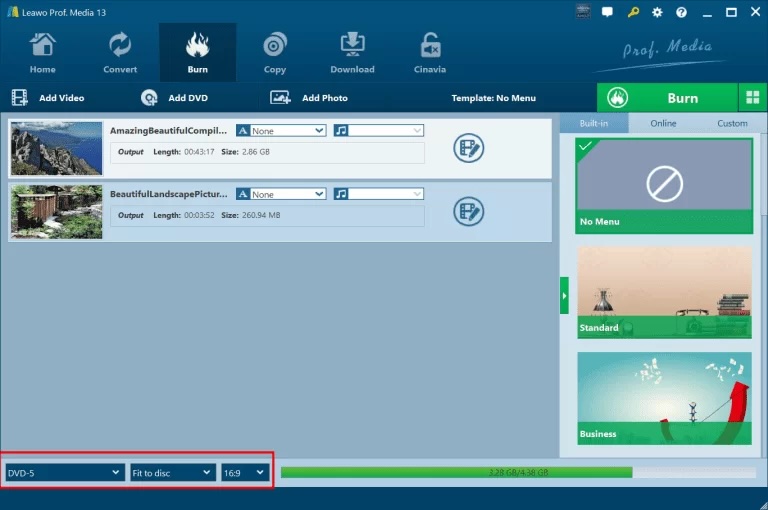
Step 4. Configure Burn Settings
Click the “Burn” button, and adjust the settings for disc label, output location, etc. Insert a blank DVD. Confirm all the settings to burn a movie to DVD.
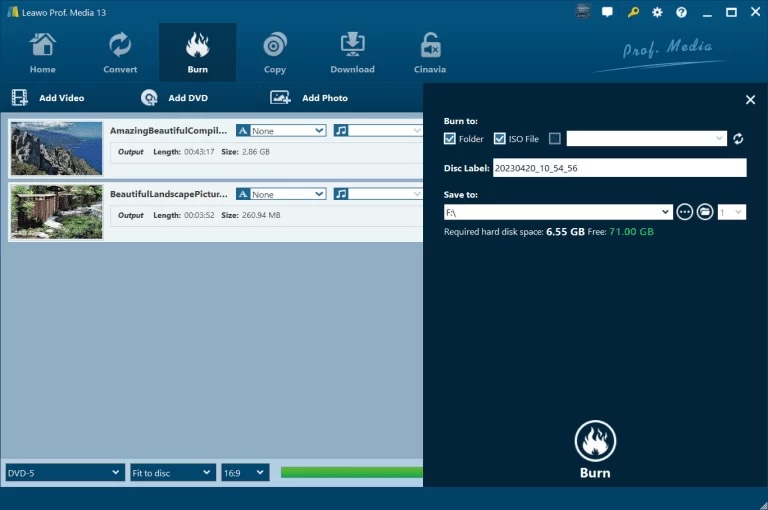
Legal and Policy Explained: What You Should Never Forget
These steps are meant for personal use only. Most Amazon Prime videos are protected by DRM. Do not burn the videos for commercial purposes and never share or upload your downloads. Keep your downloads and burned DVDs just for your own viewing.
3. Frequently Asked Questions
Can purchased Amazon content be burned?
Unfortunately, No. I also purchased a movie on Amazon, but then I found I could only watch and download it within the app. Not to mention burning onto DVDs. That’s why I’ve concluded the workflow.
Why may improperly burned DVDs not work on standard players?
Standard DVD players require a proper DVD-Video format. As I found, this should be a disc structured with a VIDEO_TS folder and MPEG-2 video. So you might check if your burned DVDs are equipped with this. Meanwhile, incorrect burning settings and low-quality blank discs can also cause playback failures.
Why may high-quality videos lose clarity when converted to standard DVDs?
Standard DVDs are limited to SD resolution, so that’s about 720p. When you convert a 1080p or higher Amazon video to DVD, the software will downscale it. This will reduce sharpness and detail naturally.
CleverGet Amazon Downloader
 Try for Free
 Try for Free
 Download Amazon Prime movies and TV shows.
Support batch Amazon Prime video downloads.
Download Amazon Prime videos to 1080P MP4/MKV.
Save subtitles and audio tracks.
Save subtitles as SRT/SUP or pack into video.
Remove ads during Amazon Prime video downloads.
 English
 Deutsch
 日本語
日本語 French
 한국인
한국인 Italiano