


 Try for Free
 Try for Free
Last updated on 2026-01-15, by
How to Watch Disney+ on Any Smart TV
Summary:
Wonder how to get Disney Plus on your smart TV if you want to watch your favorite movies and TV shows on a big screen? This guide will show you how to easily and step-by-step set up Disney Plus on any smart TV.
Outline
Introduction
The Walt Disney Company’s streaming service, Disney Plus, came out in November 2019. It has a lot of different kinds of material, like movies, TV shows, documentaries, and Disney, Pixar, Marvel, Star Wars, and National Geographic original shows. It also allow you to download the shows on the platform with certain restriction.
How to Get Disney Plus on Smart TVs
First of all, let’s see how to put disney plus on Samsung, LG, Android / Google, Amazon Fire and Roku smart TVs.
Samsung Smart TVs
The app screen that comes with this TV is the best way to get the Disney Plus app. It only takes a few steps to do:
Step 1: Join Disney Plus. This can be done on the Disney Plus site.
Step 2: Check to see if your TV can connect to the internet.
Step 3: On the home screen, scroll left to find the "apps" icon and tap it.
Step 4: Type "Disney+" into the search box.
Step 5: "Add to Home" the Disney Plus icon to install and download the app.
Step 6: Sign in to the app.
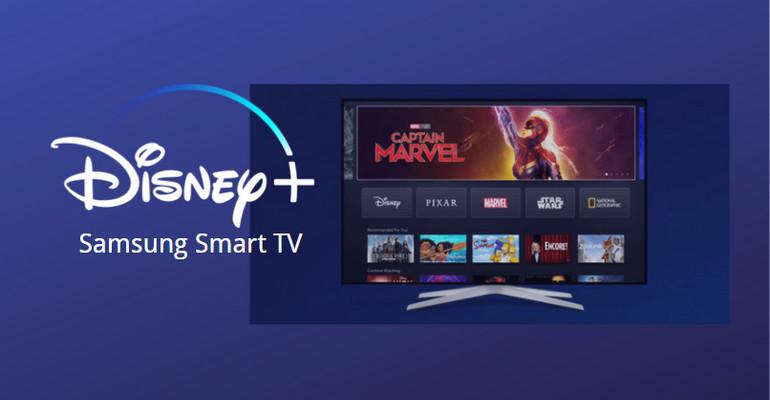
Note: Samsung Smart TVs after 2016 (those that use the Tizen OS) can download the Disney Plus app.
LG Smart TVs
The LG Content Store is the best way to get there. It only takes a few steps:
Step 1: Join Disney Plus.
Step 2: Make sure that your TV can connect to the internet.
Step 3: Find the LG Content Store on your home screen and click on it.
Step 4: Type "Disney+" into the search box at the top of the screen.
Step 5: Click on the Disney Plus icon and set it up. This will put the app on your home screen.
Step 6: Press the LG Home Launcher icon that looks like a pineapple.
Step 7: Log in and start your streaming.
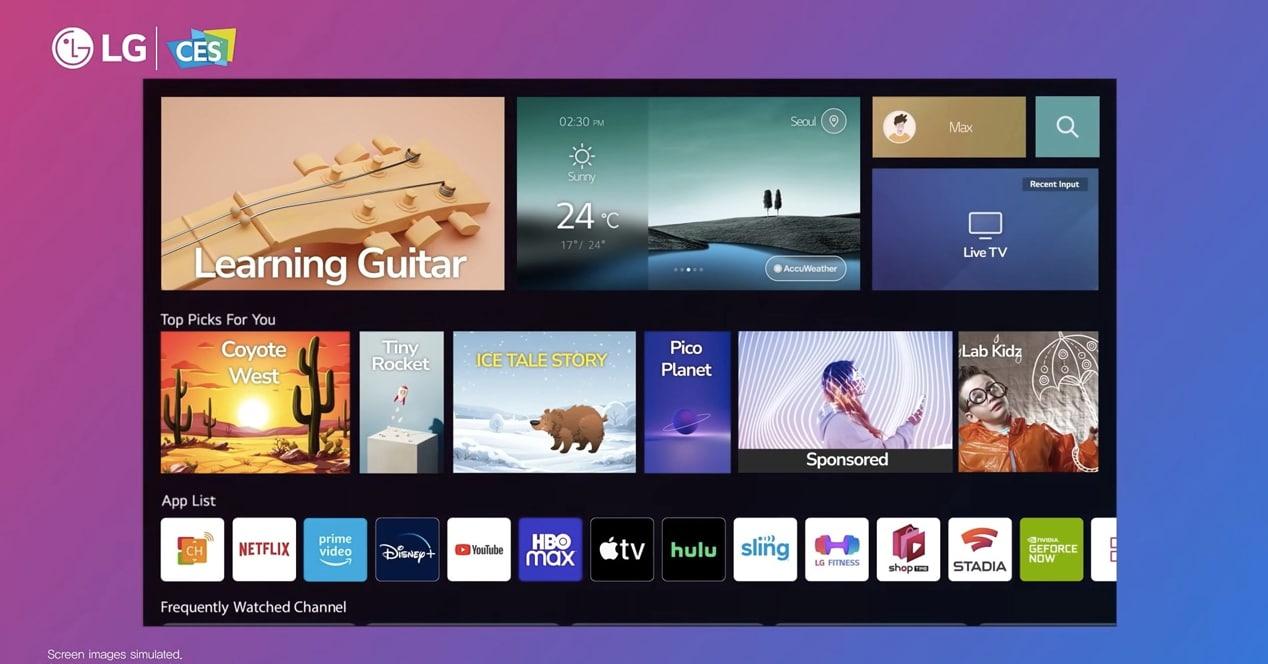
Note: Disney Plus only works with LG Smart TVs that were made after 2016 and have WebOS 3.0 or higher.
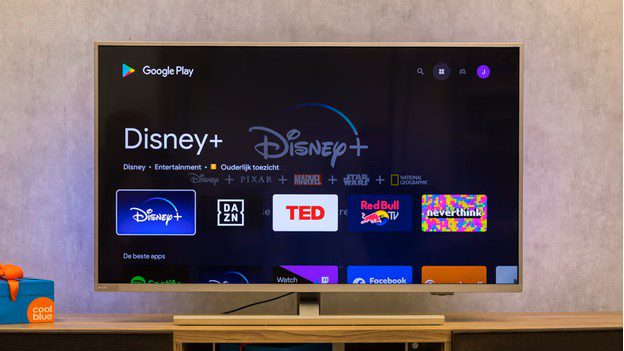
Android TV / Google TV
Step 1: Connect your Android TV to the internet and turn it on.
Step 2: Go to the home page and click on the "Apps" tab.
Step 3: Click "Get more apps" to open the Google Play store.
Step 4: Press OK after typing "Disney Plus" into the search bar.
Step 5: Select "Install" and then open the Disney Plus app.
Amazon Fire TV Edition TVs
Step 1: Go to the home screen. Press the Home button on your remote.
Step 2: Look for the "Search" button. Find "Find" and then click on "Search" (the icon that looks like a magnifying glass).
Step 3: Look for Disney+. Use the on-screen keyboard to type "Disney+" or press the microphone button and speak to use voice search.
Step 4: Choose the official Disney+ app from the list that comes up.
Step 5: Tap “Download" to install the app on your phone. Then you can open it and sign in to start watching.
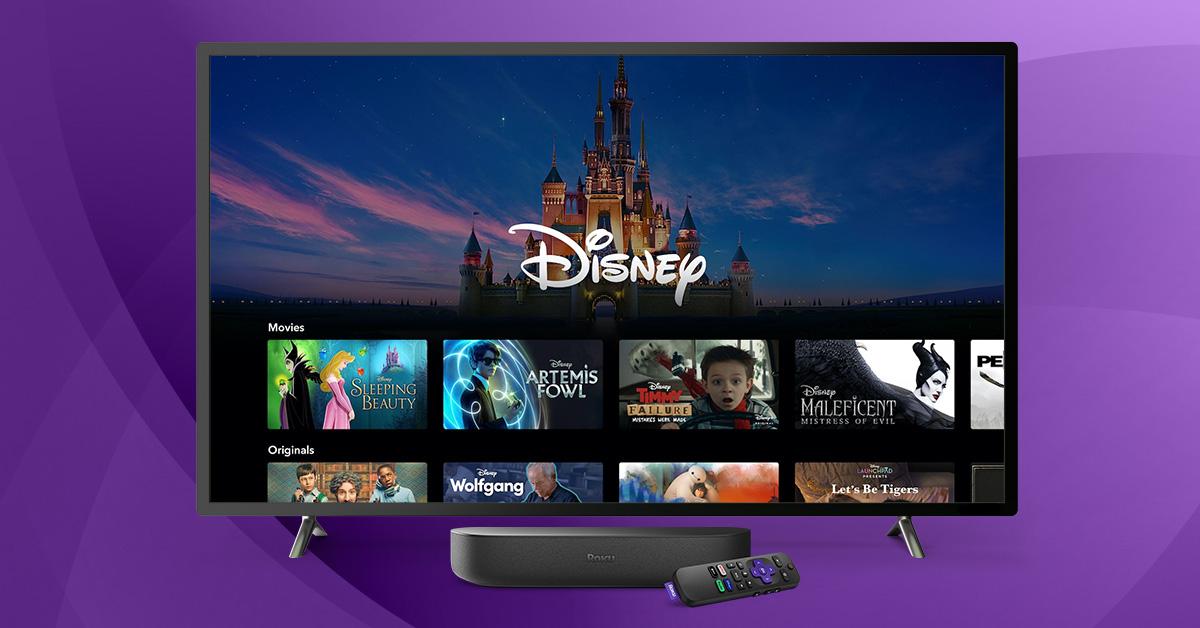
Roku TV
Step 1: Press the TCL Roku TV remote’s "Home" button.
Step 2: Move your mouse up or down and click on Streaming Channels.
Step 3: Pick out the search channels
Step 4: Type "Disney Plus" into the search box.
Step 5: Once you see the channel, use the directional pad on your TCL Roku TV remote to make Disney Plus stand out.
Step 6: Press the OK button on the Roku remote to see more information.
Step 7: Click on Add Channel.
Watch Disney Plus on TV Using Streaming Devices
You can still watch Disney Plus on your TV even if you don’t have a smart TV if you have a streaming device. One can be an Amazon Fire Stick, another can be a Roku streaming stick, or still another can be an Apple TV.
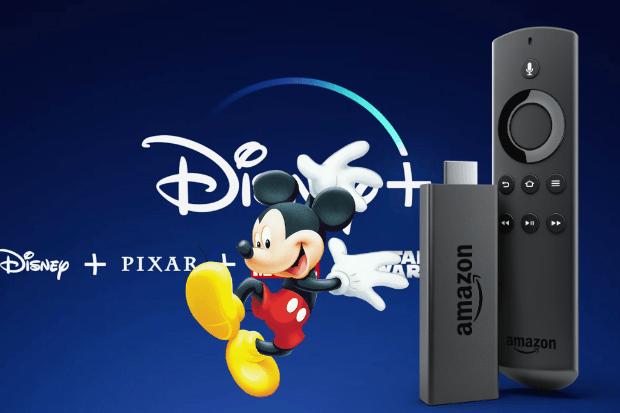
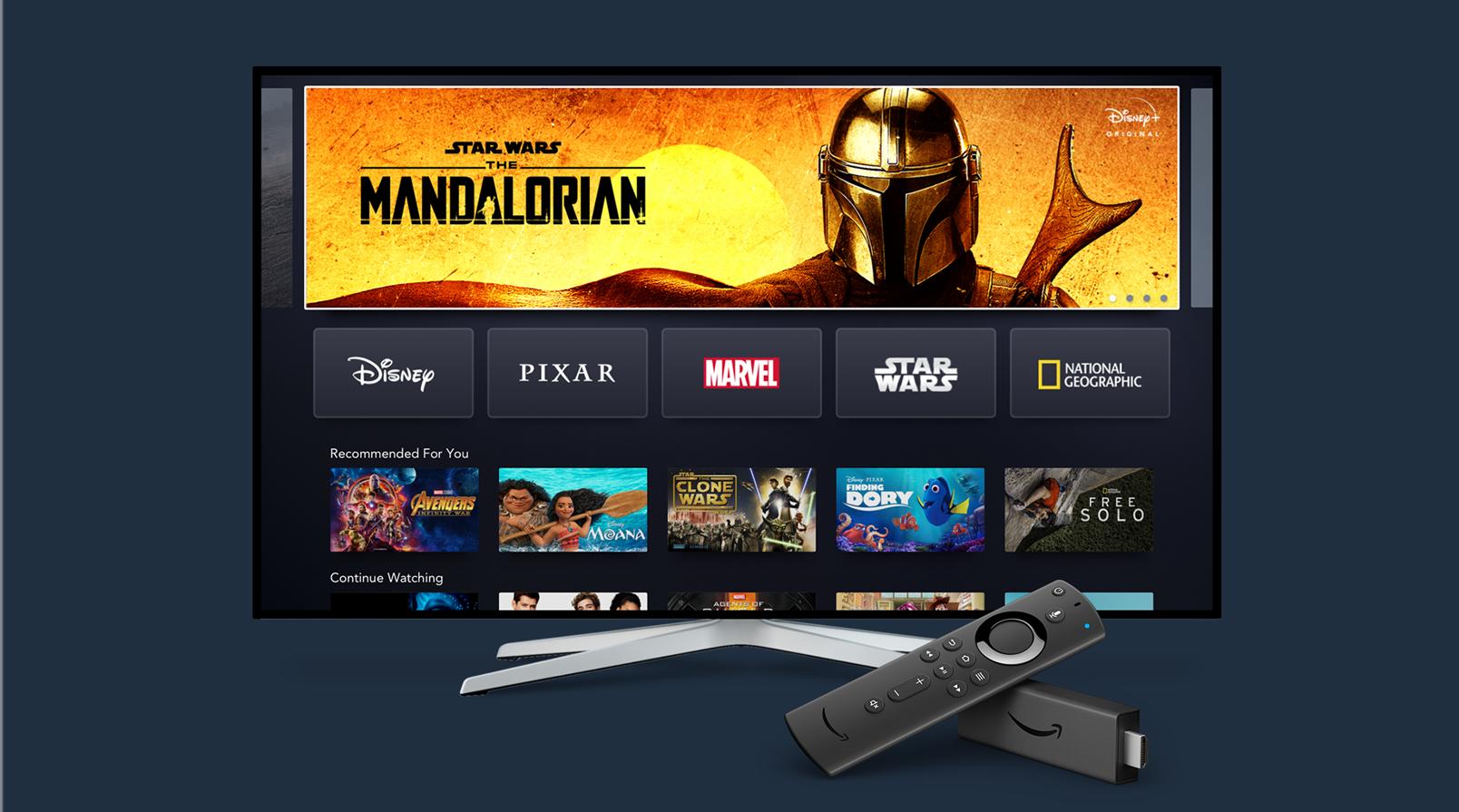
Amazon Fire Stick / Fire TV
Step 1: Hook up your Amazon Fire Stick to your smart TV’s HDMI port.
Step 2: Plug your Fire Stick into the HDMI port on your TV and turn it on.
Step 3: Go to the home screen with the Fire Stick remote.
Step 4: Go to the Amazon Appstore on your Fire Stick and open it.
Step 5: Look for the app for Disney Plus.
Step 6: In the list of apps, click on the Disney Plus icon. Then, click "add to a home."
Step 7: The app will be downloaded and put on your Fire Stick.
Step 8: Open it up and log in with your credentials.
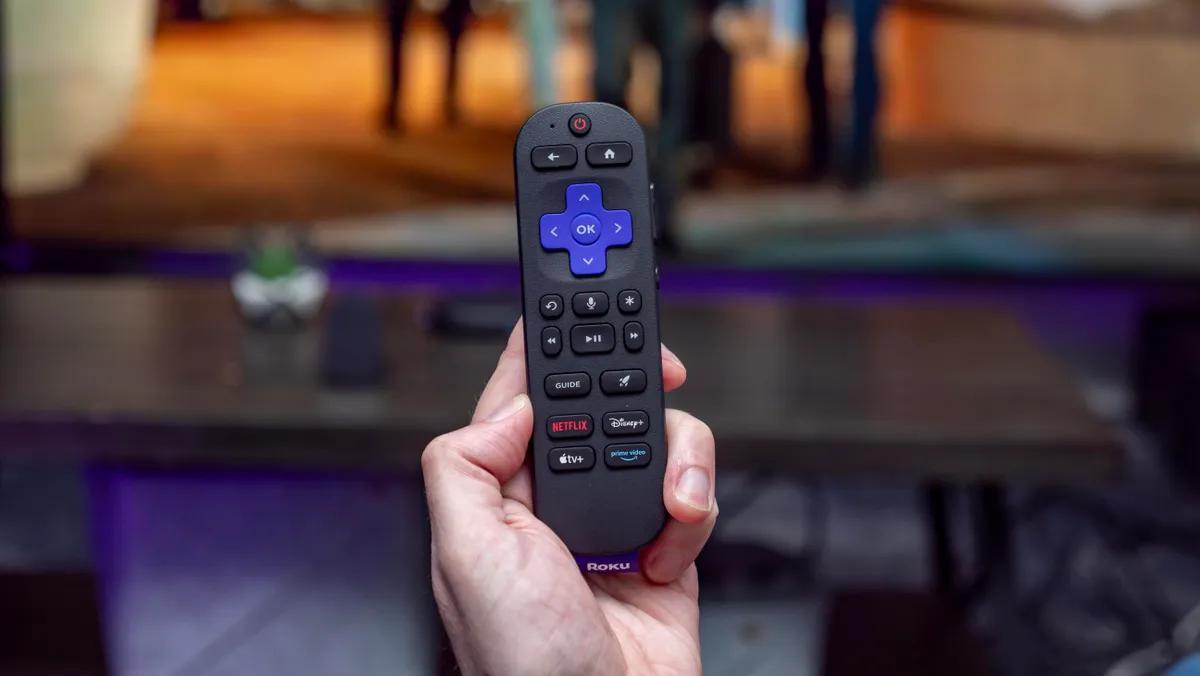
Roku Streaming Stick / Roku Ultra
Step 1: Use the HDMI port on your smart TV to connect your Roku.
Step 2: Start up your TV and navigate to the HDMI port where your Roku is plugged in.
Step 3: To get to the home screen, use your Roku remote.
Step 4: Log in to the Roku Channel Store.
Step 5: Find the app for Disney Plus.
Step 6: Pick out the Disney Plus app and click on it. Then, click "add to a home."
Step 7: The app will be downloaded and put on your Roku. Start it up and sign in.
3. Apple TV
You can get the Disney Plus app for Apple TV, which means you can watch it along with Netflix, Amazon Prime Video, and Now TV.
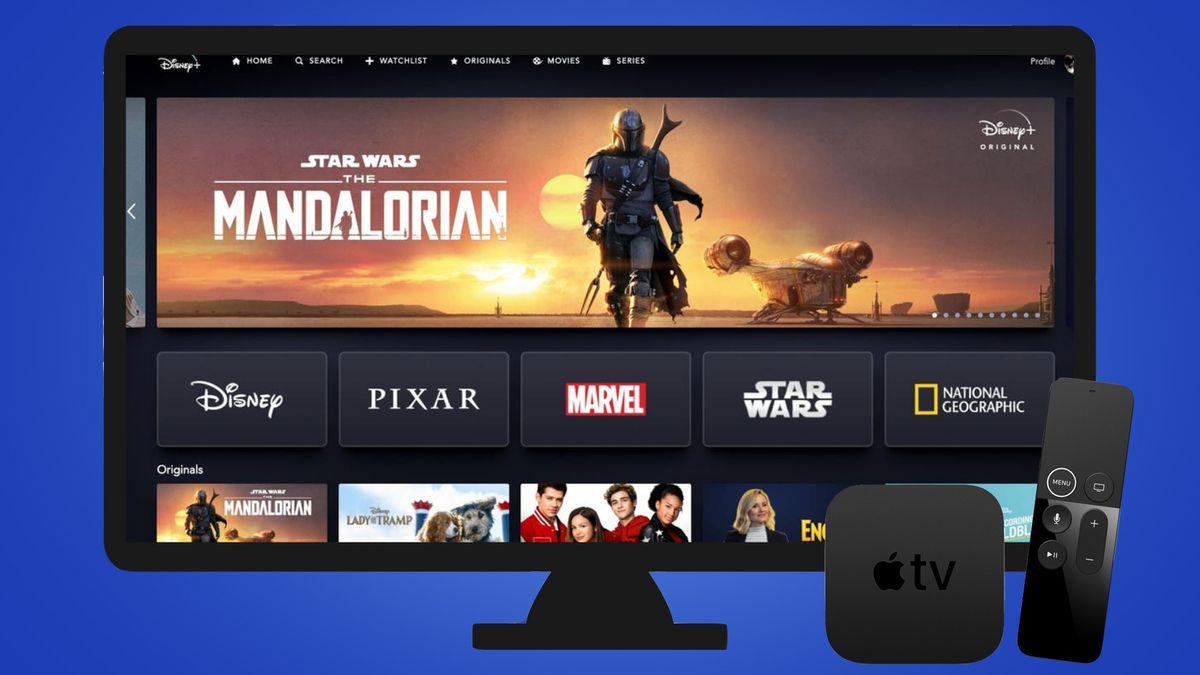
Step 1: Open up an Apple TV from the fourth generation or later and go to the App Store. Type "Disney" into the search box.
Step 2: Click "Get" next to the Disney Plus app.
Step 3: After downloading the app, go to the home screen and choose it. Then, sign in or create an account to start watching Disney Plus shows and movies on your Apple TV.
Cast Disney Plus to TV from Phone or Tablet
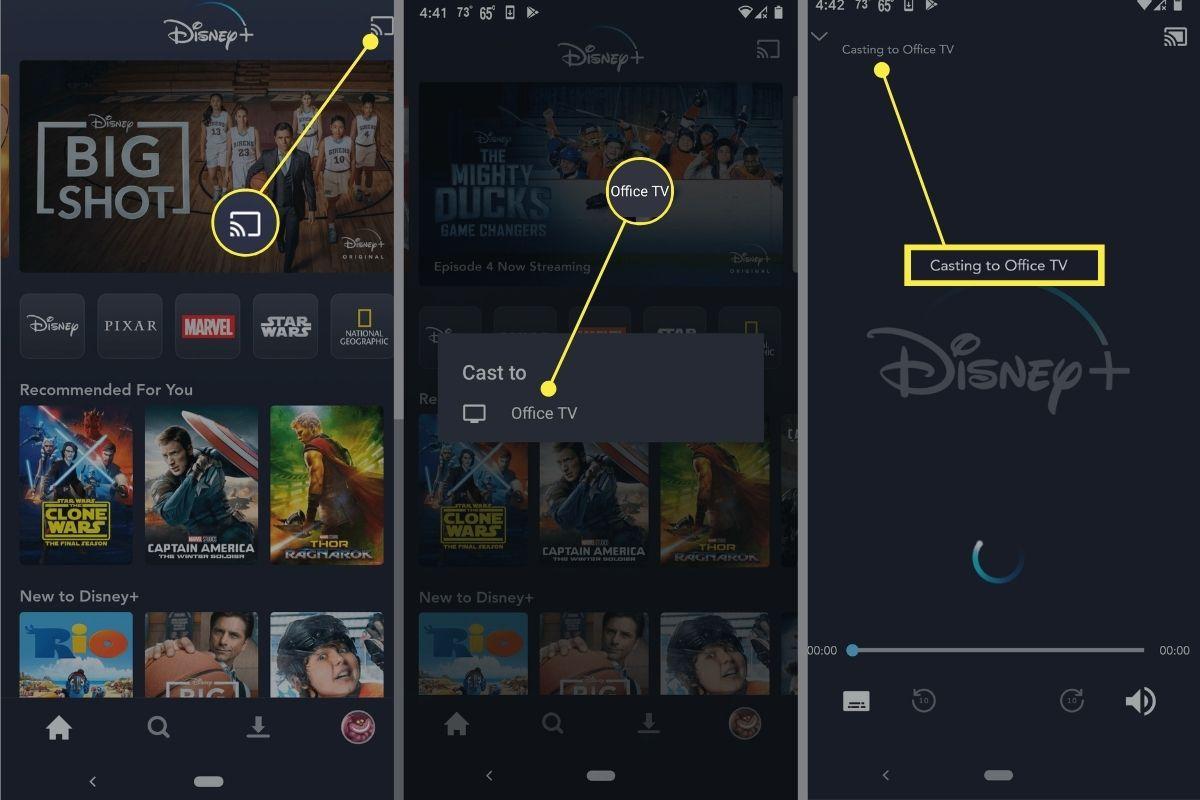
To cast Disney+ from your phone or tablet, make sure both are connected to the same Wi-Fi network and use Chromecast (Android/iOS) or AirPlay (iOS). Then, open the Disney+ app, tap the square with Wi-Fi waves that looks like a remote, and choose your TV or device.
For Chromecast (Android & iOS)
Step 1: Make sure that your phone or tablet and the Chromecast device (or a smart TV that has Chromecast built in) are both connected to the same Wi-Fi network.
Step 2: On your phone or tablet, open the Disney+ app.
Step 3: Pick out the show or movie you want to watch, then press "Play".
Step 4: Tap the Cast icon. At the top of the screen, tap the Cast icon, which looks like a rectangle with Wi-Fi waves in the corner.
Step 5: From the list, choose your Chromecast or TV that can cast. Your content will start to play on the TV. You can control playback with the app.
For Apple AirPlay (iOS Devices)
Step 1: To connect, make sure that your Apple TV and iPhone or iPad are both on the same Wi-Fi network.
Step 2: Open Disney+ and start watching.
Step 3: Tap the AirPlay icon. At the top of the screen, there is an icon that looks like a triangle with three circles inside it.
Step 4: From the list of devices, pick your Apple TV.
Use HDMI Cable to Get Disney Plus on TV
You can also connect a streaming device, like a Roku, Fire Stick, or Apple TV, or a computer or phone (with an adapter) to your TV’s HDMI port with an HDMI cable. After that, check that your TV is set to the right input and log in to Disney+ on the device.
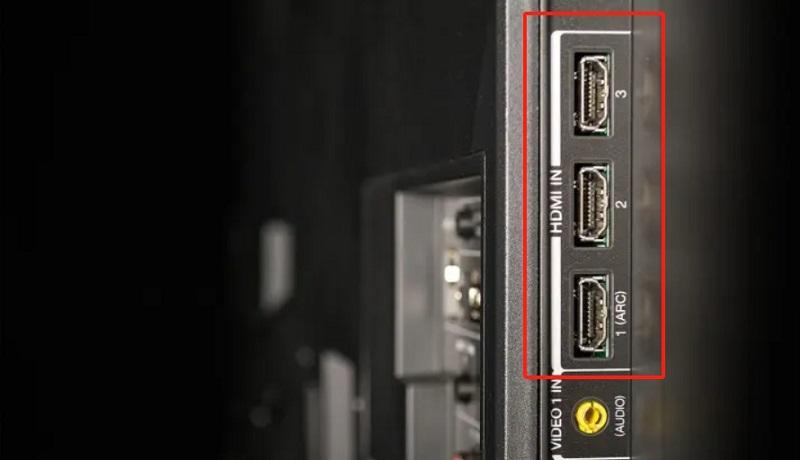
Note: For the best quality, make sure that your devices and cable can handle HDCP 2.2 for 4K/HDR content.
Download Disney Plus Videos to Watch on Any Devices
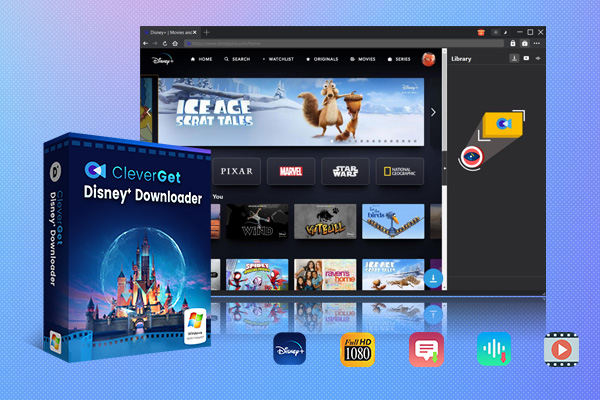
If you prefer to download movies from Disney Plus and watch them on any device you have, regardless of mobile phones or TVs, CleverGet Disney Plus Downloader is definitely what you need! This professional tool is easy and efficient to use. You don’t need to worry about download limits, and you can download movies from most of the popular websites.
-
CleverGet Disney Plus Downloader
Professional Disney Plus video downloader to download on-demand videos like movies and series at 720P quality with selected subtitles and audio tracks.
- Download and convert Disney Plus video to MP4/MKV.
- Batch download TV episodes across seasons from Disney+.
Conclusion
In a word, it’s not hard to enjoy Disney Plus on your TV, no matter what kind of machine you have. With an HDMI cable, a smart TV app, a streaming device, or screen casting from your phone or tablet, you can quickly set up the best way to watch.
If you want even more freedom, you can download Disney Plus videos and watch your favorite movies and shows whenever you want, without having to worry about being online. Have fun streaming!
-

Most Popular Facebook Story Viewers Rank & BeyondPatrick Murray/2026-06-03
-
Is YouTube Smart Downloads Good or You Should Try Something Smarter?Patrick Murray/2026-06-03
-

How to Save Money on Discovery Plus SubscriptionSunny Wen/2026-05-28
-
ScreenRec Review: Is It Truly Free and Watermark-Free?Sunny Wen/2026-05-28
-
Can You Still Get a Free Trial on Discovery+?Sunny Wen/2026-05-20
-
Easy Guide: How to Burn Amazon Prime Videos to DVDs?Patrick Murray/2026-05-09
-
Where Are Amazon Prime Video Downloads Stored on PC/MobilePatrick Murray/2026-05-08
-

Sling TV or FuboTV: Which One Should You Pick?Sunny Wen/2026-05-11
-

Can You Share a Disney Plus Account with Different Households?Sunny Wen/2026-04-16
-
How to Use Loom Video Recorder for Quick Screen RecordingSunny Wen/2026-04-16
-
How to Download OnlyFans Videos from Messages?Patrick Murray/2024-05-09
-

[2026] What is OnlyFans Media not Loading Issue & How to Fix?Patrick Murray/2024-02-21
-
How to Download OnlyFans Videos on Android/iPhone/PC?Patrick Murray/2024-06-28
-

How to Download Private YouTube Videos Without AccessPatrick Murray/2025-02-12
-
How to Download YouTube Members-Only Videos?Cassie J./2024-05-08
-

Latest List of the Best Free Movie Websites[2026]Patrick Murray/2024-05-07
-
[2026 Update] How to Download All Media from OnlyFans?Patrick Murray/2024-02-26
-
TK2DL: Features and Uses of this TikTok & Twitter DownloaderLeia Liu/2024-09-05
-

10 Best HDHub4u Alternative Sites for Movie DownloadPatrick Murray/2024-03-06
-
How to Turn Off Age Restriction on YouTube?Patrick Murray/2024-03-04
 English
 Deutsch
 日本語
日本語 French
 한국인
한국인 Italiano