


 Try for Free
 Try for Free
Last updated on 2026-03-16, by
How to Record on Canva: Step-by-Step Guide for Beginners
Summary:
This article introduces how to record on Canva. It provides operation guidelines for beginners and also recommends a professional alternative to help readers choose the most suitable recording tool according to their own needs.
MenuCLOSE
Part 1: Can You Record on Canva?
Yes, of course. Canva has provided users with a recording feature. Users can not only create professional visual content such as videos and posters on Canva, but also can record through Canva screen recorder. This feature allows users to record and create content without the need to use any third-party tools.
Canva Core Features
- There are multiple recording modes to choose from. All users can use the recording function for free. They can record the entire screen or specific windows, without any extra charges.
- The applicable scenarios are wide-ranging. It can be used to create software demonstration videos, teaching and training courses, product presentations, and other diverse content.
- After the recording is completed, the video will be automatically saved in the Canva editor. Users can directly edit it within the platform.
- No need to download or install any software. You can use it directly through your browser.
Part 2: Step-by-Step Guide: How to Record on Canva
Canva offers two main recording modes: recording videos and recording presentations. Here are the steps on how to use Canva recording:
Record Videos on Canva
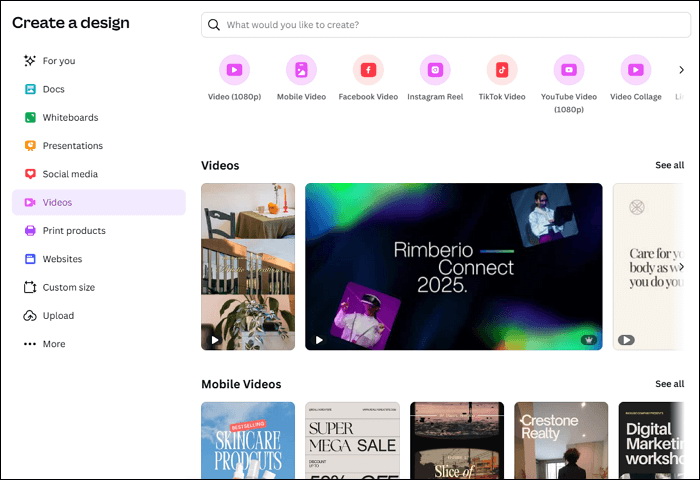
1) After logging into your Canva account, click on “Video” in the left menu bar. The system will navigate to the editing panel.
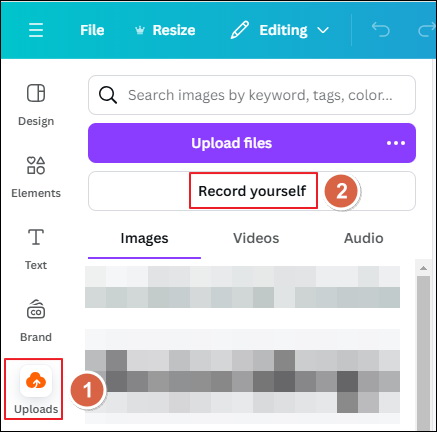
2) Click on the “Uploads” option in the left bar, and then select “Record yourself”.
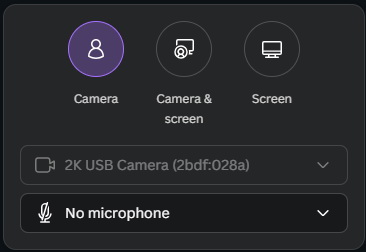
3) Set the recording mode and the permission of camera and microphone according to your own needs.
4) Click on “Record” to start recording. After the recording is completed, click it again to end.
Record Presentations on Canva
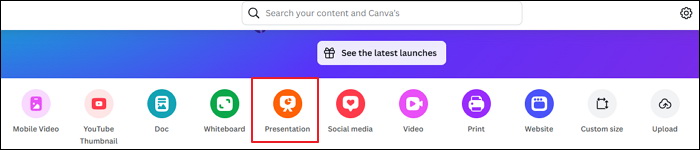
1) Click “Create a design”,then select “Presentation”.
2) Click “Present”, select “Present and record” from the drop-down menu, and then click “Next”.
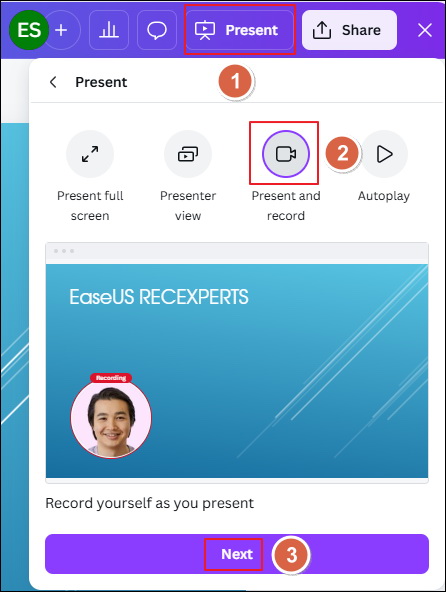
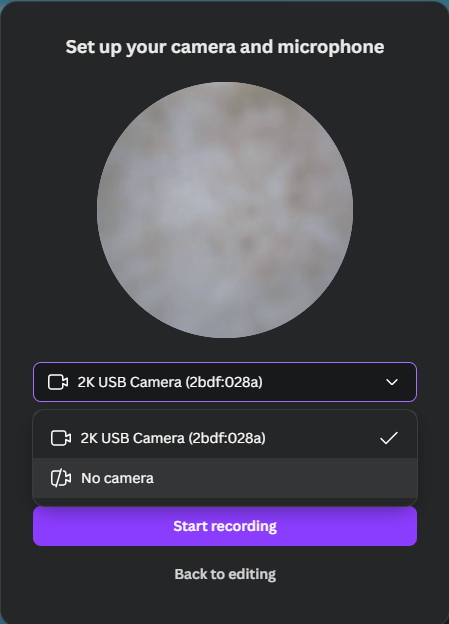
3) Select the camera and microphone devices, then click “Start recording”. After the presentation is completed, click “End recording”.
4) Canva can generate sharing links for presentations. Users can copy the link to share it with the audience, or they can choose to save and edit the video presentation content, or download it to their local hard drives for storage.
Part 3: Limitations of Recording on Canva
Although Canva’s built-in recording feature offers users a convenient experience, there are still some limitations in its usage. Understanding these limitations can help users better plan their recording workflow.
1. Limited Editing Options
Canva’s editing features are relatively basic. For those who need more professional editing features, they still need to rely on professional video editing software.
2. Basic Recording Features
Users are unable to select a specific area using Canva recording. Moreover, users cannot add annotations during the recording process. Some have reported that sometimes the quality of the recorded videos is poor, and there are no detailed parameters for setting image quality.
3. Require a Stable Internet Connection
As an online screen recorder, Canva’s recording needs a network connection. Unstable networks may cause recording interruptions, or poor video quality. This could affect work efficiency and the recording experience for users with limited network conditions.
4. Recording Time
Canva has certain limitations on the recording duration as well. For users who need to record for a long period of time, this limitation might become an obstacle in actual usage. Users may need to split long videos into multiple segments for recording, which increases the complexity of the work.
Part 4: Best Alternative to Canva Screen Recorder
For users who require more professional recording capabilities, Leawo Free Screen Recorder is an excellent alternative. It’s a powerful free screen recorder, and offers a more professional recording solution than Canva.

-
4-in-1 free screen recorder suite to record window, browser tab, entire screen or custom screen area online or offline for totally free. Record screen activities and webcam video at up to 4K quality and save in MP4 file for free. Record audio from computer system or microphone to MP3 file for free. Snap screenshots of selected screen area to JPF file.
Key Features:
- Users have more flexible recording area choice; they can choose to record either the entire screen, or the customized area. And it can record both system and microphone sound separately or simultaneously, ensuring synchronization between video commentary and background sound effects.
- During the recording process, users can add real-time text annotations, which can guide the viewer’s attention.
- The software supports the MP4 video format and allows users to customize the resolution up to 4K, ensuring clear and smooth video quality.
- The software offers a recording schedule feature, allowing users to preset the start and end times for recording.
- It has no limit on the recording duration. Users can record long videos as they wish. The simple user interface makes it easy for beginners to get started and enjoy an efficient recording process.
Part 5: Conclusion
Canva offers a convenient recording solution for users. However, the basic recording and editing features may affect those who need professional creations. If you want a higher-standard recording to save your time and energy, then you can try Leawo Free Screen Recorder. Its professional and advanced recording functions can make up for Canva’s shortcomings. You can make the best choice between these two tools according to their specific needs, efficiently completing the creation of video content.
-

Most Popular Facebook Story Viewers Rank & BeyondPatrick Murray/2026-06-03
-

Is YouTube Smart Downloads Good or You Should Try Something Smarter?Patrick Murray/2026-06-03
-

How to Save Money on Discovery Plus SubscriptionSunny Wen/2026-05-28
-

ScreenRec Review: Is It Truly Free and Watermark-Free?Sunny Wen/2026-05-28
-

Can You Still Get a Free Trial on Discovery+?Sunny Wen/2026-05-20
-

Easy Guide: How to Burn Amazon Prime Videos to DVDs?Patrick Murray/2026-05-09
-

Where Are Amazon Prime Video Downloads Stored on PC/MobilePatrick Murray/2026-05-08
-

Sling TV or FuboTV: Which One Should You Pick?Sunny Wen/2026-05-11
-

Can You Share a Disney Plus Account with Different Households?Sunny Wen/2026-04-16
-
How to Use Loom Video Recorder for Quick Screen RecordingSunny Wen/2026-04-16
-

How to Download OnlyFans Videos from Messages?Patrick Murray/2024-05-09
-

[2026] What is OnlyFans Media not Loading Issue & How to Fix?Patrick Murray/2024-02-21
-

How to Download OnlyFans Videos on Android/iPhone/PC?Patrick Murray/2024-06-28
-

How to Download Private YouTube Videos Without AccessPatrick Murray/2025-02-12
-

How to Download YouTube Members-Only Videos?Cassie J./2024-05-08
-

Latest List of the Best Free Movie Websites[2026]Patrick Murray/2024-05-07
-

[2026 Update] How to Download All Media from OnlyFans?Patrick Murray/2024-02-26
-
TK2DL: Features and Uses of this TikTok & Twitter DownloaderLeia Liu/2024-09-05
-

10 Best HDHub4u Alternative Sites for Movie DownloadPatrick Murray/2024-03-06
-
How to Turn Off Age Restriction on YouTube?Patrick Murray/2024-03-04
 English
 Deutsch
 日本語
日本語 French
 한국인
한국인 Italiano