


 Try for Free
 Try for Free
Share article:


OBS Alternatives for Screen Recording: Free & Simple Options

2026-02-02 ・ Related to: Free Screen Recorder
98 Views
Summary:
This article introduces eight free alternatives to OBS for screen recording, and provides a comparison of their features. Users can choose the screen recording tool that suits their needs the most.
MenuCLOSE
OBS has become a popular live streaming and recording software for its professional features. Users can customize various parameters according to their streaming and recording needs. However, for users who only need simple screen recording, its complex interface, numerous parameter adjustments, and high system resource requirements often seem overwhelming. This article introduces more user-friendly alternatives for those seeking a simpler and more intuitive screen recording experience.
Part 1: Best OBS Alternatives for Screen Recording (Free)
Since the features of OBS may be too complex for novices to use, other free screen recorders for pc may be a help for those who want to record videos or streams with high efficiency.
1. Leawo Free Screen Recorder
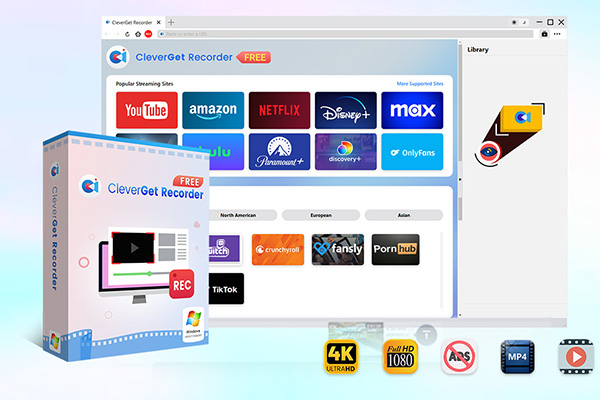
Leawo Free Screen Recorder can be an ideal OBS alternative. It is a lightweight yet powerful screen recording solution designed for users seeking professional capture capabilities without cost barriers. And it can allow recording videos with high definition, which is highly suitable for individual users and teams for daily use.
Core features:
1) Completely free screen and audio recording features, with no limits like recording duration or watermark.
2) Support customizable area recording. The recorded content can be saved to local files in MP4, and the highest resolution is 4K.
3) It can record both the system audio and the microphone input. This makes it suitable to record gameplay for streamers.
4) Users can get quick screenshots via this software as well. And they can add real-time annotations during recording.
-
Free streaming video recorder to record online on-demand video and live streaming video without quality loss and cost.
- 100% free to use.
- Record movies, TV shows, game streams, lectures, live concerts, etc.
- Record up to 4K video with 60FPS in MP4 or MKV.
- Schedule recording upon preset recording length.
- No watermark, no time limit, and ad-skipping (beta).
2. Xbox Game Bar
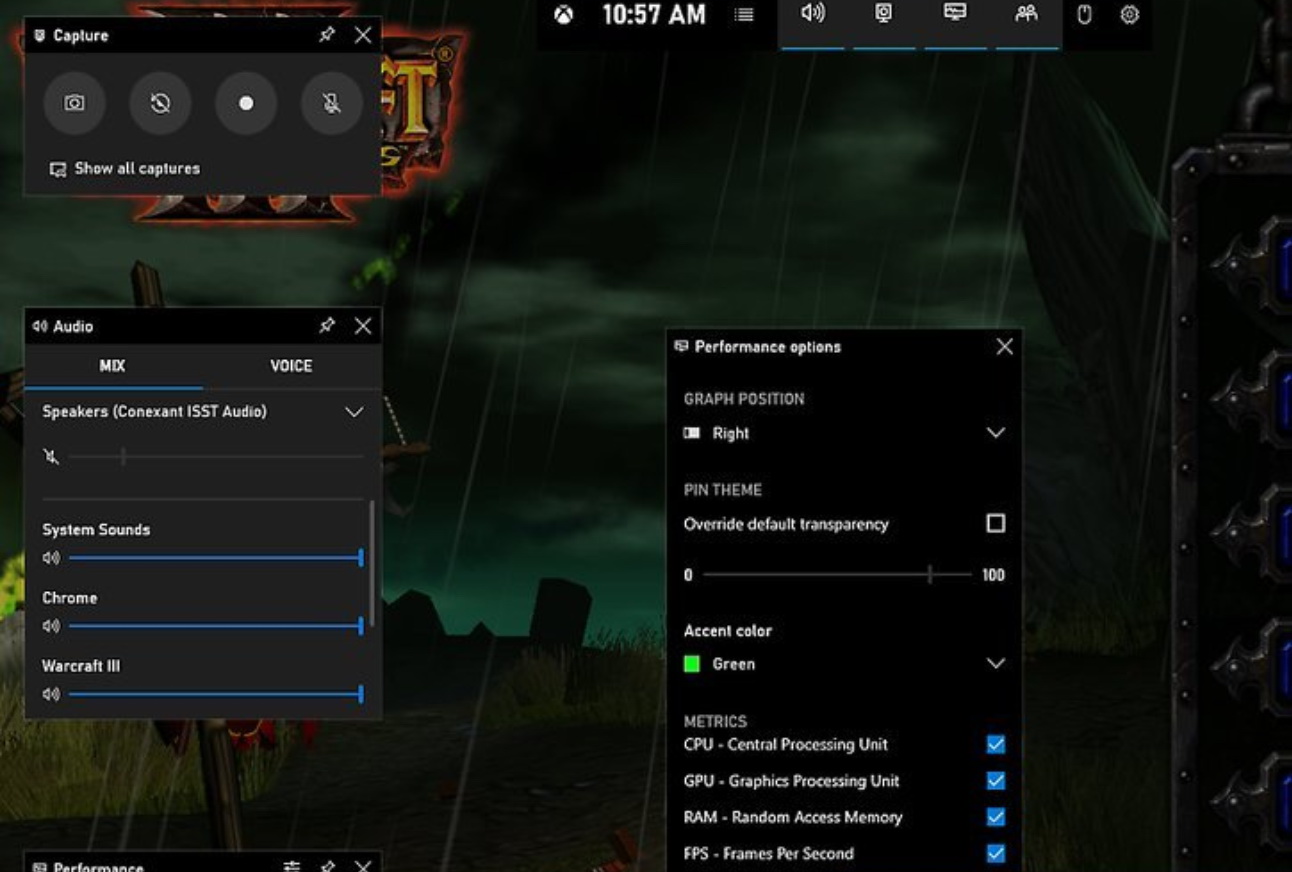
Xbox Game Bar is the built-in recording feature for Windows 10 and Windows 11 systems. This feature offers both recording and screen capturing, users can stimulate it through short keys or the settings without stopping the game or video.
Core features:
1) No need to download or install. Users can just press the shortcut key “Win + G” to start it.
2) It supports background recording and can automatically record the last 30 seconds of the game clips.
3) Users can get a quick screenshot via the shortcut key “Win + Alt + PrtScn”.
3. ShareX
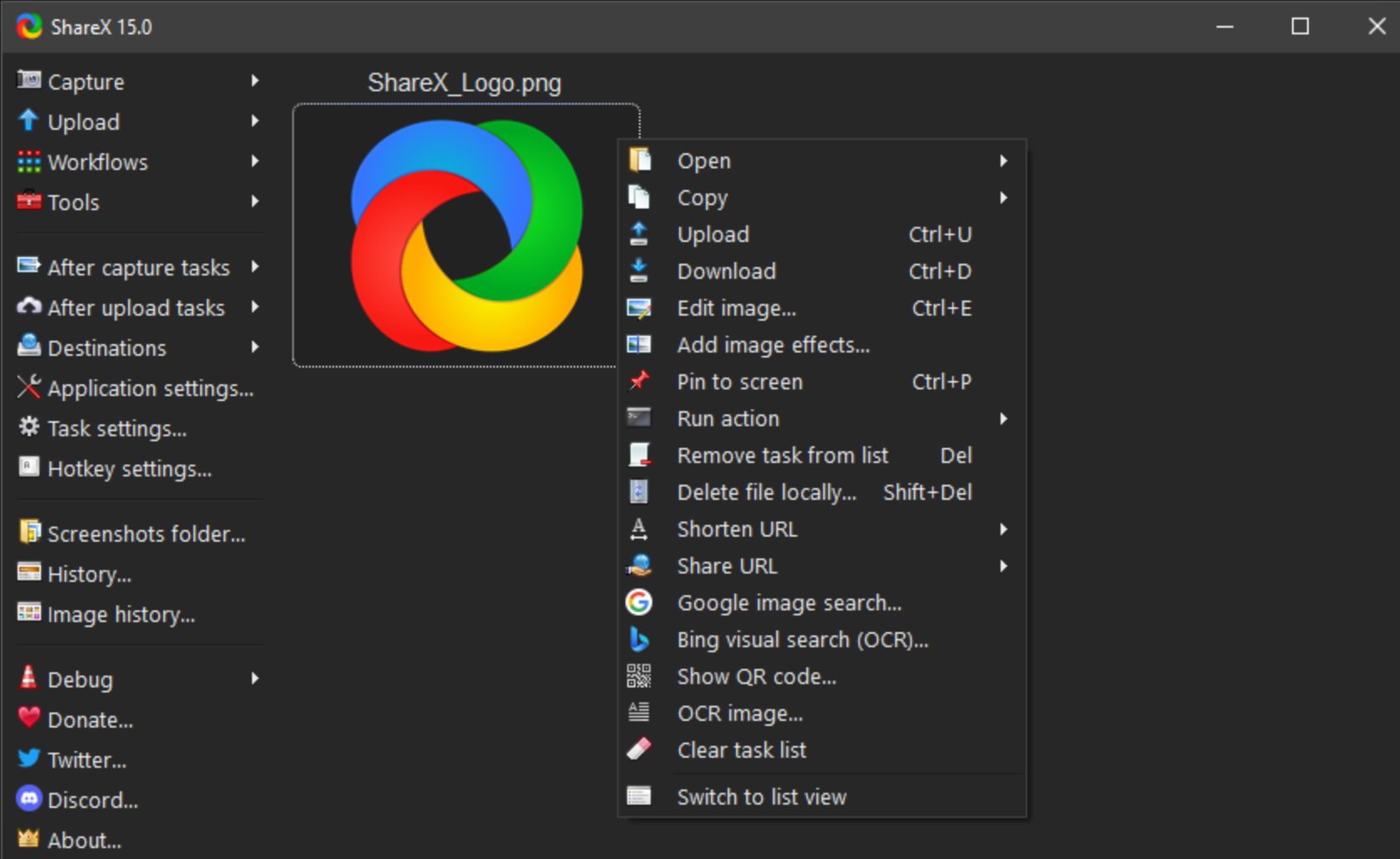
ShareX is a free screen recording tool designed for Windows users. It’s lightweight and doesn’t have ads or watermarks. If you value budget and convenience, this would be a good choice.
Core features:
1) In addition to the regular recording, ShareX also supports recording as a GIF. The shape of the recording area can be customized.
2) It has a built-in editor and annotation tool. Users can add annotations and edit the recorded content without the need to use any other software.
3) ShareX has a convenient way to share content. After the recorded content is uploaded to the cloud drive, it can generate sharing links or QR codes.
4. FlashBack Express
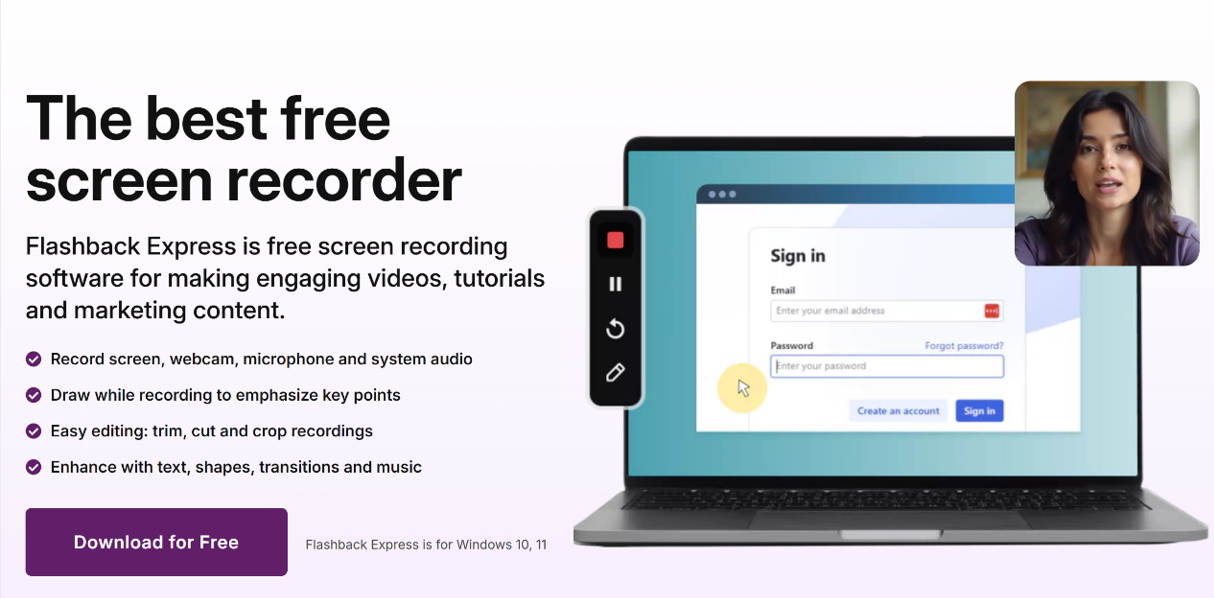
FlashBack Express enables users to record and edit the recorded content. And it’s completely free; users can use it to create high-quality content without being charged.
Core features:
1) It can record screen videos and audio resources at the same time.
2) Users can draw on the screen or use the cursor to highlight key points while recording.
3) The software includes a multi-track editing feature, users can use it to revise the recorded content or add striking visual effects.
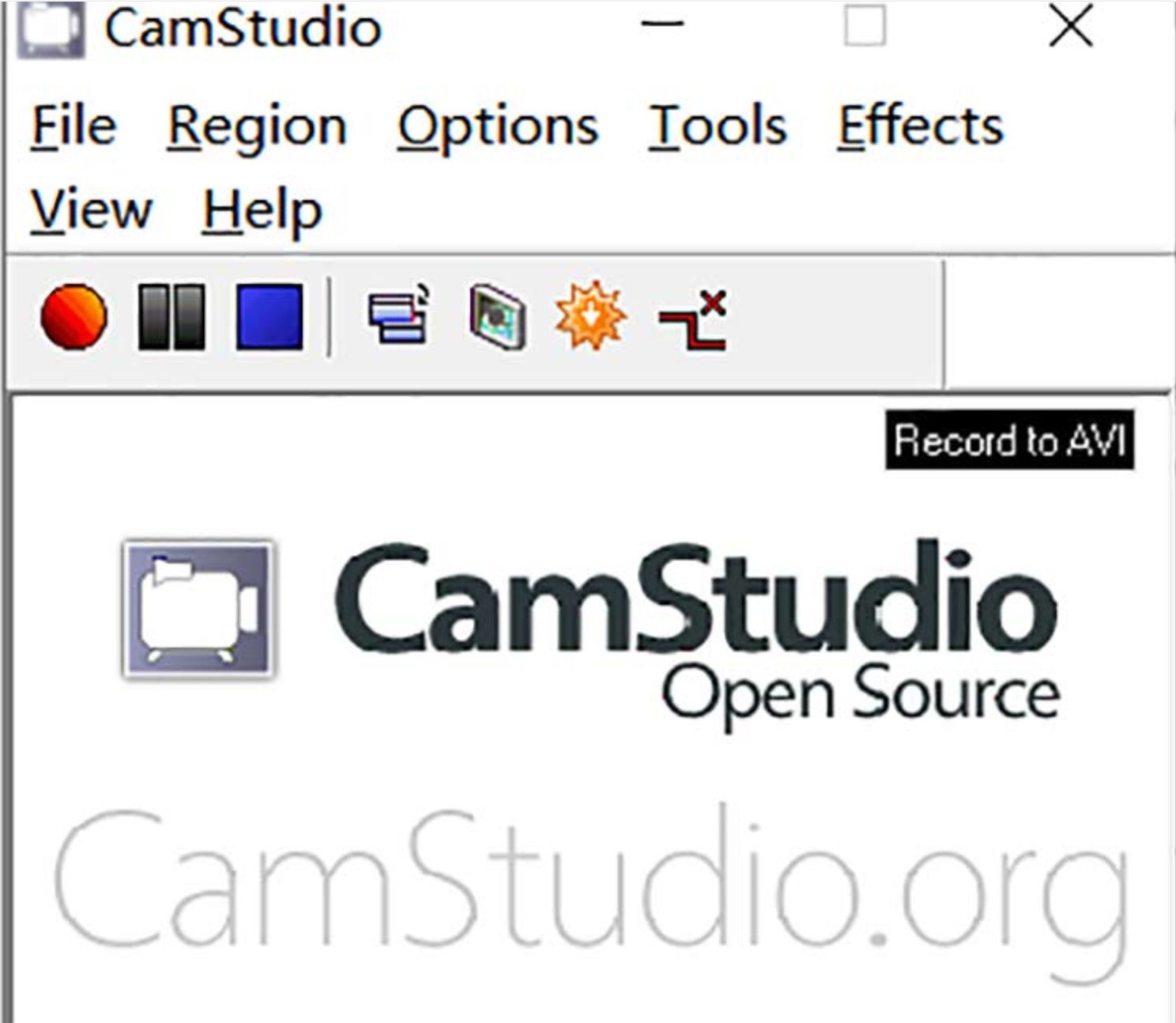
5. CamStudio
CamStudio is completely free and does not require any licensing fees. Users can utilize all its functions and it is highly suitable for scenarios where there is a limited budget but a screen recording task needs to be completed.
Core features:
1) It supports recording of the entire screen or a custom area, and can record system sounds and microphone audio simultaneously, to add voice commentary to the recorded content.
2) Allow users to add custom cursors, and add basic annotations or watermarks to the recorded videos.
3) The recorded videos can be saved in various formats, such as AVI and SWF, to meet different sharing or playback requirements.
4) The recorded videos can be saved in various formats, such as AVI and SWF.
6. Apowersoft
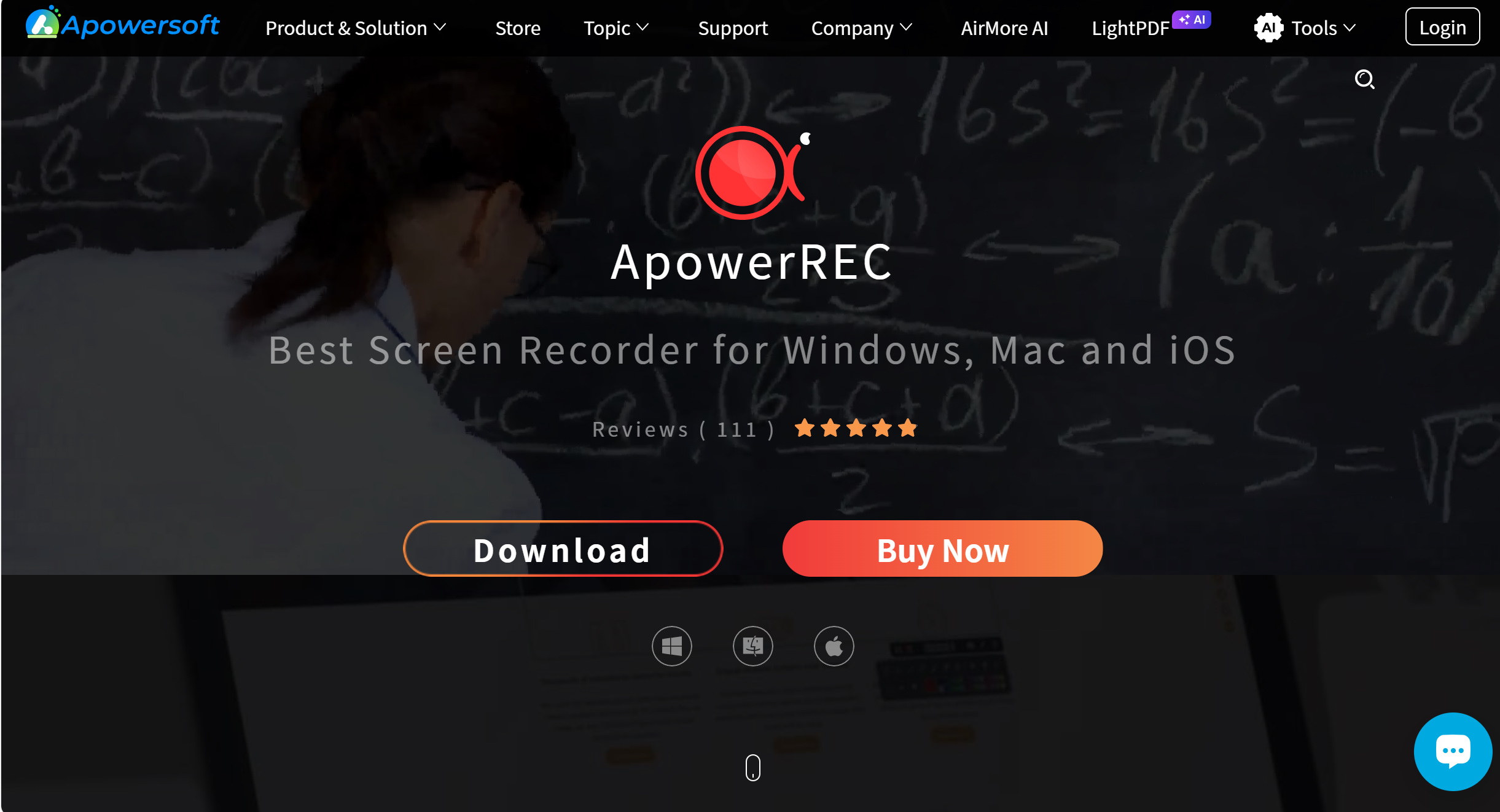
Apowersoft is dedicated to creating a simple but integrated multimedia platform. ApowerREC can capture all the content on the screen and add annotations in real time.
Core features:
1) Users can choose to record the entire screen or custom areas. It supports recording both system sounds and microphone audio simultaneously or separately.
2) During the recording process, users can add annotations to highlight key points. After the recording is completed, users can trim the video length, add watermarks, etc. via the built-in basic editor.
3) Users can preset the start and end times to enable automatic recording. This is very useful for users who need to record webinars or live courses at regular intervals.
7. VLC
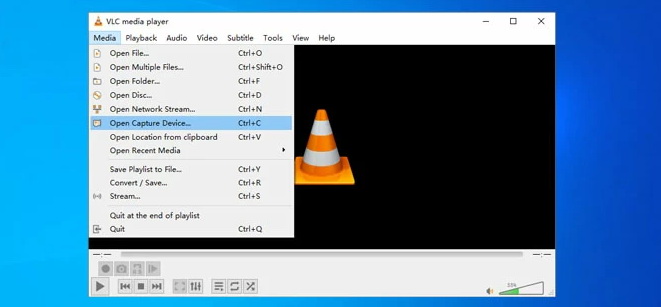
VLC Media Player is a free multimedia player. It also has a basic screen recording feature, providing a “one-stop” solution for media playback and lightweight capture.
Core features:
1) VLC supports recording specific screen areas, and it is capable of capturing system audio or microphone input.
2) The recorded video can be saved in various formats, such as MP4, MKV, AVI, etc. Users can choose the most suitable output format based on their needs.
8. Loom
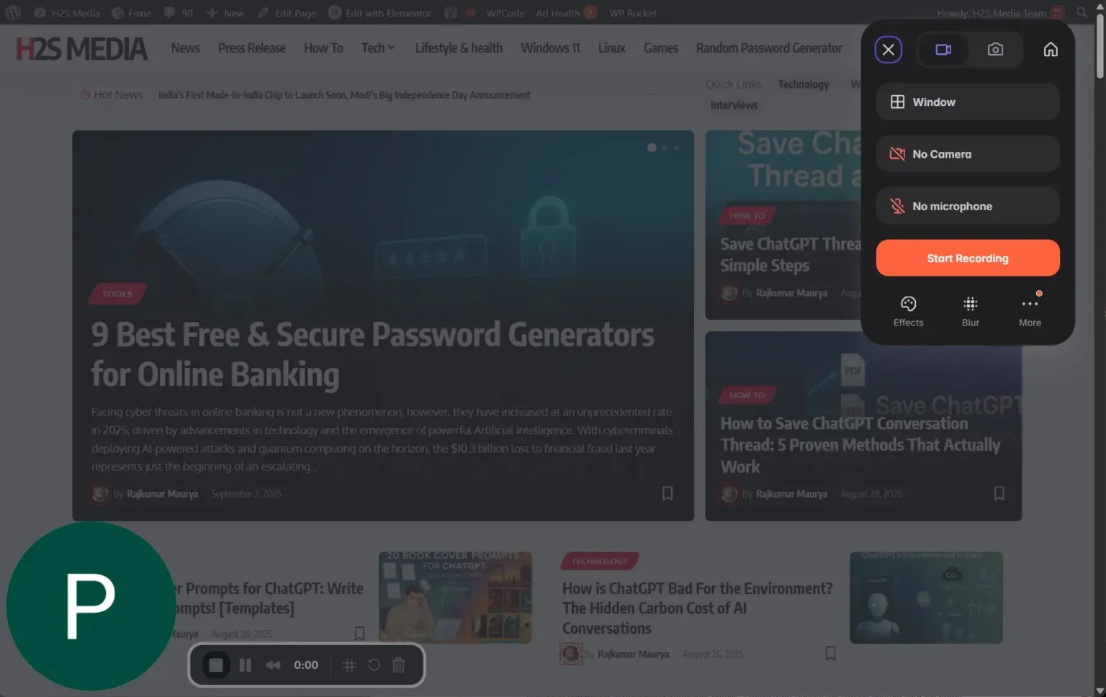
Users can screen record through this Chrome browser extension. It’s simple and convenient to use, providing an innovative solution for modern remote working and customer communication.
Core features:
1) Users can start recording the screen through their Chrome browser within just a few seconds. Once the recording is completed, the video will be uploaded to the cloud or a shareable link. The recipient can watch it online without having to download it.
2) Loom is not just for recording; it also allows you to trim, splice video clips, and add annotations.
3) It can also automatically generate multilingual subtitles for videos.
Part 2: Quick Comparison Table
|
|
Watermark |
Supported System |
Output Format |
Output Quality |
Built-in Editing Function |
|
Leawo Free Screen Recorder |
No |
Windows |
MP4 |
4K |
Basic editing |
|
Xbox Game Bar |
No |
Windows 10 / 11 |
MP4 |
4K |
No |
|
ShareX |
No |
Windows |
MP4, GIF, WebM |
4K |
No |
|
FlashBack Express |
No |
Windows 10 / 11 |
MP4, AVI, WMV |
4K |
Basic editing |
|
CamStudio |
No |
Windows |
AVI, SWF |
4K |
No |
|
Apowersoft |
Remove with a payment |
Windows, macOS, iOS |
MP4, AVI, MOV, WMV, FLV, GIF |
4K |
No |
|
VLC |
No |
Windows, macOS, Linux |
MP4, AVI |
4K |
No |
|
Loom |
Remove with a payment |
Windows、macOS、iOS、Android、Chrome |
MP4 |
4K |
Cloud-based online editing |
Part 3: Closing Thoughts
This article introduces 8 free alternatives to OBS, and they have their own features. You can choose the software according to your needs. Among them, Leawo Free Screen Recorder is highly recommended. It’s simple to use, and thus improves your work efficiency. And you can use it to record video without watermark and time limit.
Free Screen Recorder

 Try for Free
 Try for Free
 Totally free to use.
Record desktop activities to MP4 files.
Record webcam content to MP4 files.
Record audio from system or microphone to MP3.
Take screenshot with annotation.
 English
 Deutsch
 日本語
日本語 French
 한국인
한국인 Italiano