


 Try for Free
 Try for Free
Share article:


How to Screen Record Crunchyroll on PC and Mac

2026-05-11 ・ Related to: CleverGet Recorder Free Screen Recorder
381 Views
Summary:
If you’re frustrated by Crunchyroll’s DRM, you definitely shouldn’t miss this article. After reading it, you’ll know how to record content from the Crunchyroll on both PC and Mac.
MenuCLOSE
Crunchyroll is a streaming platform focused on anime, offering online streaming services for anime, manga, TV shows, and more worldwide. It is dedicated to providing anime fans with legitimate anime resources and community interaction. Crunchyroll offers a wide range of features, including but not limited to simulcasting the latest episodes, multilingual subtitles and dubbing, high-definition videos, multi-device support, and community functions. As a leading global platform for licensed anime and streaming content, Crunchyroll attracts a large user base with its vast array of exclusive and popular content as well as its rich features. As viewing needs evolve, these users wish to record the screen for various reasons, such as stream Crunchyroll episodes offline viewing in areas with unstable or no internet, saving favorite clips, or sharing content with friends who cannot access the platform directly. However, due to strict copyright protection, recording directly from the platform is not an easy task.
Part 1: Can You Screen Record Crunchyroll?
Can you screen record Crunchyroll? The answer is yes. But before explaining how to screen record on Crunchyroll, I need to clarify Crunchyroll’s DRM. Crunchyroll employs advanced digital rights management technology designed to prevent unauthorized copying of content. When the system detects screen recording activities, common protection mechanisms are triggered, resulting in outcomes such as completely black screens, video without sound, or an inability to capture the playback content at all. Additionally, from a legal and user agreement perspective, recording copyrighted content without authorization usually violates Crunchyroll’s terms of service and may carry infringement risks. Therefore, users must be fully aware of these technical and legal limitations before attempting any recording.
Part 2: How to Screen Record Crunchyroll on PC & Mac
Despite the limitations, users can still try some methods for recording. The following are several methods, each with its own characteristics. After understanding them, you will know how to screen record Crunchyroll.
1. Use Built-in Screen Recording Tools
Using the built-in screen recording tool is the simplest method. Below, I will introduce the operation procedures for Windows and MacOS respectively.
Windows:
If you are a Windows user, then you can utilize the Xbox Game Bar that comes with your device.
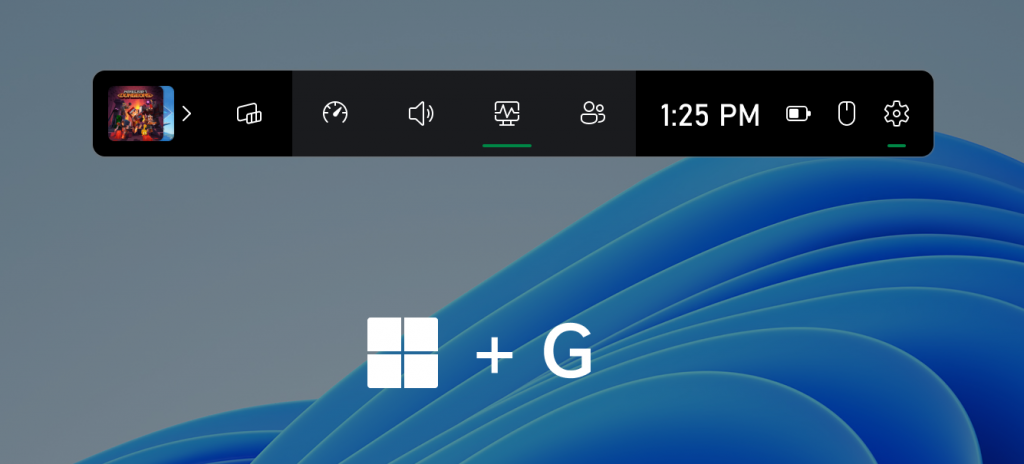
Step 1: When playing a Crunchyroll video, press the key “Win+G” to bring up the Xbox Game Bar. Then click the camera icon in the recording toolbar to begin.
Step 2: After the recording is completed, the file will be saved by default in the “Videos/Captures”.
MacOS:
If you are a Mac OS user, then you can use the QuickTime Player that comes with your device.
Step 1: Open QuickTime Player, then click on the “File” and select “New Screen Recording”.
Step 2: Select the built-in microphone option to record sound.
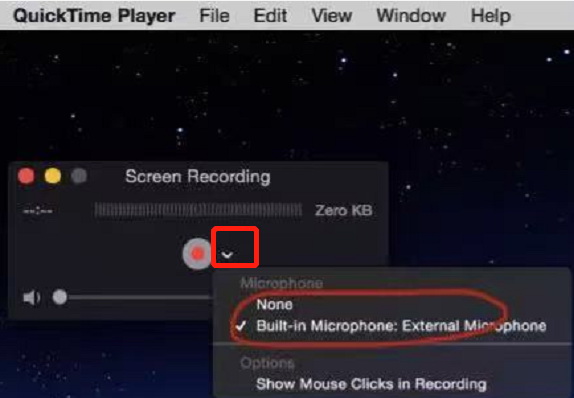
Step 3: After selecting the recording area, you can start recording. To stop recording when finished, press Command + Control + Esc at the same time.
Notes: Using the recorder built into the device is the most convenient method, but it is very likely to trigger DRM protection, resulting in invalid recording, black screen or silent issue, and a low success rate. So are there any other Crunchyroll recording workarounds? Please continue reading.
2. Use Leawo Free Screen Recorder
Leawo Free Screen Recorder is a four-in-one video recording tool package, including a free screen recorder, a free audio recorder, a free voice recorder, a free webcam recorder, and a free screenshot tool. It offers practical features such as customizable recording areas, real-time drawing, and scheduled recording. Leawo Free Screen Recorder can help you easily record online videos, live broadcasts, online music, webinars, create tutorial videos, make reaction videos, generate lectures or presentations, record webcam videos, and capture screenshots. All the recorded content is watermark-free, aiming to help you create 100% pure works without any restrictions, and it can bypass the DRM protection of some systems, thus enabling you to record protected streaming content.

-
- Free online recorder to record window, browser tab or entire screen online.
- Free screen recorder to record screen in full-screen or custom area at up to 4K to MP4.
- Free webcam recorder to record webcam video.
- Free audio recorder to record audio from microphone or computer to MP3.
- Free screenshot snapper to snap screenshot to JPG.
Step 1: Download and install the Leawo Free Screen Recorder.
Step 2: On the main interface, click “Record Screen“, select the recording mode, and then start recording the desired content.
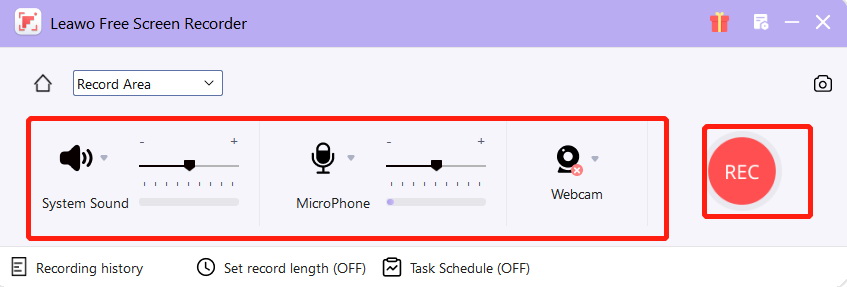
Step 3: After setting up the system sound, microphone and webcam properly, simply click “REC” to start the recording.
Step 4: After the recording is completed, the video can be found in the “Record history”.
3. Use CleverGet Recorder
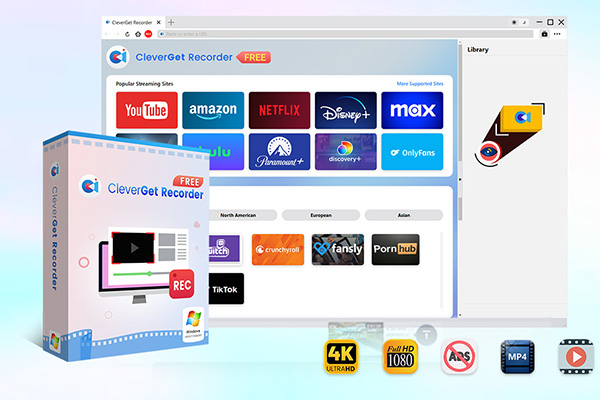
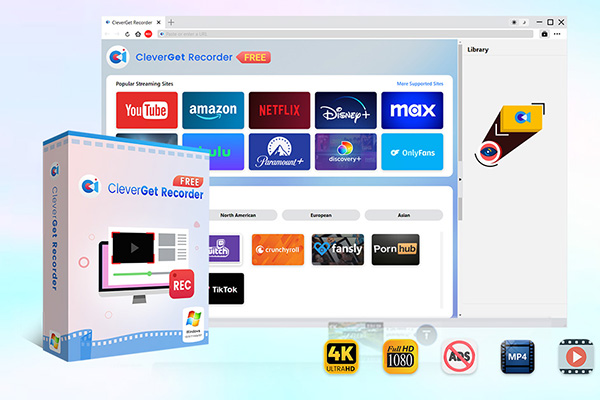
CleverGet Recorder is a free streaming media recording software that enables you to capture online videos from most streaming services for offline viewing. It can record both on-demand content and live streams in their original quality, supporting resolutions up to 4K and frame rates of 60FPS. It can also convert Crunchyroll episodes to MP4 or MKV. You can quickly locate the target video and start smooth recording with just a few clicks, including DRM streaming videos. It usually effectively avoids common black screen and mute issues.
-
- 100% free streaming video recorder.
- Record both online on-demand and live streaming videos.
- Record up to 4K 60 FPS video to MP4 or MKV.
- Schedule recording on preset recording length.
- No watermark, no time limit, and ad-skipping (beta).
Step 1: Download and install the CleverGet Recorder.
Step 2: Click the three-dot menu at the top right of the interface and make the settings according to your personal preferences.
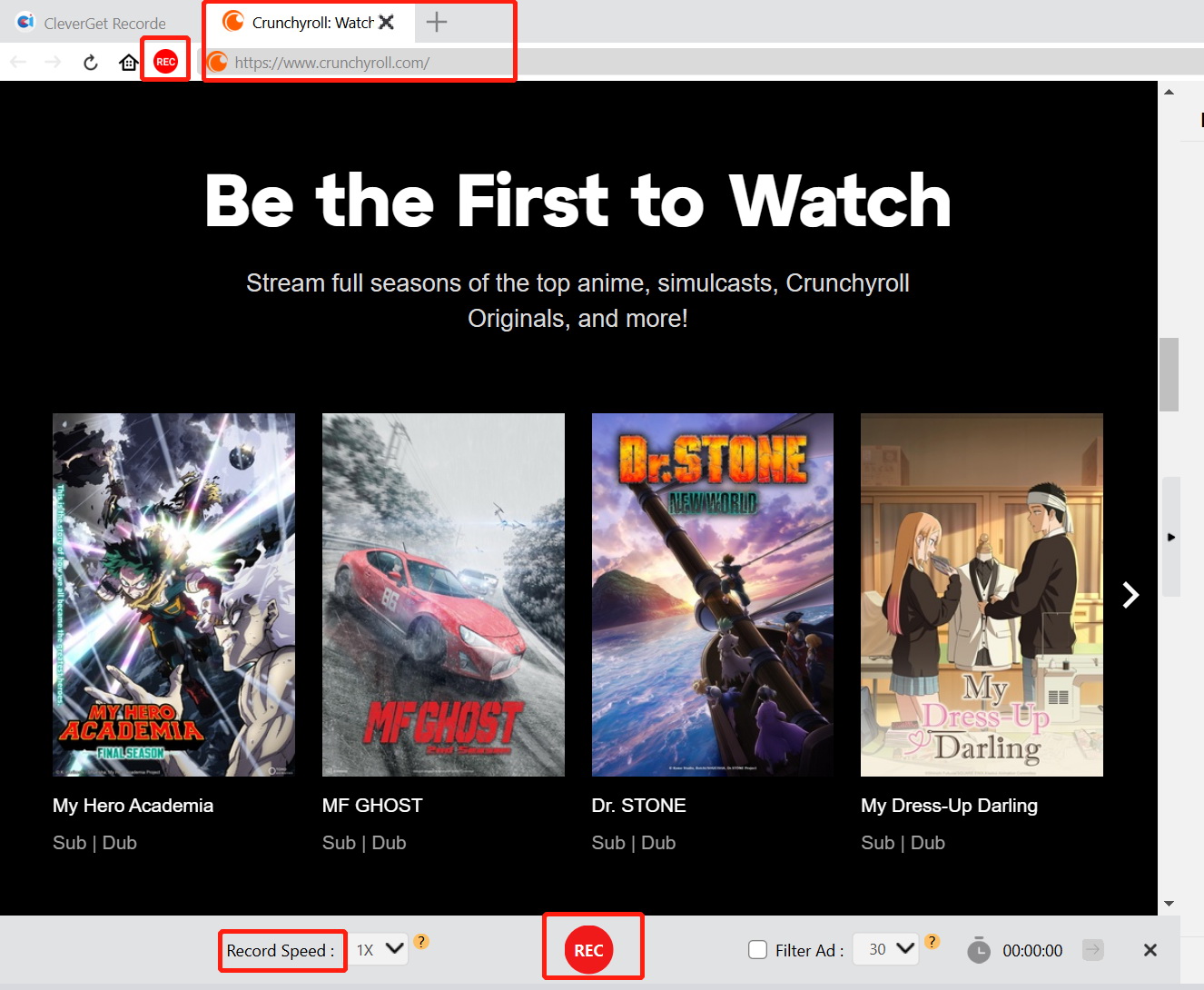
Step 3: Click on Crunchyroll on the main page and open the content that needs to be recorded. Step 4: Click on the “REC” at the top left corner, adjust the recording speed as needed, and then click the “REC” at the bottom to start the recording.
Step 5: The recorded content can be found in the “Library”.
Part 3: Alternatives to Screen Recording Crunchyroll
If you don’t think the above solution suits you, then I can also introduce two alternative methods here, which can also achieve the same effective recording result.
1. Use Official Crunchyroll Offline Viewing Features
This is a completely DRM-free approach. Crunchyroll offers an official offline download function for its paying subscribers. All you need to do is to find the movies that support offline viewing on the Crunchyroll mobile app. Usually, there will be a download icon. Just click it to download the video to your device, and you can watch it without an internet connection. If you use the official download function, the picture quality will be guaranteed, and you don’t need to worry about DRM or account suspension risks.
Limits
- Not all content supports offline downloading.
- The downloaded videos have an expiration date.
- The downloaded content cannot be transferred to other devices or formats.
- Require a Premium subscription.
2. Use CleverGet Crunchyroll Downloader
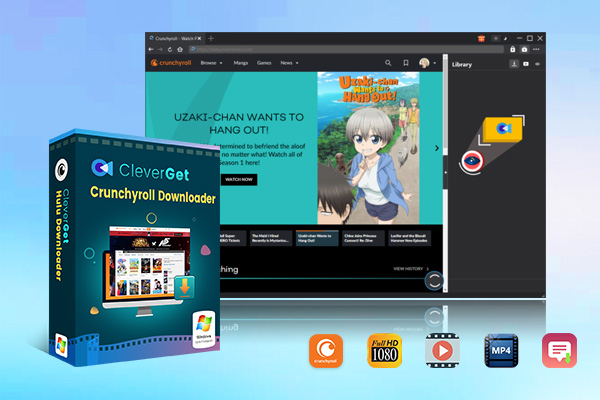
Although the official offline function doesn’t need to worry about being affected by DRM, if your download requirements are large and you have high standards for download quality, then you can consider other more professional downloaders, such as CleverGet Crunchyroll Downloader. It is specifically designed for downloading streaming media videos, can directly parse and download the video streams of Crunchyroll, bypass online playback restrictions, and save them locally in common formats like MP4, MKV, etc., usually supporting up to 1080p or even 4K quality. It has the advantages of fast download speed, selectable quality, and local permanent file saving, which can effectively make up for the limitations of the official download function.
-
CleverGet Crunchyroll Downloader
- Download Crunchyroll anime at up to 1080P without ads.
- Convert Crunchyroll video to MP4/MKV with original quality.
- Download Crunchyroll episodes across seasons in batch.
- Reserve a selected subtitle and audio track.
- Download Crunchyroll anime with ads removed.
Disclaimer
- All trademarks, logos, and brand names mentioned or displayed in this blog are the property of their respective owners.
- Any recording/downloads or use of related content must be conducted only with proper authorization from the corresponding rights holders.
- Recordings/Downloads are intended for personal and lawful use only. Unauthorized distribution, commercial use, or any illegal/profitable exploitation is strictly prohibited.
Part 4: Conclusion
Can you screen record on Crunchyroll now? If you prefer to record Crunchyroll and have a high demand for recording, then it is recommended that you choose a more professional screen recording tool. If you prefer to download Crunchyroll, I think for the officially supported content, you can use the official download function, while for other content that the official does not support downloading, you can use the download tool I introduced. However, no matter which option you choose, as users, we should always respect the legitimate rights and interests of content creators and copyright holders. We should only operate within the scope permitted by law and for reasonable personal use. It is strictly prohibited to use it for infringement purposes such as dissemination or commercial use.
CleverGet Recorder

 Try for Free
 Try for Free
 Record on-demand videos for free;
Record live streams for free;
Record DRM-protected streaming content;
Support up to 4K resolution;
Record videos as MP4/MKV files;
Allow scheduled recording;
Skip ads during recording.
 English
 Deutsch
 日本語
日本語 French
 한국인
한국인 Italiano