


 Try for Free
 Try for Free
Last updated on 2026-02-09, by
How to Record on Peacock Without a Black Screen
Summary:
- Peacock TV has no built-in DVR or recording feature. So, to record we need workarounds to record its content. This guide will discuss why we cannot record officially and the problems we can face during record and how to use an alternative tool to record Peacock videos without black screen.
Peacock TV has rapidly emerged as a new favorite streaming platform among its users. On Peacock we can find all types of classic TV shows and blockbuster movies, live sports, and news. It has a free version, Premium, and Premium Plus. Although the mobile app supports offline downloads of certain titles, shows, movies, or live streams, there is no formal DVR or recording option. This is annoying when you would like to watch them in the future or have your own copy. In this article, we will discuss whether you can record on Peacock officially, the most common issues you can face, such as black-screen videos, and how to use an alternative tool to record Peacock videos.

Quick AccessCLOSE
Can You Save Peacock Content for Later Playback Officially?
Peacock does not have its own t recording feature. The only built-in option for offline downloads is on the mobile app. This feature also has so many limitations. Below are some main ones to note.
- Premium Plus Required: You can only download if you have the ad-free Premium Plus tier.
- Limited Selection: Only a limited number of shows or movies are available. You cannot download Live TV and sports.
- Expiration: Downloads usually last two days after playback or 30 days if unwatched.
- Loss on Unsubscribe/Logout: Your downloads are deleted when you cancel your subscription, when you log out, or when content is removed from Peacock.
To put it concisely, their official recording is not possible. The mobile downloads are a tiny workaround, although highly limited.
Can You Record on Peacock with Common Screen Recorders?
If you want to record Peacock with common screen-capture tools, the experience might be so frustrating because of DRM (Digital Rights Management) protection. Here are the main issues you might encounter:
- Black Screen During Playback: Tools like OBS, QuickTime, or Windows Game Bar often capture a blank video while audio may still play. DRM prevents regular video capture, which means that the video frames are not available to the recorder.
- Audio Not Recorded or Incomplete: And many other times, you will get incomplete audio or video. This occurs since the recorder is unable to interact with the protected stream.
- App/Browser Blocking Screen Capture: In the browsers, Peacock often uses hardware-accelerated or encrypted video paths. This inhibits screen capture, and black screen fix tricks are normally ineffective.
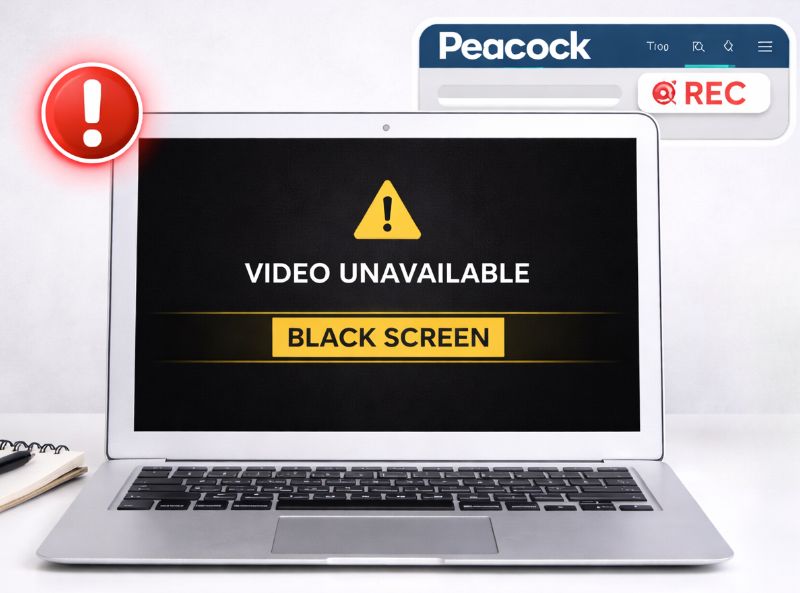
The main reason behind DRM is to make sure the stream is decoded safely, so your average video recorder cannot see the video. Even solutions such as turning off GPU acceleration in OBS do not work.
So ultimately, because of all these safety and protection measures, a majority of common screen-recorders fail to record. As users, we get results in black, blank, or partial files when trying to record Peacock. Smooth recording is only possible with specific tools that are used to break DRM, we will discuss this next.
How to Record on Peacock Without a Black Screen?
To avoid the back screen issue, we need a working and powerful DRM-compatible recorder to successfully record Peacock content without the black screen issue. CleverGet Recorder is a perfect option to record Peacock videos without black screen issues. In contrast to regular screen recorders, CleverGet can record on-demand content as well as live streaming videos with up to 4K resolution and 60 frames per second, including subscription-based platforms such as Peacock. It also has a beta option to skip advertising and supports lossless output, so it is best suited to record clean and high-quality video to watch offline. Here is how you can use CleverGet Recorder to get Peacock videos:
-
- 100% free streaming video recorder.
- Record both online on-demand and live streaming videos.
- Record up to 4K 60 FPS video to MP4 or MKV.
- Schedule recording on preset recording length.
- No watermark, no time limit, and ad-skipping (beta).
Step 1: Open CleverGet and Set Recording Preferences
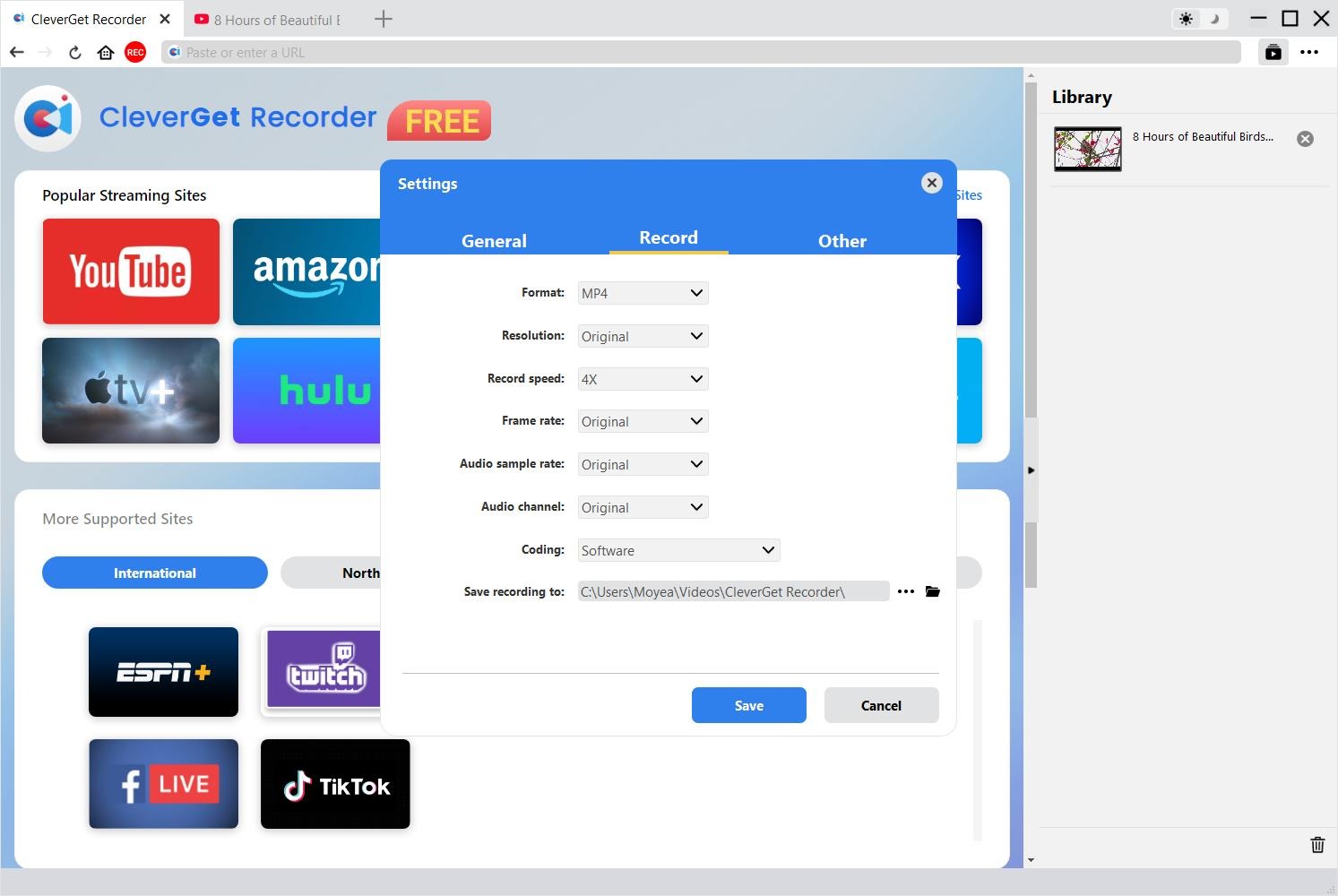
Open CleverGet and then go to Settings. Here you can choose MP4 or MKV format, set the resolution and frame rate (up to 4K 60FPS), adjust audio settings, and pick a safe location for your Peacock recordings.
Step 2: Navigate to Peacock
With the built-in browser of CleverGet, navigate to Peacock and log in. Select the show, movie, or live stream that you would like to record and play at your desired quality. CleverGet will automatically identify the video.
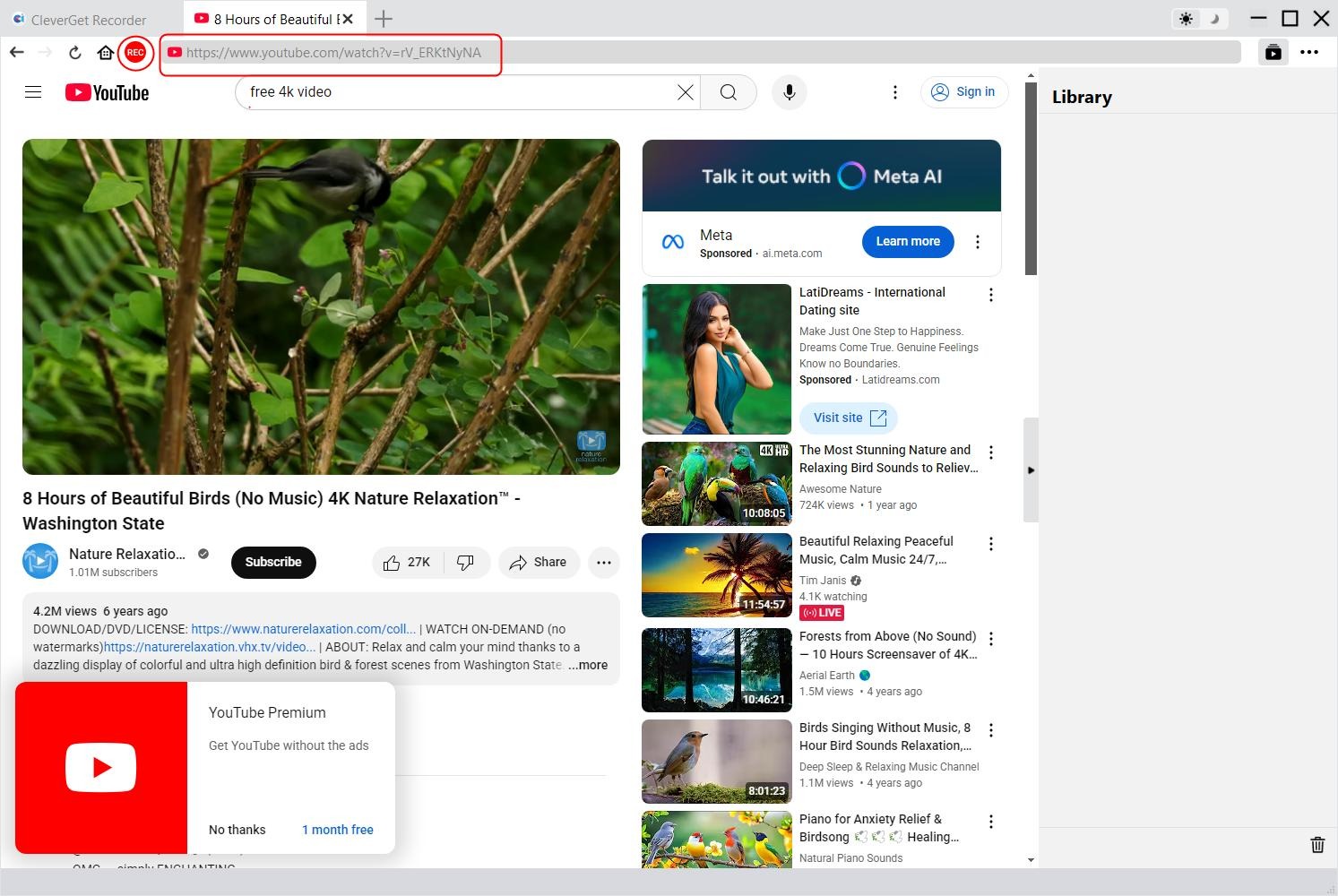
Step 3: Open the Recording Toolbar
When CleverGet finds the Peacock video, a red REC icon is shown close to the address bar. Click it to open the toolbar. You may speed up or slow down the recording or use the Ad Filter (advert break).
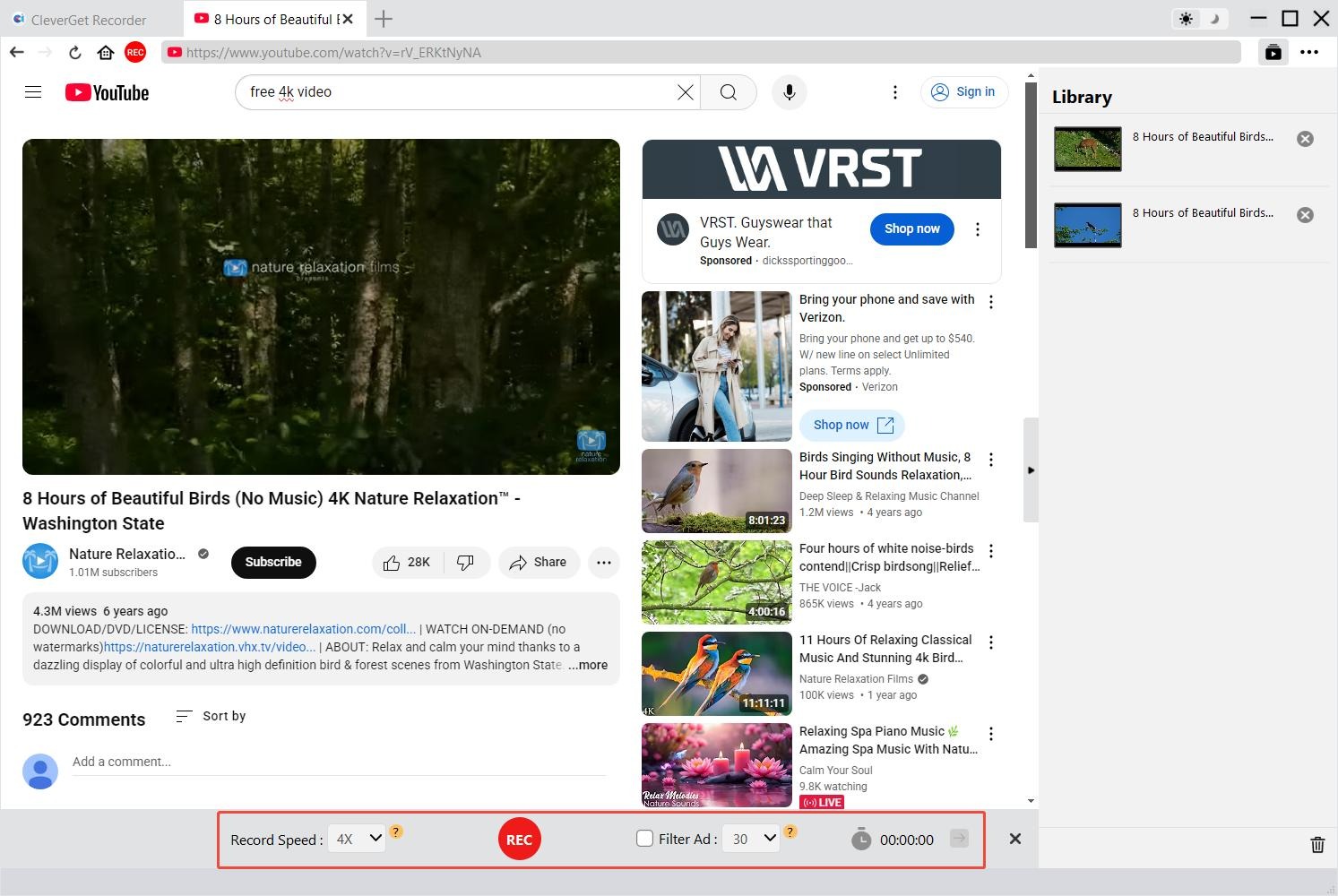
Step 4: Start Recording
Click on the red REC button to record the Peacock video with audio. And, once your recording is done, press stop. Your video will be stored in the Library of CleverGet and you can watch it offline at any time.
These steps will allow you to record Peacock shows, movies, or live streams without the problems of black screens while maintaining the quality of video and audio.
FAQs
1. Can I record live sports or shows on Peacock?
No. Peacock lacks a cloud DVR, and that’s why, you cannot record live sports, news, or shows officially. The only offline feature available is the ability to download specific on-demand movies or episodes via the mobile app. The feature also only offered to Premium Plus customers. It is not possible to save live broadcasts unless you have a third-party recorder.
2. Why do my screen recordings of Peacock come out blank or audio-only?
This is because Peacock streams are DRM-protected. The video frames are inaccessible to most standard screen recorders; you will either see a black screen or only audio. DRM encryption makes it impossible to capture the stream using regular means.
3. What software can reliably record Peacock videos?
Recording Peacock requires specialized tools that can overcome DRM to record it. CleverGet Recorder is the best alternative that removes DRM to record on-demand and live Peacock streams without black screens.
4. Is recording Peacock content legal?
Recording for personal, offline viewing is typically acceptable, but you have to adhere to the Terms of Use of Peacock and the copyright regulations. Re-use or distribution of recorded content is unlawful. You must always make sure that recordings are lawful and personal.
Conclusion
So, as we discussed, Peacock does not support native recording or DVR. The mobile downloads are restricted to only selected content and have tight time and device restrictions. The typical screen recorders fail due to DRM, giving black screens or incomplete files. With the help of a dedicated recorder such as CleverGet Recorder, it is possible to record the content of Peacock in a well-organized and high-quality manner. Always ensure responsible use of such recordings, in accordance with the terms and copyright laws of Peacock.
-

Most Popular Facebook Story Viewers Rank & BeyondPatrick Murray/2026-06-03
-

Is YouTube Smart Downloads Good or You Should Try Something Smarter?Patrick Murray/2026-06-03
-

How to Save Money on Discovery Plus SubscriptionSunny Wen/2026-05-28
-
ScreenRec Review: Is It Truly Free and Watermark-Free?Sunny Wen/2026-05-28
-

Can You Still Get a Free Trial on Discovery+?Sunny Wen/2026-05-20
-

Easy Guide: How to Burn Amazon Prime Videos to DVDs?Patrick Murray/2026-05-09
-

Where Are Amazon Prime Video Downloads Stored on PC/MobilePatrick Murray/2026-05-08
-

Sling TV or FuboTV: Which One Should You Pick?Sunny Wen/2026-05-11
-

Can You Share a Disney Plus Account with Different Households?Sunny Wen/2026-04-16
-

How to Use Loom Video Recorder for Quick Screen RecordingSunny Wen/2026-04-16
-

How to Download OnlyFans Videos from Messages?Patrick Murray/2024-05-09
-

[2026] What is OnlyFans Media not Loading Issue & How to Fix?Patrick Murray/2024-02-21
-

How to Download OnlyFans Videos on Android/iPhone/PC?Patrick Murray/2024-06-28
-

How to Download Private YouTube Videos Without AccessPatrick Murray/2025-02-12
-

How to Download YouTube Members-Only Videos?Cassie J./2024-05-08
-

Latest List of the Best Free Movie Websites[2026]Patrick Murray/2024-05-07
-

[2026 Update] How to Download All Media from OnlyFans?Patrick Murray/2024-02-26
-
TK2DL: Features and Uses of this TikTok & Twitter DownloaderLeia Liu/2024-09-05
-

10 Best HDHub4u Alternative Sites for Movie DownloadPatrick Murray/2024-03-06
-

How to Turn Off Age Restriction on YouTube?Patrick Murray/2024-03-04
 English
 Deutsch
 日本語
日本語 French
 한국인
한국인 Italiano