


 Try for Free
 Try for Free
Last updated on 2026-03-06, by
How to Convert iTunes M4V to MP4: 3+1 Easy Methods
Summary:
This blog will introduce 3 useful methods to help you convert iTunes M4V to MP4, plus the best tool to download videos from Apple TV.
If you have ever bought a movie on iTunes, you might find that the M4V format does not play on your non-Apple device. It happens to me as well. The DRM-protected format is designed to keep content secure, yet it leads to incompatibility and restrictions on sharing or backing up purchases we have already paid for. But worry not. I will show you how to convert iTunes movies to MP4 in this blog later. I will compare M4V with MP4 and offer 3 useful methods for seamless conversion. Just read on!
OutlineCLOSE
1. What are M4V Files? M4V vs. MP4 Comparison
Before introducing how to convert iTunes movies to MP4, let’s have a look at these formats. It’s funny because when I first used M4V files, I thought they were just another kind of MP4 format. In fact, M4V is a video container developed by Apple Inc., something decrypted. It’s mainly used for movies, TV shows, and music videos purchased or rented from the iTunes Store.
Just like MP4, M4V is based on the MPEG-4 Part 14 standard, but there’s one big difference: DRM (Digital Rights Management). This technology prevents unauthorized copying or playback on non-Apple devices. While DRM helps prevent piracy, it can also lock users like us into Apple’s ecosystem(iPhones, iPads, Macs, or Apple TV).
MP4, on the other hand, is an open standard developed by the International Organization for Standardization (ISO) and the Moving Picture Experts Group (MPEG). There is no built-in DRM, which means we can play them almost anywhere without restrictions.
Here’s a brief comparison of M4V and MP4.
|
Aspect |
M4V |
MP4 |
|
Developer |
Apple Inc. |
ISO/IEC MPEG |
|
Extension |
.m4v |
.mp4 |
|
DRM Protection |
Often includes FairPlay DRM |
No built-in DRM (optional via extensions) |
|
Compatibility |
Mainly Apple devices (e.g., iTunes, Apple TV) |
Universal (most players and devices) |
|
Codecs |
H.264/MPEG-4 AVC video, AAC audio |
H.264/HEVC/AV1 video, various audio |
|
File Size |
Smaller due to optimization |
Potentially larger, more flexible |
|
Use Cases |
iTunes purchases/rentals |
Streaming, general video storage |
|
Quality |
High, but DRM can limit edits |
Comparable, often lossless options |
2. Methods to Convert iTunes Movies to MP4
Now you know the differences between M4V and MP4. In this part, it’s time to see how to convert a m4v to MP4 so you can have permanent access to the files you actually own. Here I have collected 3 reliable solutions that we can use.
Leawo Prof. DRM
Leawo Prof. DRM is an all-in-one solution that I truly recommend. Working on both Windows and Mac, and supporting iTunes versions up to 12.11, the software can convert protected M4V movies and TV shows to DRM-free MP4 at up to 5x faster speeds. According to its website, the Dolby 5.1 surround sound, multiple audio tracks, subtitles, and metadata will be fully preserved. And I test it, which proves to be true.
Aside from the m4v videos from iTunes, it can even convert Spotify music, Audible audiobooks, and Kindle or Kobo eBooks to formats like EPUB or TXT. That’s another reason I appreciate it, because I can convert all my files in one place. On top of that, I find the batch processing feature practical; I can easily convert multiple files without manual operation.
Step-by-Step Guide
Step 1: I download and install Leawo Prof. DRM on my computer. Meanwhile, I have to make sure my iTunes account is authorized.
Step 2: I launch the program, select the Video Converter module, and import the M4V files directly from my iTunes library.
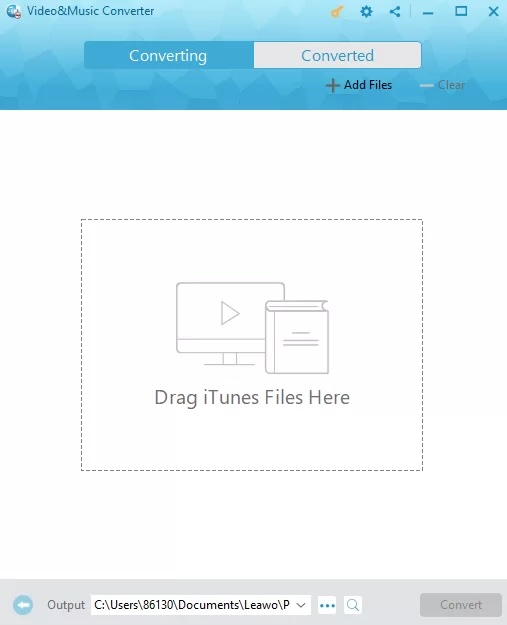
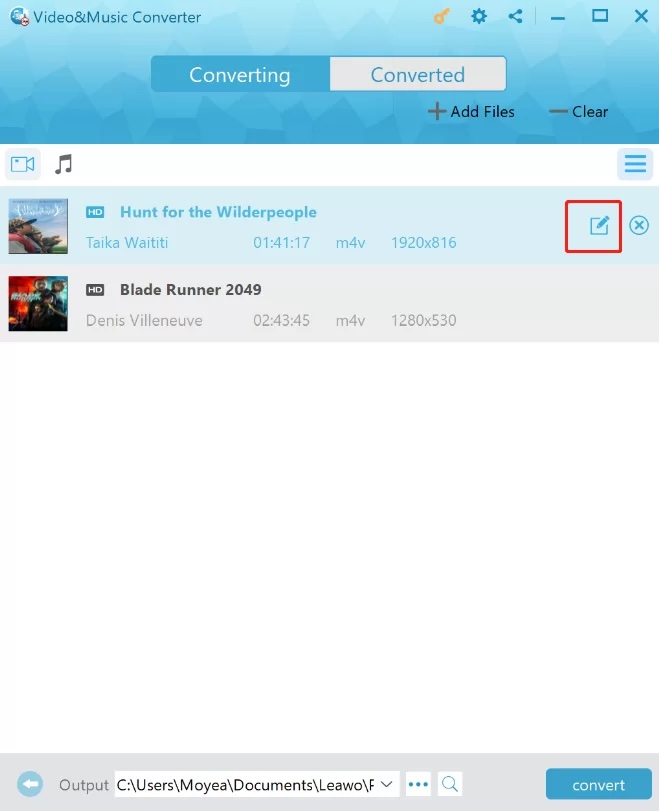
Step 3: After importing my iTunes movies into Leawo Prof. DRM, I click the “Edit” button next to each video to set the audio track and subtitles I want to keep in the final MP4 file.
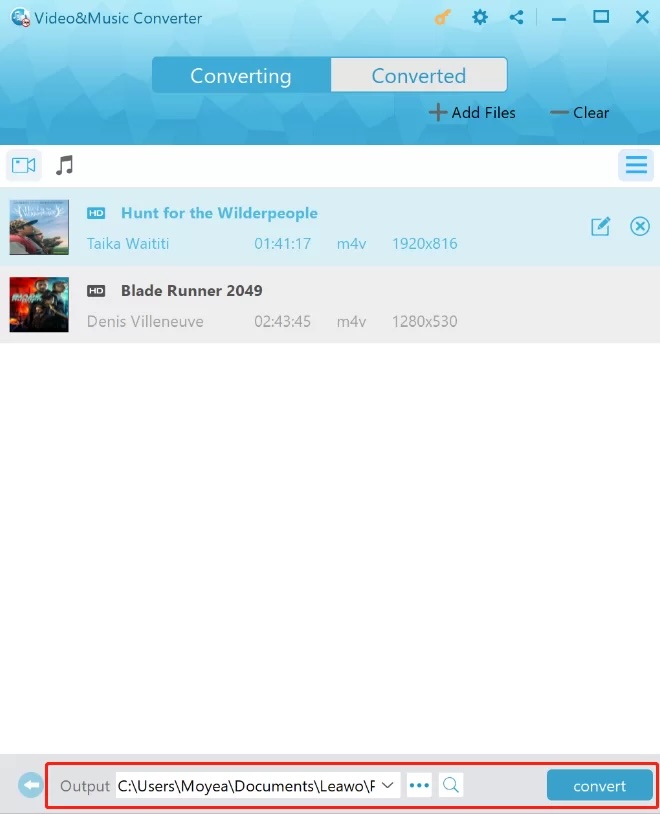
Step 4: Once everything looks good, I click the “…” button at the bottom of the screen to select the folder for saving. Then I hit the blue “Convert” button to convert iTunes movies to MP4.
TuneFab iTunes M4V Converter
TuneFab is another great choice to convert iTunes movies to MP4 on Windows/Mac. What makes it stand out is that it can preserve videos with 1080p or 720p resolution. Similarly, all the original audio tracks, subtitles, and metadata will be saved as well. This is quite helpful when I organize my files in the Plex media server. With fast conversion speed and direct integration with iTunes for easy importing, the workflow is pretty smooth and efficient.
Step-by-Step Guide
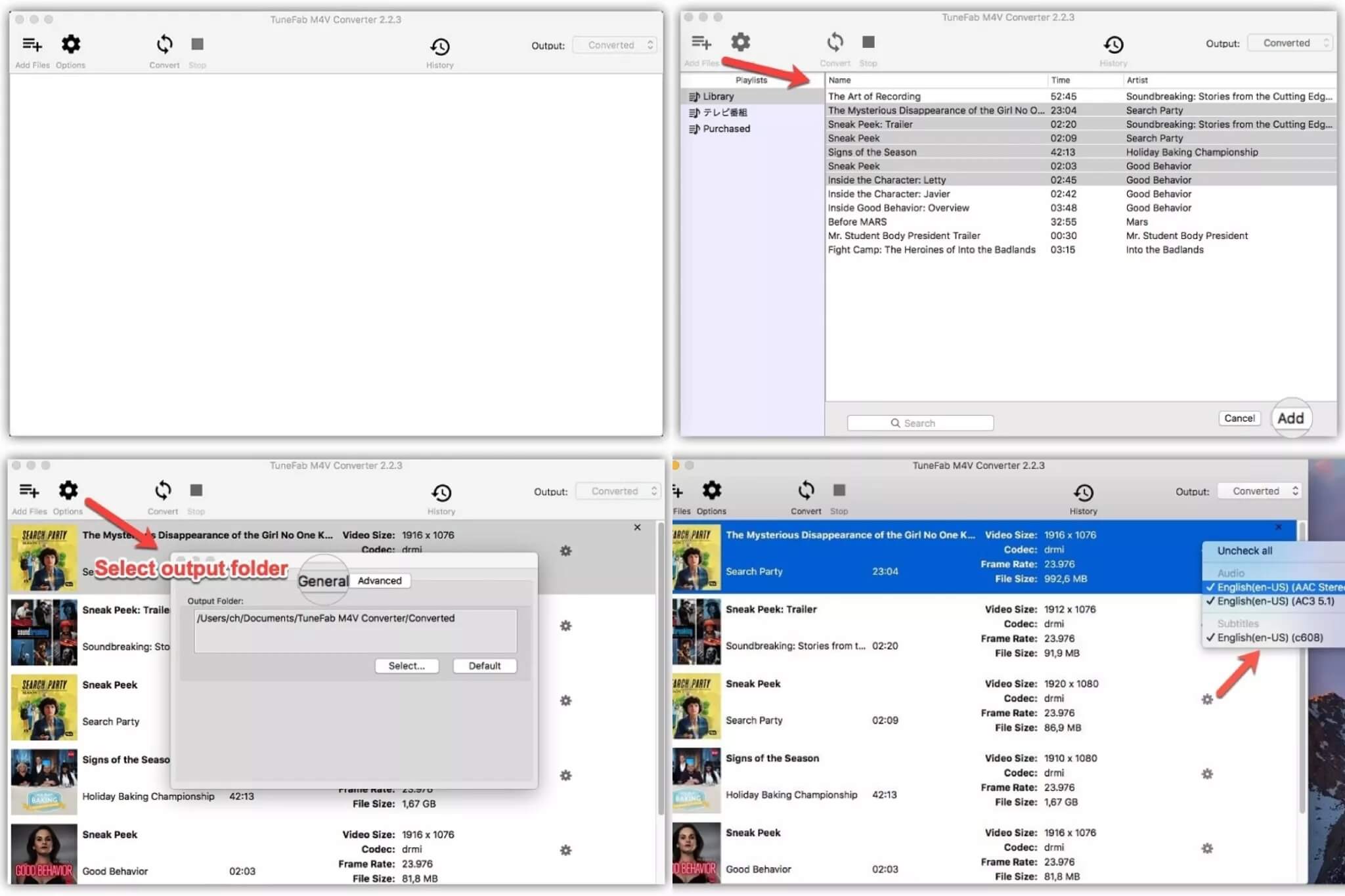
- Step 1: I install and open TuneFab M4V Converter. First of all, I need to access my iTunes library within the software.
- Step 2: Then I click “Add Files” to import the M4V videos I want to convert. Select MP4 as the output format.
- Step 3: Now it’s time to customize audio tracks and subtitles. Then I set the save location and click the button to convert iTunes movies to MP4.
ViWizard iTunes M4V Converter
I also tried the ViWizard iTunes M4V Converter, and it turned out to be a solid choice. What impressed me is that it keeps the original quality intact. In my tests, the converted videos preserved 5.1 AC3 audio, subtitles, and even chapter markers. Meanwhile, the batch conversion feature is rather useful when I need to handle multiple files simultaneously. I also like that I can fine-tune output settings to match my preferred device, for instance, my iPhone, iPad, Android phone, Xbox, or smart TV.
Step-by-Step Guide
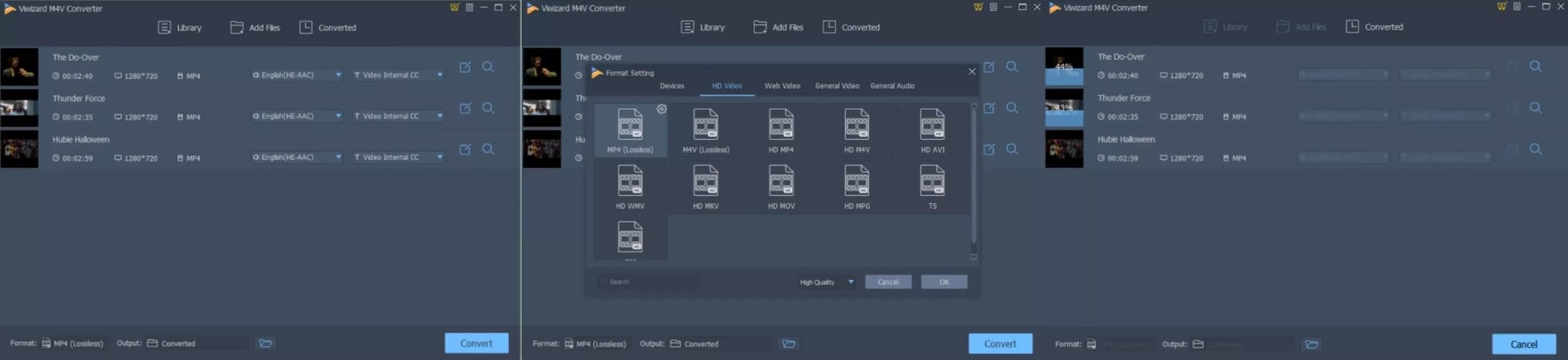
- Step 1: I launch ViWizard M4V Converter first. Similarly, use the “Add Files” to import my M4V files.
- Step 2: Then choose MP4 as the output format and adjust subtitles, audio tracks, or other settings for customization.
- Step 3: The Convert button is the final step. Just click on it to convert iTunes M4V to MP4 directly.
3. A Better Choice: Direct MP4 Download
Now you should know how to convert iTunes to MP4 easily with 3 methods. However, I’ve also noticed that iTunes has basically been phased out, and all movie and TV-related services have now moved to Apple TV. So what does that mean? It means that you can just download movies and shows directly in MP4 format from Apple TV.

-
CleverGet Apple TV Plus Downloader
– High-quality download: Maintains the quality of audio and video.
– Batch downloading: Multiple episodes or full seasons at once.
– Audio and subtitle options: Pick audio of preference and subtitles as well, even for multi-language.
– No ads in videos: Downloads videos with ads removed.
– Format flexibility: Converts the downloaded videos to MP4 or MKV.
– Hardware acceleration with GPU: Increases the downloading speed.
– Account metadata: Keeps detailed information of all the videos downloaded.
Instead of converting iTunes M4V to MP4, this method is much more straightforward. Here, I use CleverGet Apple TV Downloader, a dedicated tool that helps me download all my favorites from Apple TVs to MP4 as local files. I strongly recommend this method because it saves me time and effort compared to the conversion process introduced above.
Conclusion
How to convert iTunes M4V to MP4? With the 3 methods introduced above, the tasks can be easy and efficient. Since iTunes has now fully transitioned its video services to Apple TV, I personally think downloading content directly from there is an even smarter approach. I can skip the extra conversion step and download movies or shows straight in MP4 format. Just try it and see it yourself!
-

ScreenPal Review: Is It the Right Screen Recorder for You?Sunny Wen/2026-03-12
-

How to Download Vudu Movies for Offline Viewing?Patrick Murray/2026-03-06
-
How to Convert iTunes M4V to MP4: 3+1 Easy MethodsPatrick Murray/2026-03-06
-

How to Get Paramount Plus for Free in 2026Leia Liu/2026-03-04
-
4 Best Methods to Convert TikTok to MP3 FilesCassie J./2026-02-27
-

AnyStream: Full Review, Pros & Cons, and AlternativeLeia Liu/2026-03-04
-

Can You Screenshot Instagram DM Photos? Here’s HowSunny Wen/2026-02-27
-
YT Saver Review: Is It Really Worth Using?Cassie J./2026-02-09
-

How to Record on Peacock Without a Black ScreenCassie J./2026-02-09
-
How to Download Rented Videos from Amazon Prime Video?Patrick Murray/2026-02-06
-

How to Download OnlyFans Videos from Messages?Patrick Murray/2024-05-09
-

[2026] What is OnlyFans Media not Loading Issue & How to Fix?Patrick Murray/2024-02-21
-

How to Download OnlyFans Videos on Android/iPhone/PC?Patrick Murray/2024-06-28
-

How to Download Private YouTube Videos Without AccessPatrick Murray/2025-02-12
-

How to Download YouTube Members-Only Videos?Cassie J./2024-05-08
-

Latest List of the Best Free Movie Websites[2026]Patrick Murray/2024-05-07
-

[2026 Update] How to Download All Media from OnlyFans?Patrick Murray/2024-02-26
-
TK2DL: Features and Uses of this TikTok & Twitter DownloaderLeia Liu/2024-09-05
-
How to Turn Off Age Restriction on YouTube?Patrick Murray/2024-03-04
-

10 Best HDHub4u Alternative Sites for Movie DownloadPatrick Murray/2024-03-06
 English
 Deutsch
 日本語
日本語 French
 한국인
한국인 Italiano