


 Try for Free
 Try for Free
Share article:


How to Download Rented Videos from Amazon Prime Video?

2026-02-06 ・ Related to: CleverGet Amazon Downloader
74 Views
Summary:
Wondering if I rent a movie on Prime can I download it? Absolutely! Amazon Prime Video lets you download rented titles for offline viewing. Learn how to rent, download, and make the most of your rental period.
Amazon offers a rental video feature that lets you stream titles even without a subscription. But can you download rented movies on Amazon for offline viewing, too? The answer is yes. In this guide, we will explain the Amazon movie rental time rules, how to rent movies and shows, and how to download rented movies on Amazon and watch them offline anytime, anywhere.
OutlineCLOSE
How to Rent Movies/Shows on Amazon Prime?
Renting movies or shows on Amazon Prime is pretty simple. You can do so on any device with only a free Amazon account. Follow the steps below to rent a video on the Amazon Prime app and its official page:
Step 1: On your Amazon Prime Video app, search for the title you’d like to rent. If using a web browser, visit the Prime Video official site and sign in to your Amazon account. Then click on the title.
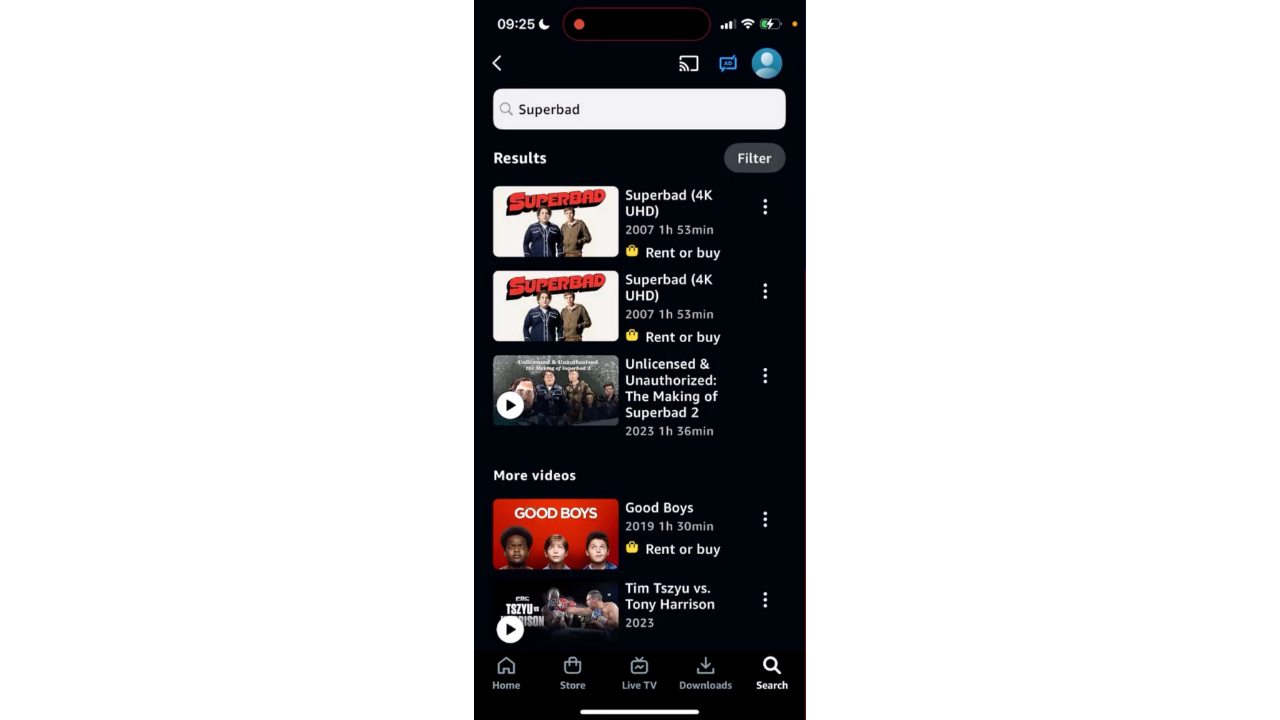
Step 2: On the detail page of the title, there are purchase options like Rent and Buy with prices listed. Tap ‘Rent’ and finish the payment.
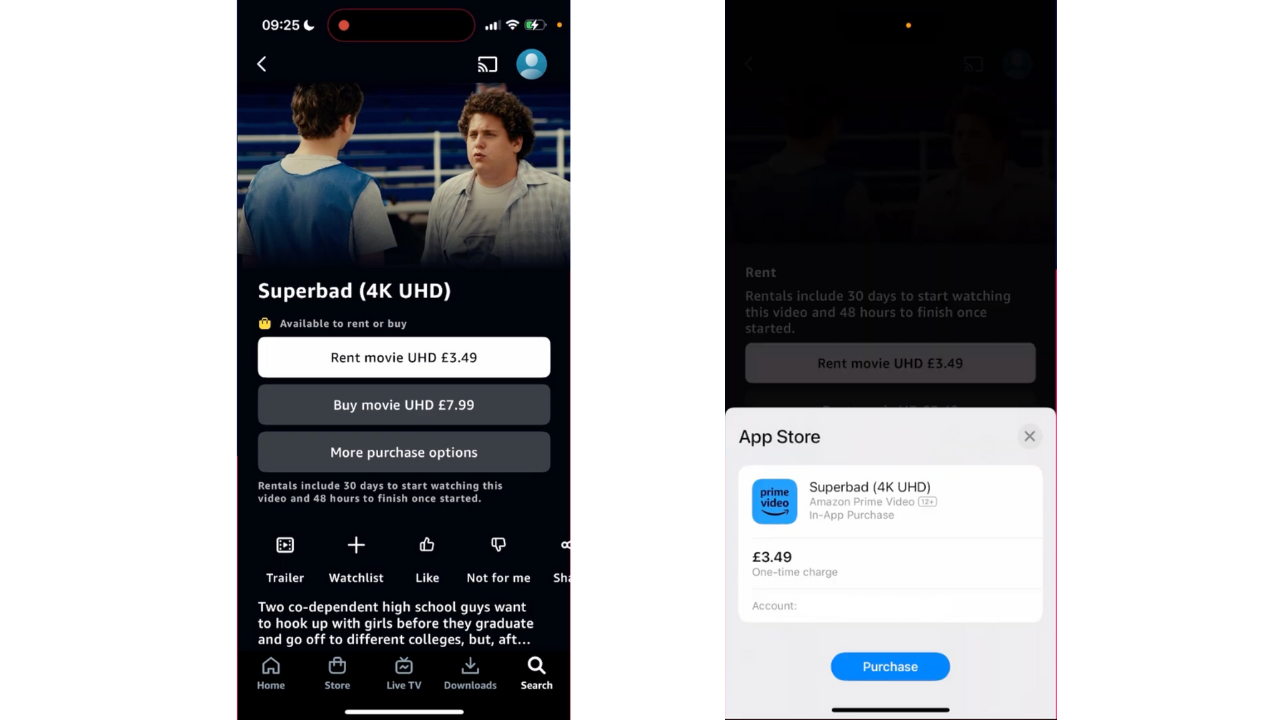
Step 3: Now you can stream the title online. If the download option is available for the title, you can see the Download button under the Play button. If you are using a web browser, you can’t download it, though, because the download feature is only available through the app.
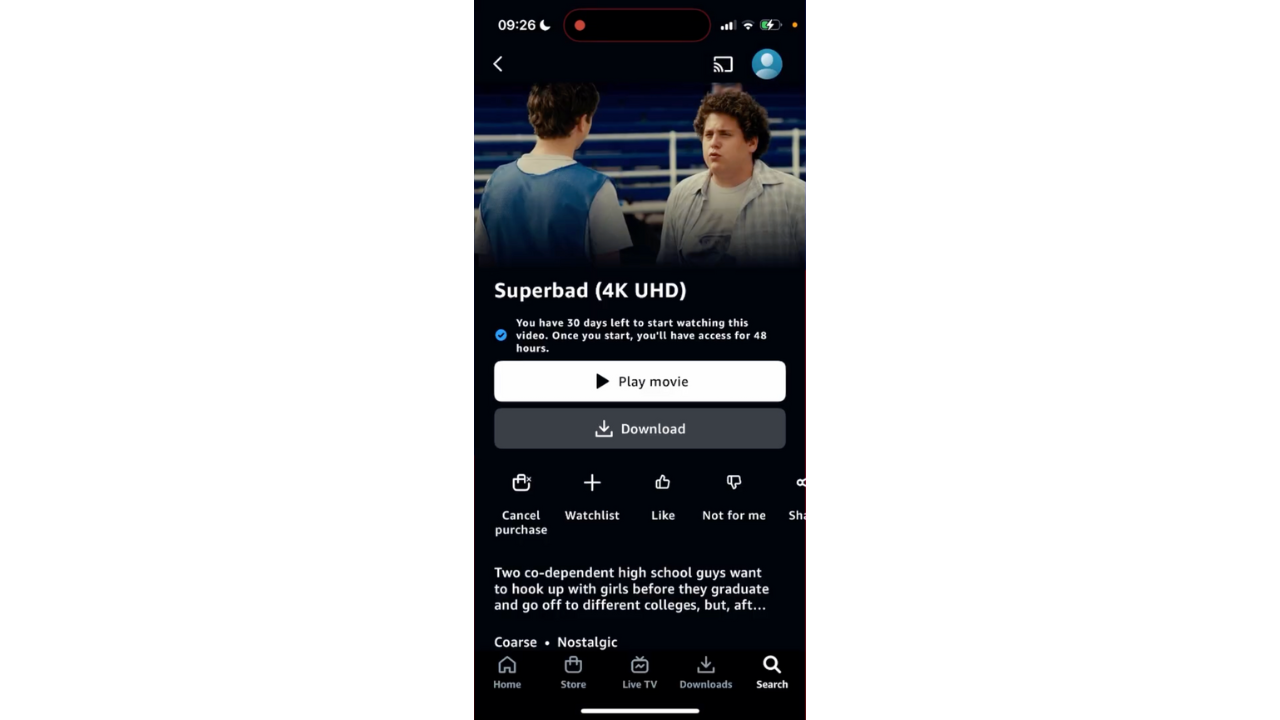
2. How Long Can You Watch a Rented Movie on Prime?
According to Amazon Prime Video’s usage rules, rental videos are valid for 30 days from the rental date. You can stream or download it within these 30 days. Once you hit the play or download button, the rental duration shortens to 48 hours. You will need to finish watching the video during the hours. After that, the rental expires and is removed from your library. Therefore, it is not recommended to rent too many titles at one time.
Also Read: How Long Do Amazon Prime Video Downloads Last? | Amazon Prime Video Download Limits
3. How to Download Rented Movies/Shows on Amazon Prime
As mentioned, if the rental is available for download, you can save it on your device via the Prime Video app. The steps are just as straightforward:
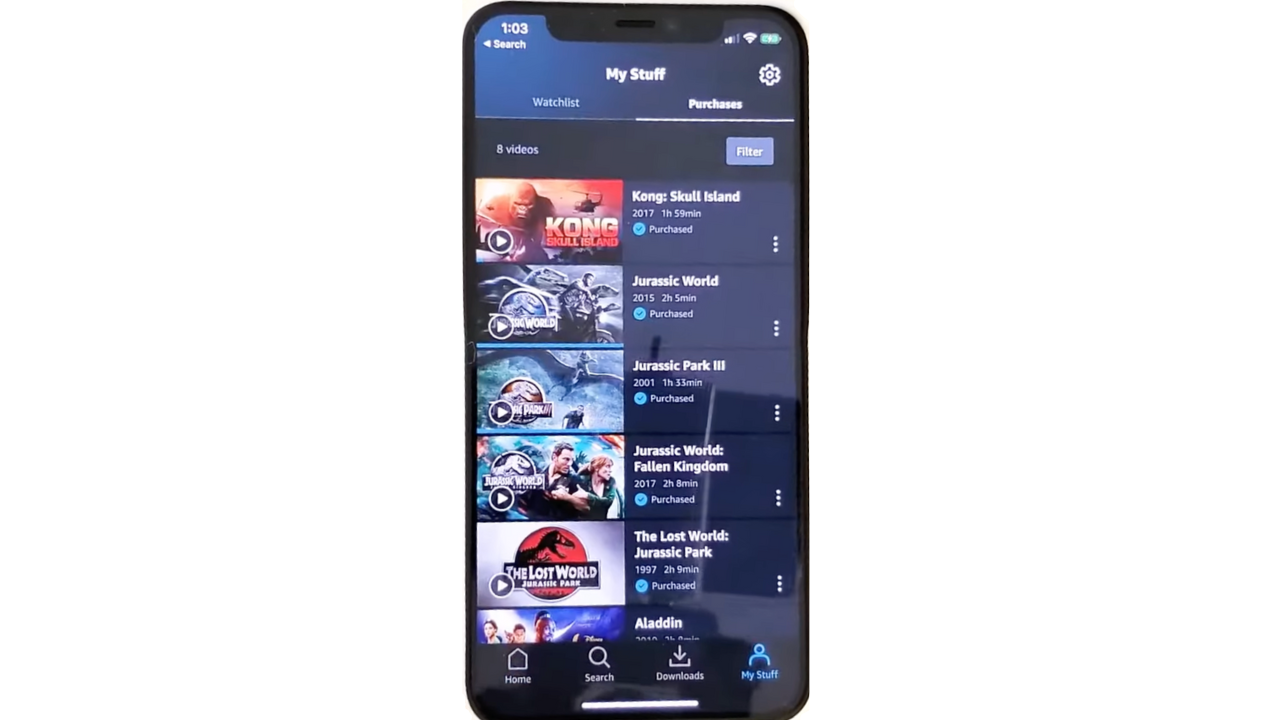
- Step 1: On your Prime Video app, go to My Stuff and select the Purchases tab.
- Step 2: Select your rented title and the download button to save it on your device for offline viewing.
- Step 3: Select the Downloads tab, and you can watch the downloaded rentals.
What if there is no download button next to the rentals? You might wonder: how can I download rented movies on Prime in such a case? External downloaders like CleverGet Amazon Downloader are your ideal alternative. This is a third-party downloader that can download videos from the Prime Video site. Whether they are rented, purchased, or Prime exclusive content (if you have a subscription), you can keep them on your device and watch them whenever you want. With this tool, you won’t have to worry about the rental time limitations.
-
- Download Amazon Prime video to MP4/MKV.
- Batch download Amazon Prime Video TV episodes across seasons.
Better yet, CleverGet can save Prime videos to MP4 or MKV in the original quality, so you can play them on whatever device you want. It works on both Windows and Mac and has a user-friendly interface. If you prefer using a web browser to watch Prime Video, CleverGet Amazon Downloader is your go-to choice.
Take PC as an example. Let’s see how to download rented movies on Prime using this tool.
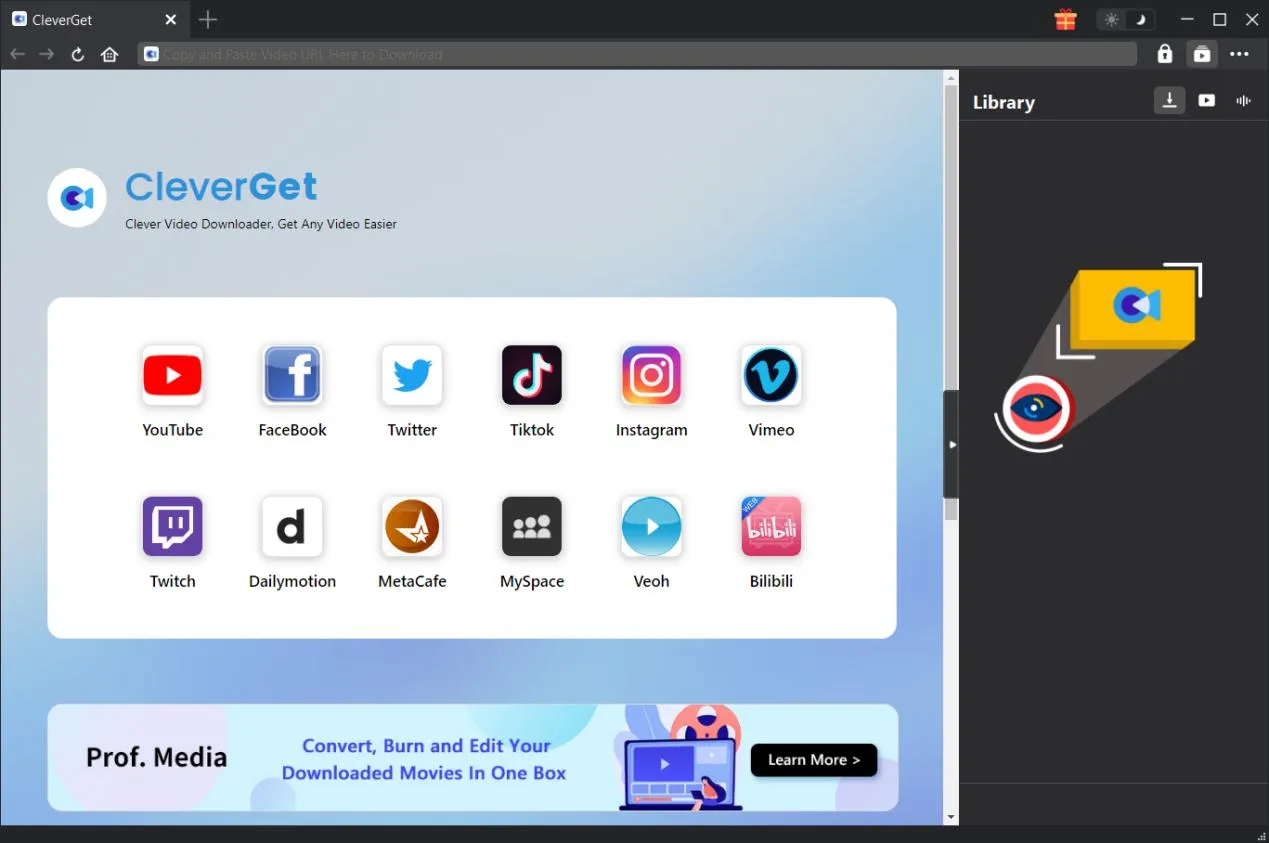
Step 1: Log in to your Amazon account
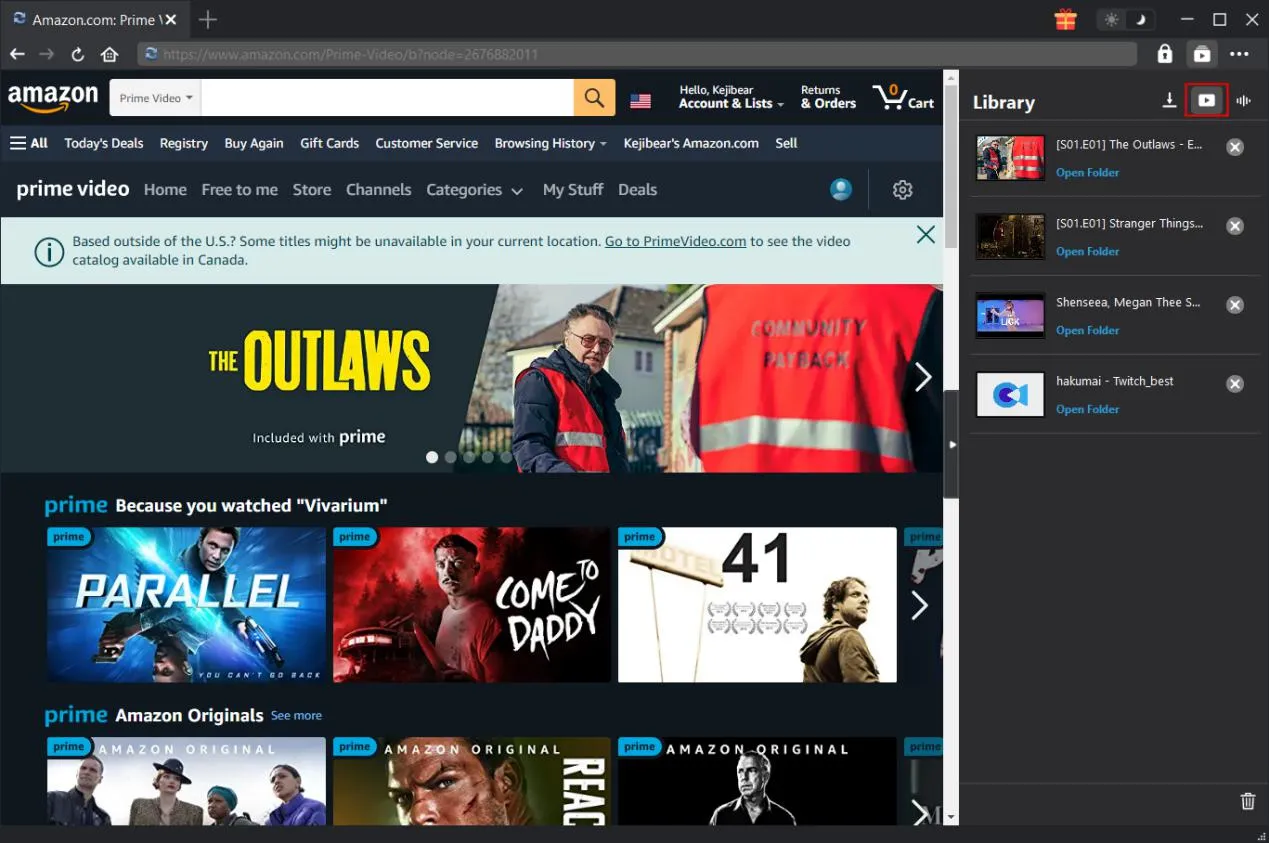
Install and open CleverGet Amazon Downloader on your PC. Select the Amazon Prime Video icon to access its official page, and then log in to your Amazon account.
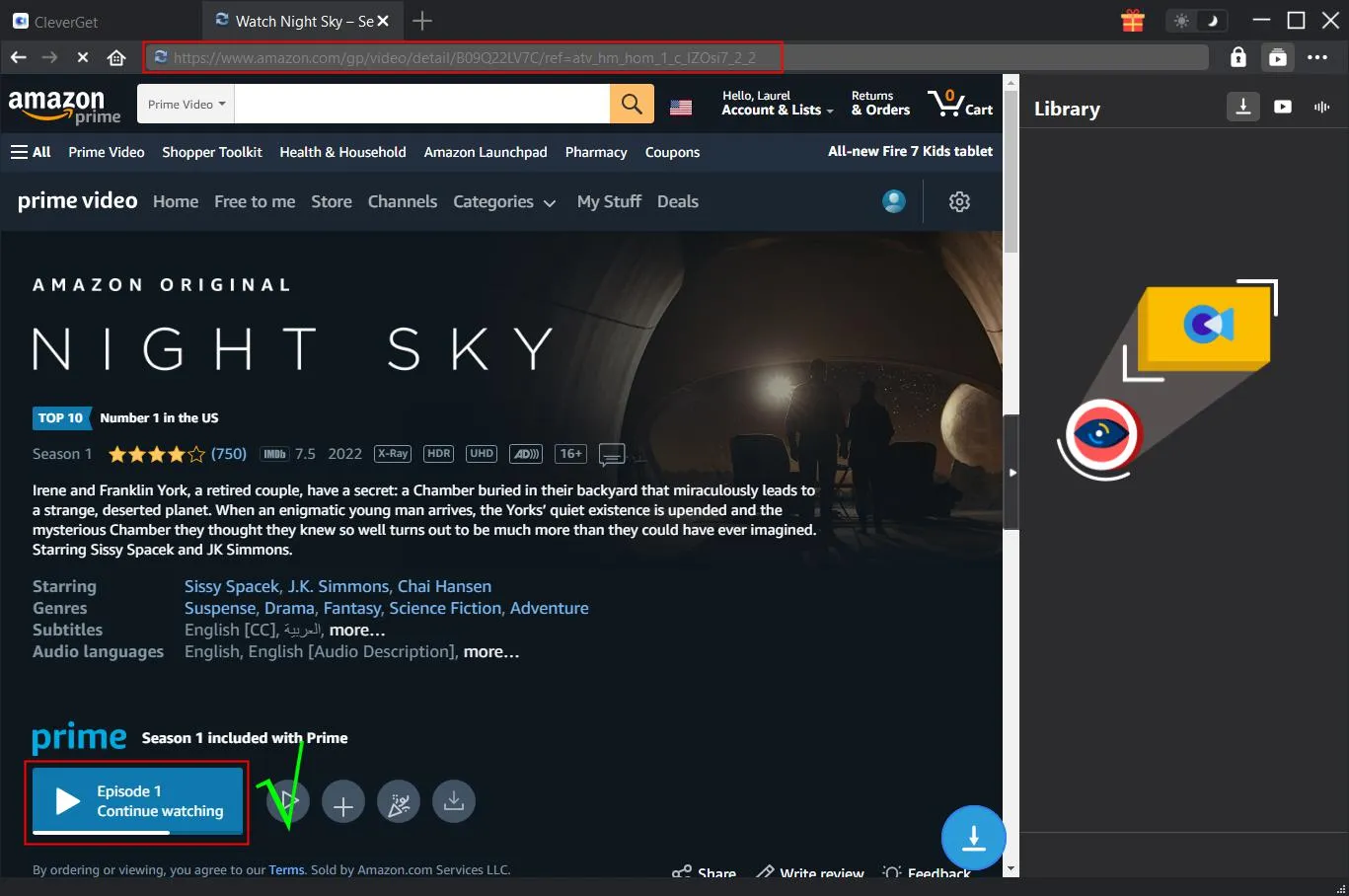
Step 2: Find your rented movie on Prime
Click on My Stuff icon, select the Purchase & Rentals tab, and find your rented movie. Alternatively, copy the video link from your browser and paste it into the address bar to access the title page. Click the Play button to proceed.
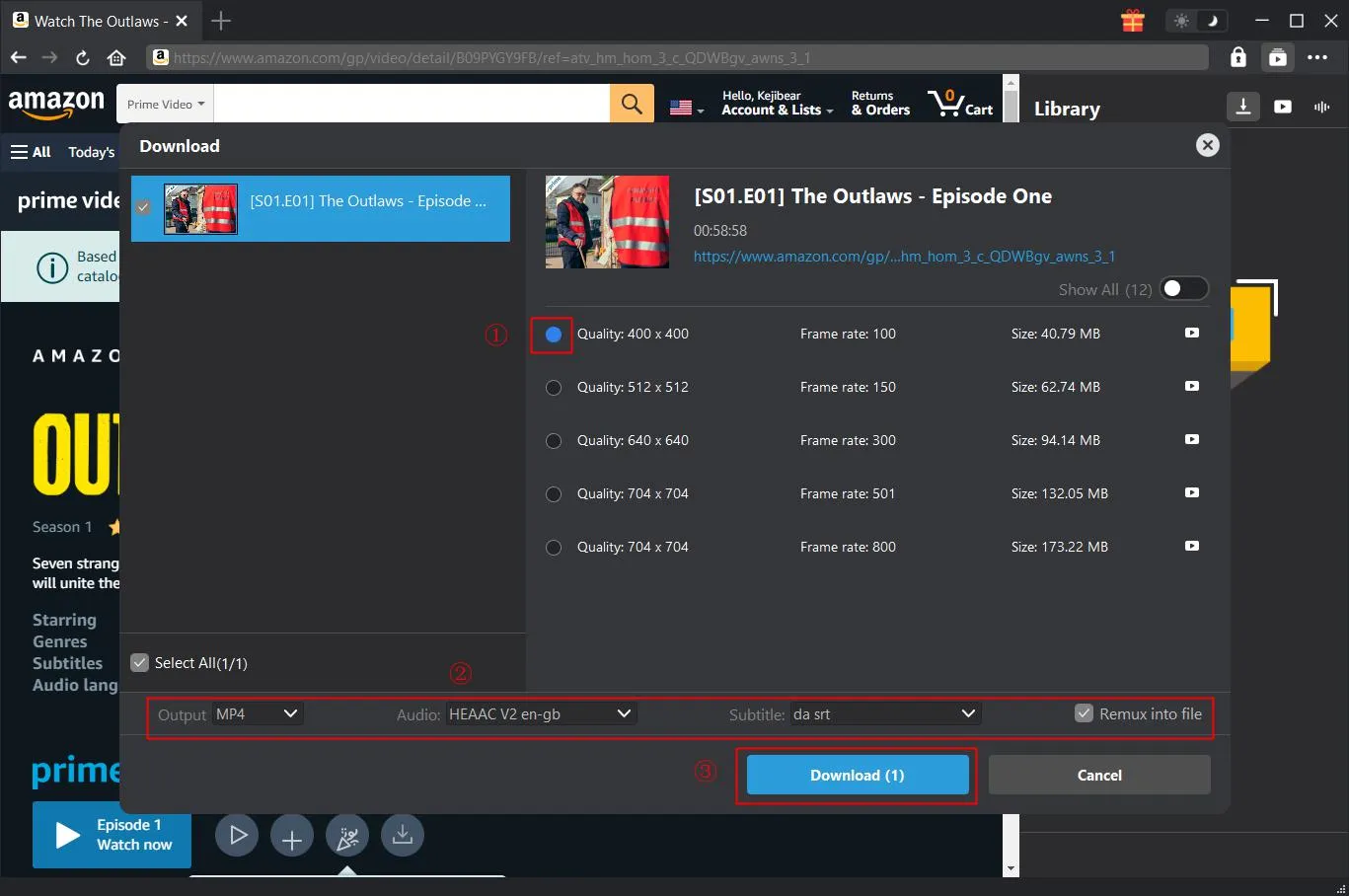
Step 3: Download your rented Amazon Prime video
Click the blue Download icon, and select the download options. Once done, click the Download button, and the downloading process begins.
Step 4: View the downloaded rentals
Your rental is listed in the Library tab and saved on your computer. You can play it whenever you want.
Bonus: Alternative Option of Downloading Rented Title from Prime Video
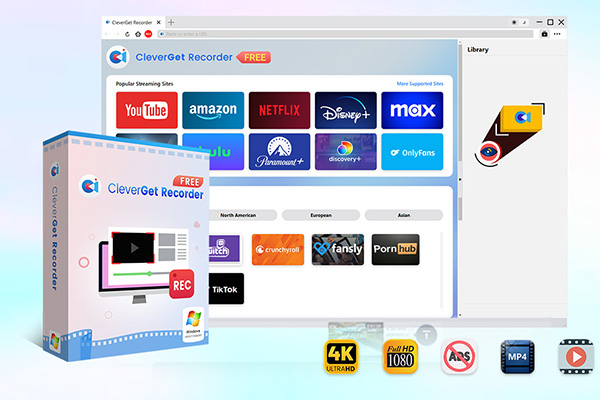
Another way to save your favorite rentals for offline watching is to take a record of them. However, due to Amazon Prime Video’s DRM protection, you can’t record its content with any regular screen recorder. That’s when you need CleverGet Rocorder That’s when you need CleverGet Amazon Downloader. It is a professional tool that records on-demand and live-stream videos from most mainstream streaming sites, including Prime Video. All you have to do is play your rented title from Prime Video in the recorder’s built-in browser, and it does the rest for you. It is completely free to use, making it an ideal option for downloading Prime rentals.
-
- 100% free streaming video recorder.
- Record both online on-demand and live streaming videos.
- Record up to 4K 60 FPS video to MP4 or MKV.
- Schedule recording on preset recording length.
- No watermark, no time limit, and ad-skipping (beta).
Final Verdict
You can download rented movies on Amazon via its app, but there are many limitations, such as the Amazon movie rental time window and the availability of the title for download. If you are looking to watch your rented movies on Amazon Prime without having to count the days, or want to watch them offline on your long-distance travel, tools like CleverGet Amazon Downloader come as a great option. It solves these annoying problems and offers you an unprecedented watching experience.
CleverGet Amazon Downloader
 Try for Free
 Try for Free
 Download Amazon Prime movies and TV shows.
Support batch Amazon Prime video downloads.
Download Amazon Prime videos to 1080P MP4/MKV.
Save subtitles and audio tracks.
Save subtitles as SRT/SUP or pack into video.
Remove ads during Amazon Prime video downloads.
 English
 Deutsch
 日本語
日本語 French
 한국인
한국인 Italiano