


 Try for Free
 Try for Free
Last updated on 2026-03-06, by
CleverGet Recorder Review: What Features Make It Standout?
Summary:
CleverGet Recorder lets you save high-quality streaming videos, including DRM-protected content, up to 4K 60FPS. Its ad-skipping, fast recording, and lossless output make it a top choice for offline viewing.
Recorders are a quick way to record your favorite clips. And if you’ve been browsing CleverGet reviews, then it means you are looking for an easy way to save streaming videos for offline viewing. CleverGet Recorder is the perfect way to do this. It offers high-quality recordings. Also, it comes with an internal browser and features that set it apart from traditional screen recorders. In this article, we’ll share what makes it special, how to use it, compare it with other tools, and answer whether it’s safe.
OutlineCLOSE
1. Standout Points of the CleverGet Recorder Compared to Other Recorders
-
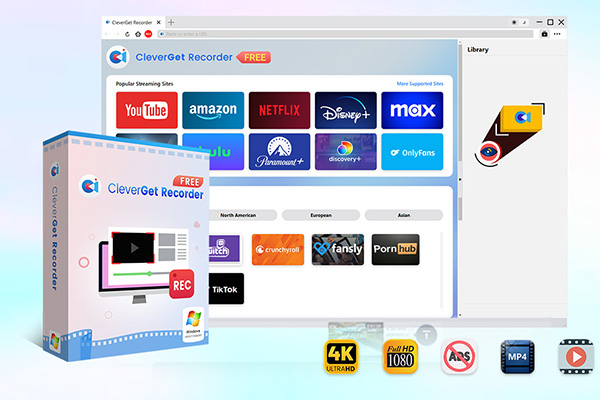
- 100% free streaming video recorder.
- Record both online on-demand and live streaming videos.
- Record up to 4K 60 FPS video to MP4 or MKV.
- Schedule recording on preset recording length.
- No watermark, no time limit, and ad-skipping (beta).
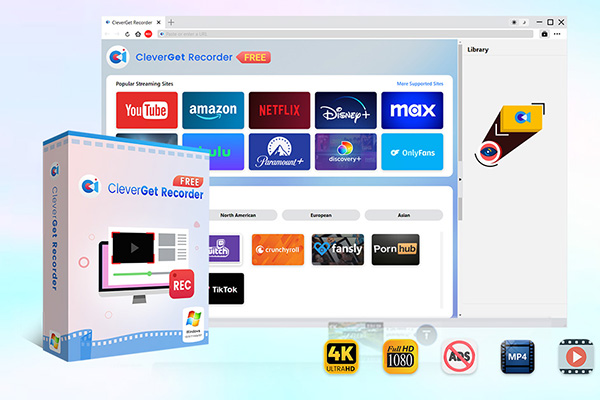
CleverGet Recorder is a little different from other recording tools. It’s a good option to use as a streaming video rather than a general desktop capture. You can record the actual video stream itself. That means ultimately you will get high-quality, lossless recordings even from DRM-protected content. It supports up to 4K resolution at 60FPS. Also, with CleverGet, you can record both on-demand and live streaming videos.
Also, you will get 5× faster recording speed than standard tools. Additionally, its beta Ad Removal feature skips ads during recording. As users, we will get clean, ad-free offline videos. Overall, CleverGet Recorder is a nice option that has a combination of high quality, speed, and specialized streaming focus. All these features make CleverGet an ideal choice over a general screen recorder for anyone looking to save streaming content efficiently.
What Are the Differences between CleverGet Recorder and Other Recorders
As we discussed, CleverGet Recorder is not a traditional screen recording tool. It will not record your desktop or microphone audio. But it’s built specifically for capturing online streaming videos. You can record videos like live streams and on-demand content. Unlike traditional screen recorders, which record your entire screen, system sound, and microphone, CleverGet focuses solely on online video playback. It works in a way that it connects directly to the video player. This helps avoid common issues like black screens and reduced quality on protected platforms.
But, if you’re looking for a full-featured screen recorder that captures your desktop, webcam, and microphone audio, you can try Leawo Free Screen Recorder instead. Below are some standout features of CleverGet Recorder;
Record DRM-Protected Video
The first and foremost feature that makes CleverGet Recorder a perfect choice is its ability to handle DRM-protected streams. It works with many popular platforms like Netflix, Disney+, Amazon Prime Video, and Hulu. These platforms are DRM protected, and recorders usually fail to record videos here. CleverGet Recorder works around this by recording the stream itself in real time. Simply it means that even if a video can’t be downloaded normally because of copyright protection, CleverGet Recorder can still capture it while it plays. You can save your recordings as MP4 or MKV format at up to 4K UHD and 60FPS. It closely matches the original quality.
Record without Ads (Beta Feature)
Another standout feature is the Ad Filter (Beta). As we know most recorders record even commercials. CleverGet Recorder has an ad-skipping feature. You can disable and enable this feature during recording. It can enable or disable this directly from the recording toolbar or settings. Furthermore, you can also preset typical ad durations so CleverGet knows what to skip.
Up to 4K UHD Output, No Watermark
CleverGet Recorder is free, yet it still delivers surprisingly premium results. You can record videos in their original quality. It supports quality of up to 4K UHD at 60FPS. Once recorded you can export them as MP4 or MKV files. The best thing about this recorder is that there’s no watermark and no forced time limit on your recordings. This makes CleverGet Recorder on par with many paid tools. This feature is one of the big reasons it continues to receive positive feedback across CleverGet reviews.
2. How to Use CleverGet Recorder
Above all, unlike other recorders, CleverGet Recorder is simple to use. There are no complicated steps and everyone can use it easily.
Step 1: Configure Your Recording Settings
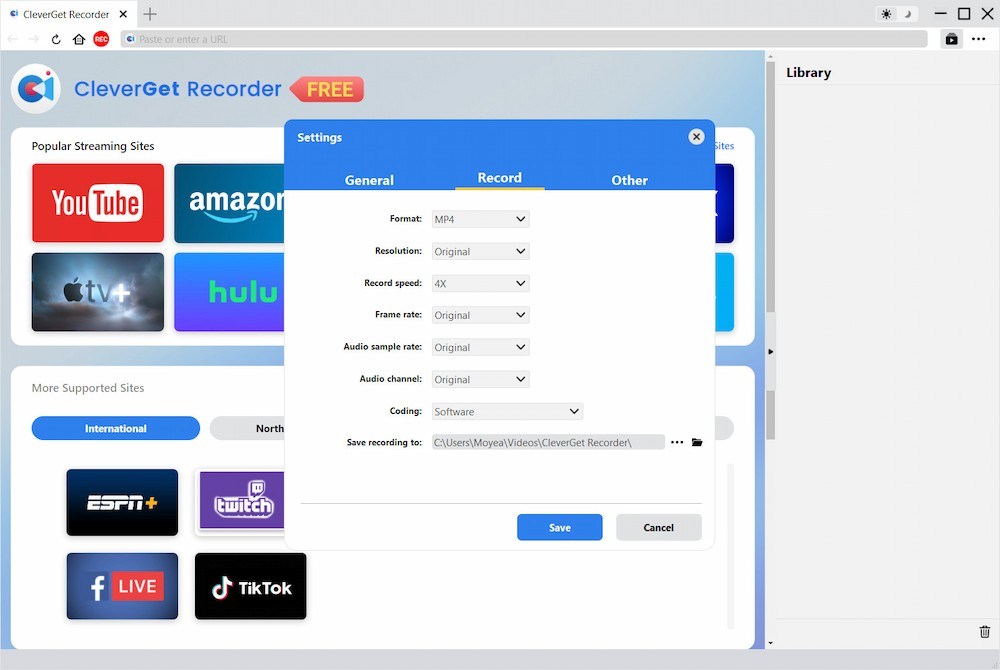
First, open CleverGet Recorder and click the three-dot menu in the top-right corner. This option will open Settings. Next, choose your preferred output format (MP4 or MKV). Here you can also choose resolution (up to 4K), frame rate, recording speed, and audio parameters. Also, you can select your default save location.
Step 2: Open the Streaming Video You Want to Record
Next, use CleverGet’s built-in browser and go to the video you’d like to capture. Once the page loads, make sure the video is playing at your desired quality. CleverGet will automatically detect the video stream.
Step 3: Open the Recording Toolbar
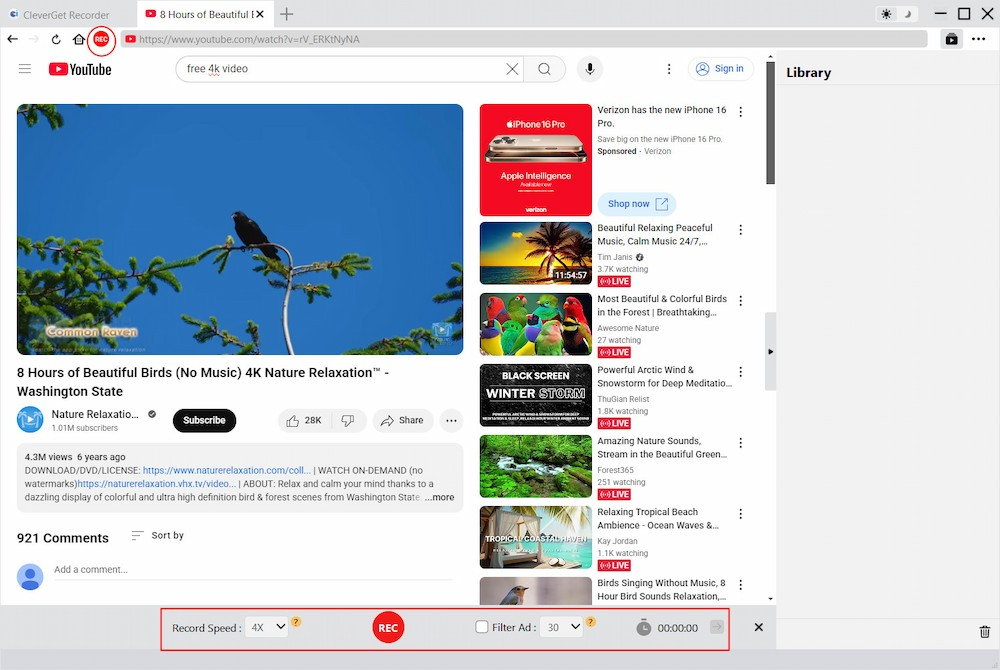
When the video is detected, you’ll see a red REC icon near the address bar. You need to click on it to bring up the recording toolbar at the bottom of the screen. Here in the toolbar you can adjust recording speed and enable the Ad Filter if needed.
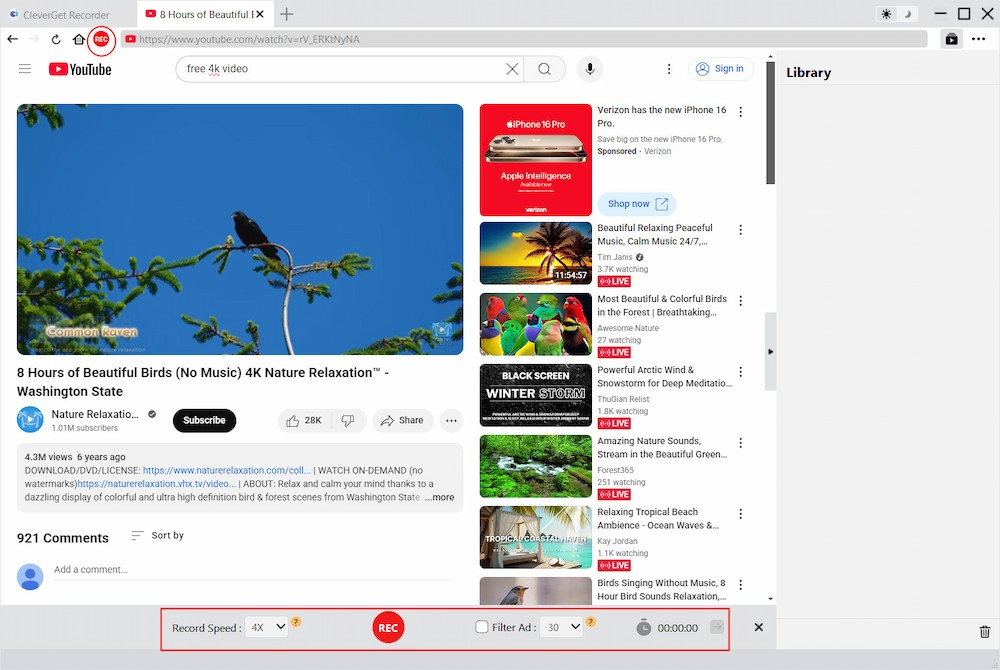
Step 4: Start Recording and Save Your Video
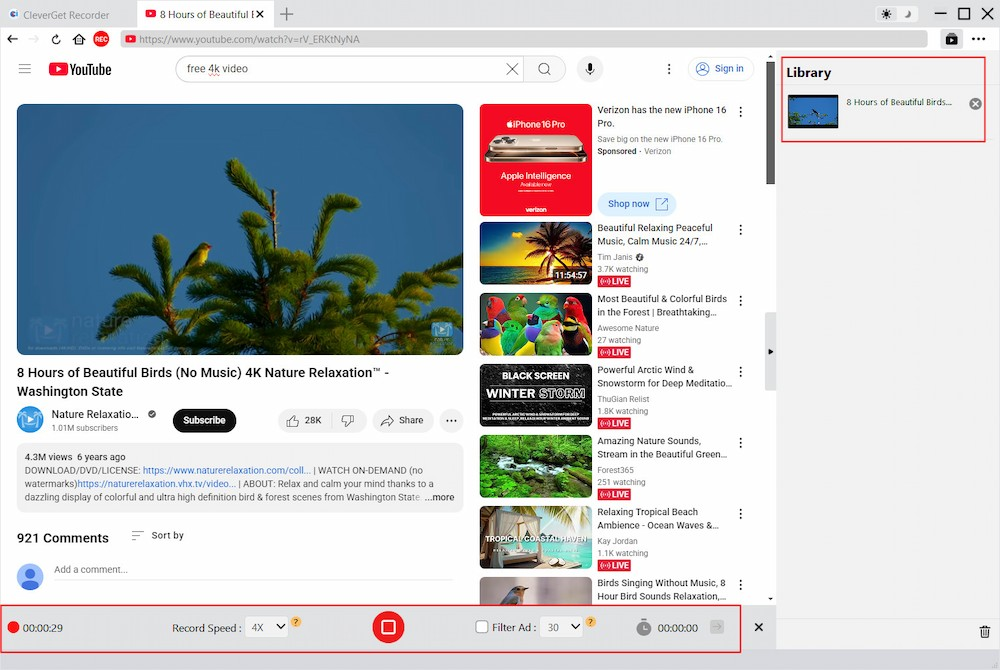
Finally, tap the red REC button to begin recording. CleverGet will capture the video and its embedded audio in real time. Once recording is done, click Stop, and your recording will be saved automatically in your chosen format. In the right side library, you can find your recorder videos.
3. FAQs
Q: Is CleverGet Recorder safe to use?
Yes it is safe to use. CleverGet Recorder captures video and audio streams from its built-in browser. The software doesn’t have any malware or spyware and doesn’t collect personal information. Just make sure to only download tools from the official CleverGet website to avoid fake copies.
Q: What’s the difference between recording and downloading?
Download means you get the original video files directly. It’s a fast and direct way to preserve the video with zero quality loss. Recording, on the other hand, captures the video as it plays. Recording uses more system resources, and it works on far more websites. It’s perfect for DRM-protected platforms, and also enables features like ad skipping.
Q: Does recording affect video quality?
No, CleverGet Recorder does not affect the original quality. It records at the same resolution and bitrate as the source, up to 4K/60FPS.
Q: Will CleverGet Recorder capture audio as well?
Yes. CleverGet Recorder captures the system audio embedded in the video (dialogue, music, etc.) The audio saved together with the video in MP4 or MKV format.
Final Verdict
So, is CleverGet Recorder worth it? Yes, it is. So, if your main goal is saving streaming videos for offline viewing, the answer is a clear yes. CleverGet Recorder is a perfect choice to record online content. It records DRM-protected streams, supports up to 4K UHD output, offers optional ad removal, and adds no watermark, all while remaining easy to use. Its only real limitation is that it isn’t a full-screen recorder. But that focus is exactly what makes it powerful in its niche. For movies, TV shows, live streams, and other web videos, CleverGet Recorder delivers excellent results at zero cost. If you’re searching for a reliable streaming recorder, this CleverGet Recorder review confidently recommends giving it a try.
-
How to Screenshot on Windows 10/11: Tools & ShortcutsSunny Wen/2026-03-30
-

Does Paramount Plus Have Live TV? Full GuideSunny Wen/2026-03-30
-
How to Download Videos from 9Now?Cassie J./2026-03-24
-

How to Disable YouTube Shorts: Simple Methods That WorkSunny Wen/2026-03-23
-

Hulu Screen Limits: How Many People Can Watch Hulu at Once?Cassie J./2026-03-24
-

From Flight to Hotel: How to Watch Netflix While TravelingCassie J./2026-03-24
-
How to Record on Canva: Step-by-Step Guide for BeginnersSunny Wen/2026-03-16
-

Paramount Plus Error Code 111: Causes, FixesLeia Liu/2026-03-13
-
4K Video Downloader Review: Is It Worth Using?Leia Liu/2026-03-13
-

ScreenPal Review: Is It the Right Screen Recorder for You?Sunny Wen/2026-03-12
-

How to Download OnlyFans Videos from Messages?Patrick Murray/2024-05-09
-

[2026] What is OnlyFans Media not Loading Issue & How to Fix?Patrick Murray/2024-02-21
-
How to Download OnlyFans Videos on Android/iPhone/PC?Patrick Murray/2024-06-28
-

How to Download Private YouTube Videos Without AccessPatrick Murray/2025-02-12
-

How to Download YouTube Members-Only Videos?Cassie J./2024-05-08
-

Latest List of the Best Free Movie Websites[2026]Patrick Murray/2024-05-07
-
[2026 Update] How to Download All Media from OnlyFans?Patrick Murray/2024-02-26
-
TK2DL: Features and Uses of this TikTok & Twitter DownloaderLeia Liu/2024-09-05
-

10 Best HDHub4u Alternative Sites for Movie DownloadPatrick Murray/2024-03-06
-
How to Turn Off Age Restriction on YouTube?Patrick Murray/2024-03-04
 English
 Deutsch
 日本語
日本語 French
 한국인
한국인 Italiano