


 Try for Free
 Try for Free
Last updated on 2023-03-29, by
5 Best HTML5 Video Downloaders for HTML Video Download
There are many websites adopting HTML5 video players to play online videos, like YouTube, Vimeo, Dailymotion, Facebook, Bilibili, etc. It is necessary to know that HTML5 features two new tags-
MenuCLOSE
Part 1: Download HTML5 Video with Best Desktop HTML5 Video Downloader
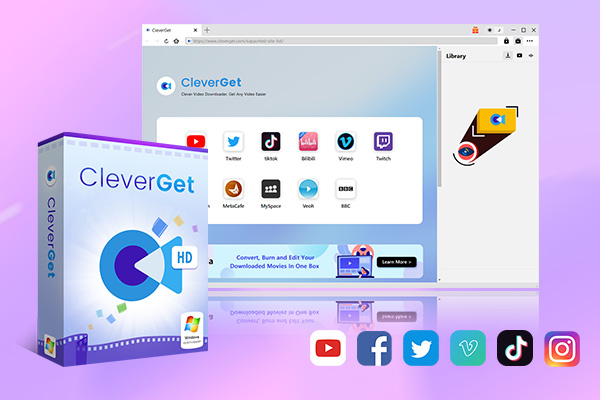
For the purpose of downloading HTML5 videos to your computer in a safe and stable way, you can first resort to the best desktop HTML5 video downloader. CleverGet video downloader is the best option as an excellent desktop HTML5 video downloader based on its high efficiency and powerful functions. It can download up to 8K videos, live stream videos and any HTML5 videos from more than a thousand of websites like YouTube, Facebook, Twitter, Vimeo, HBO Max, Bilibili, etc. It downloads a maximum of 5 videos at the same time. Besides, it enables you to download videos ranging from 480p, 720p, 1080p, 4K, and up to 8K UHD with 320 Kbps audio quality. Here comes the simple guide for HTML5 video download with this HTML5 video downloader.
Step 1. Download and Install CleverGet HTML5 video downloader
Choose the right version of this downloader and click the link to download the installation package and then install it on your computer.
-
– Download videos up to 8K resolution
– Support 1000+ sites
– Support live video M3U8 link downloading
– Multi-task and playlist download
– Built-in browser and player
– Advanced hardware acceleration
– Easy-to-use interface
Step 2. Change default settings
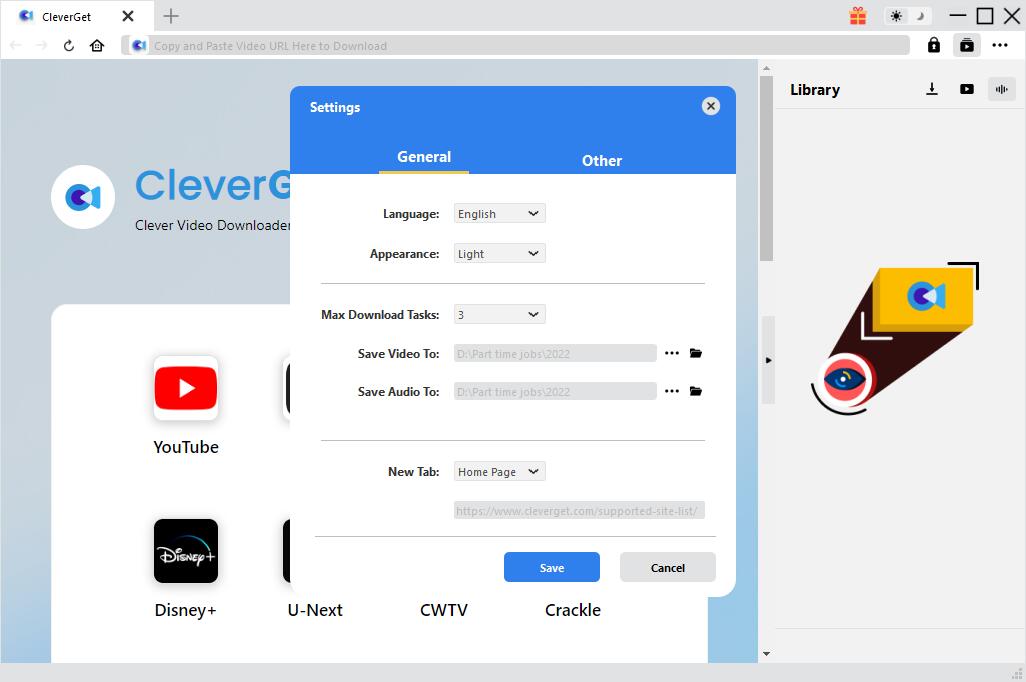
Launch the HTML5 video downloader and change default settings before you start downloading HTML5 videos. To make it, click the horizontal three-dots icon and then choose “Settings” to pop up the settings panel. Now you can change the default settings such as the language of the interface, the output folder for saving the downloaded video, homepage and other settings. Click “Save” to start.
Step 3. Download HTML5 video you need
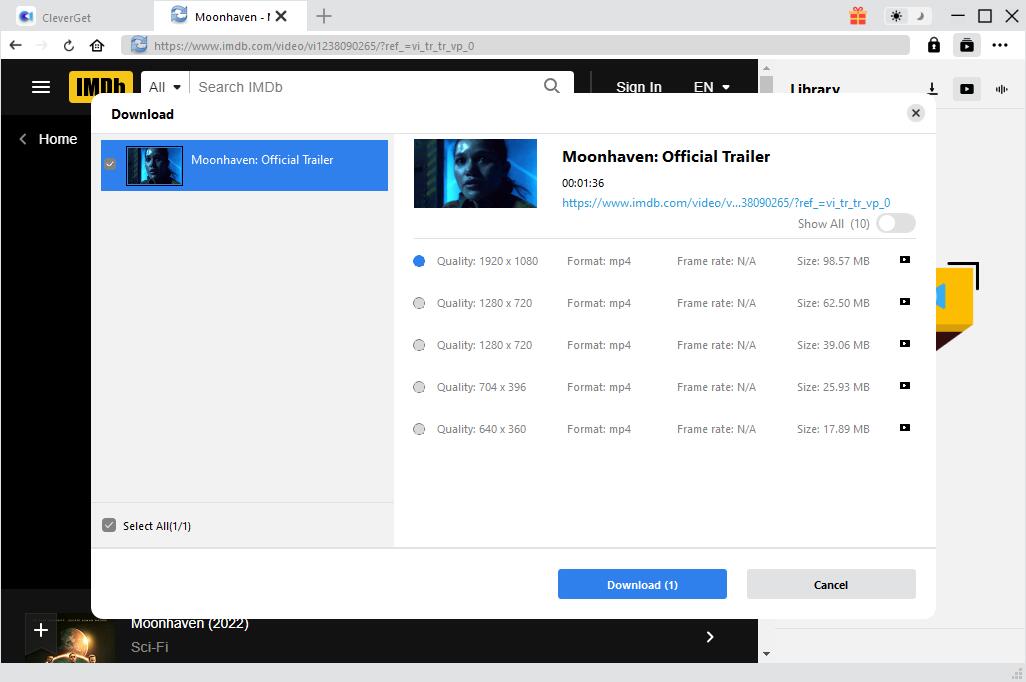
Copy and paste the link of the target HTML5 video in the address bar and tap “Enter” on the keyboard. When the video is playing, CleverGet will automatically detect the available sources to download and list all the downloadable options on the pop-up Download panel. Choose one option in your desired format, size and resolution, and then click “Download” button to start the downloading process.
Step 4. Check downloading process and manage downloader videos
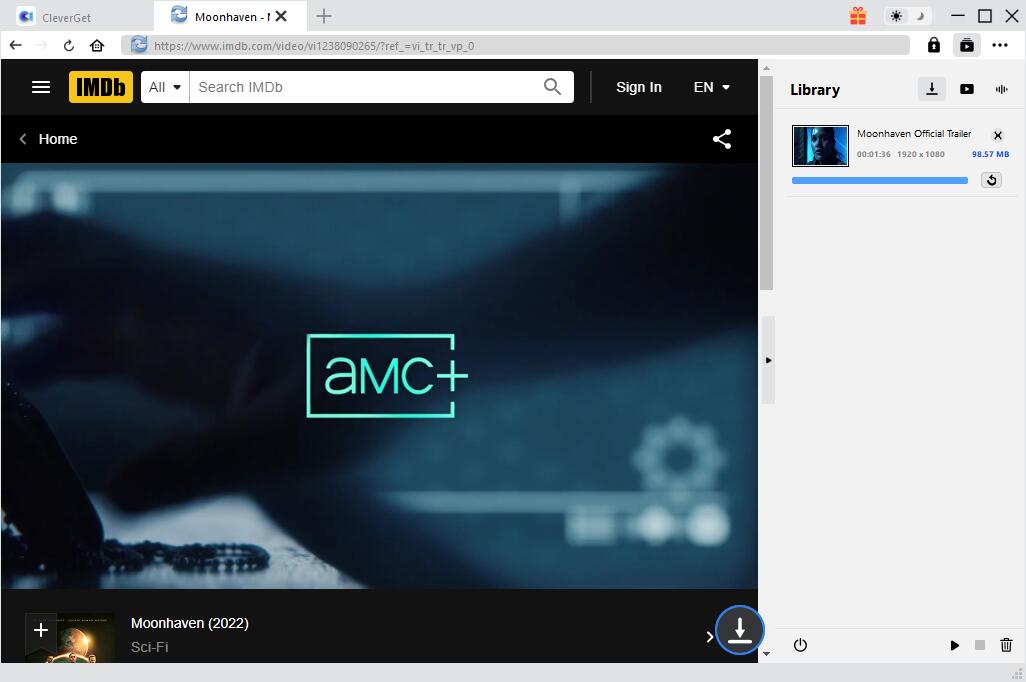
When it starts downloading HTML5 video, you will be directed to the downloading tab where you can check out the video you are currently downloading, stop and end the task if you want. When the process of downloading is finished, you can check downloaded video under Video tab, double-click the video to play and locate the video.
Fair Use Policy
CleverGet allows video downloading for personal needs only. Sharing content downloaded by CleverGet with any third party or for commercial purposes is strictly prohibited.
Part 2: Download HTML5 Video with Inspect on Chrome Browser
Another best way to download HTML5 video is to use Inspect Element on Chrome or other browsers. In this way, there is no need to install any software to download HTML5 videos. And it is quite easy to download HTML5 video with inspect on chrome browser. Here comes the simple guide to download HTML5 video on Chrome Inspect Element.
Step 1: Play the video you are going to download off the web page.
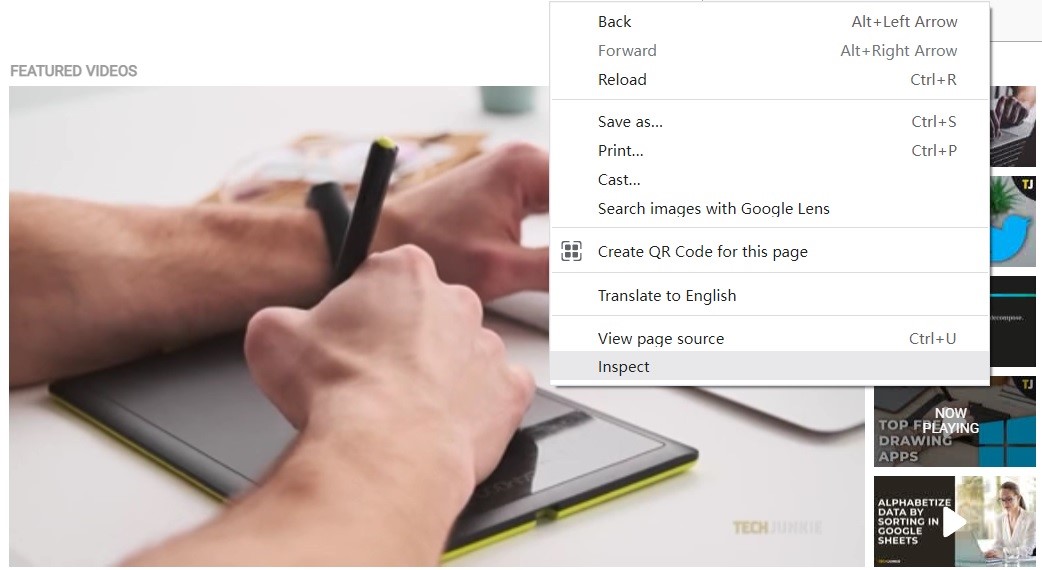
Step 2: Right-click on the video and pop up a menu, scroll down and select “Inspect” or “Inspect element” to call out a new HTML window on the right side.
Step 3: On the “Elements” tab, press “Ctrl + F” and then type MP4, it will navigate to the video link. Now right-click on the link to open a menu with options, select “Open a new tab.”
Step 4: Click on the three dots and download the HTML5 video to your computer.
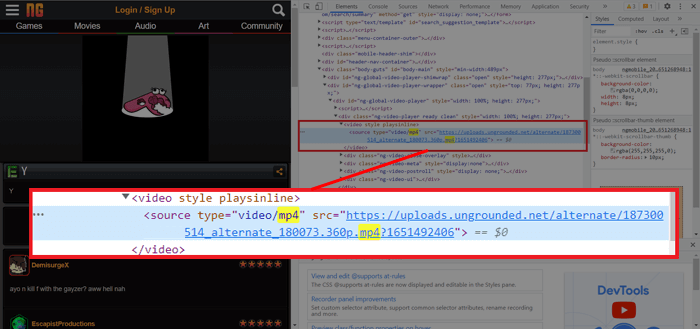
It is easy to get the way if you follow the steps mentioned above. Nonetheless, you should know that not all websites support HTML5 Videos download in this way. And it is worth noting that whether the way is working also depends on the website you are downloading videos from. If this way doesn’t work on the website you want to download HTML video from, you can also try other HTML5 video downloaders follow-up.
Part 3: Download HTML5 Video with Online HTML5 Video Downloader
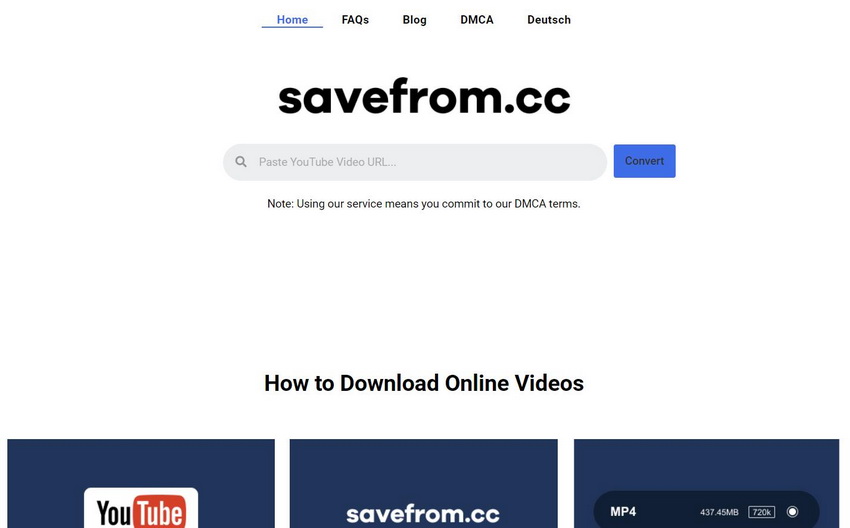
There are a great many online HTML video downloaders that can be used to download HTML5 video simply with your browser. And Savefrom.cc would be one of the best online HTML5 video downloaders. It provides you with convenient and easy-using service to download HTML5 videos in MP4 format with high quality. In addition, it allows you to download videos at resolutions like 4K, 2K, 1080p and 720p, to ensure the best offline video streaming experience. No ads are embedded as well. Read on and get your way to download HTML5 video with this online video downloader.
Steps:
- Copy the URL of the HTML5 video you want to download.
- Paste the URL to the search box on Savefrom.cc and then click on the blue “Convert” button.
- When the conversion completes, click on “Download” button to download the HTML5 video in MP4.
Part 4: Save HTML5 Video with HTML5 Video Downloader Extension
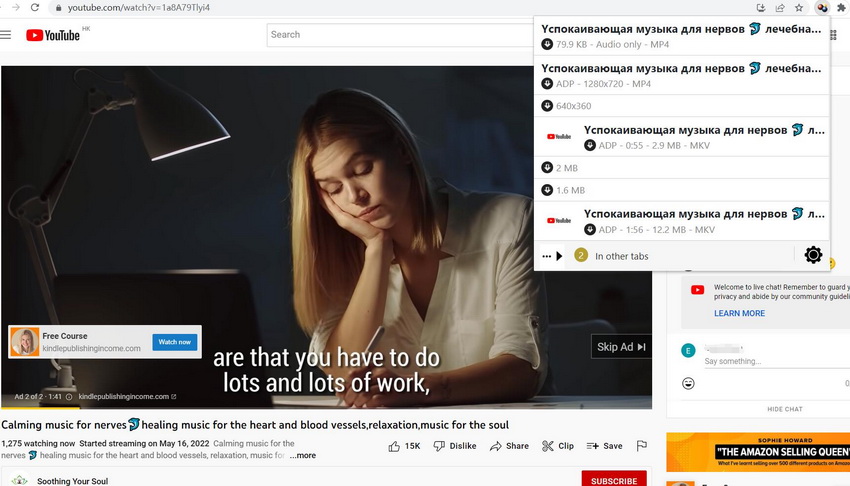
It is obvious that this online HTML5 video downloader is easy to use. But it can only download short HTML5 videos from specific websites. If you are going to download long HTML5 videos or download a playlist off HTML, you’d better use the desktop HTML5 video downloader or other video downloaders. And it is a feasible and reliable way to save HTML5 video with HTML5 video downloader extension. Worth mentioning in this case is that Video DownloadHelper, as the best HTML5 video downloader extension for Chrome and Firefox, supports HTML5 video download from lots of websites like YouTube, Vimeo, DailyMotion, Twitter, etc. Here come tips on downloading HTML5 video with this extension on Chrome:
Steps:
- Add Video DownloadHelper to your Chrome from Chrome Web Store.
- Open the video webpage and play the video you like. On the Chrome browser toolbar, you can click the extension icon and then select Video DownloadHelper to enable it.
- All the available options will be detected. You can choose the desired option to download.
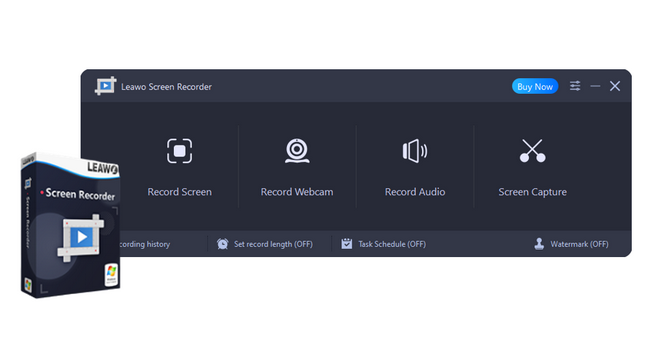
Part 5: Record HTML5 Video with Leawo Screen Recorder
Though using browser extensions for HTML5 video download is convenient, it doesn’t allow you to directly download HTML5 videos from most websites. To make sure that you can download HTML5 video from any websites, you can record HTML5 video with Leawo Screen Recorder. It is a multifunctional screen recorder with audio that empowers you to download HTML5 video by capturing any area of your screen and any audio with ease. Besides, it allows you to add audio narration, cursor movement, and even doodles to the recording, so that you can deliver instructions, describe problems, and share knowledge without a hitch. With Leawo Screen Recorder installed on your computer, you can simply follow the steps below to record HTML5 video for offline enjoyment.
Step 1: Download and install Leawo Screen Recorder
Click the link below according to your computer system to download and install this software on your computer.
-
– Record all activities on your computer screen as HD screencast.
– Record video from your webcam.
– Record any audio from your computer an/or microphone.
– Capture anything on your computer screen as screenshot.
– Add drawing, annotations, watermark, mouse animation, and BGM to recordings.
– Output in high quality with multiple formats selectable.
Step 2. Launch Leawo Screen Recorder and set output preferences
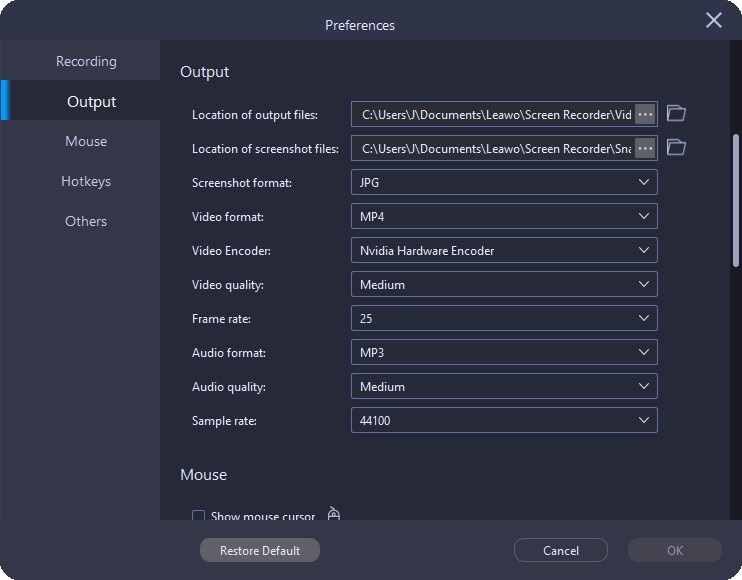
Launch Leawo Screen Recorder on your computer and then you can change the default settings before recording. You can just click the three-bar icon on the top-right menu bar and select “Settings” option to pop up a “Preferences” panel where you can change output settings including the location of output files, output video format, output video quality and other settings.
Step 3. Select the region of the recording
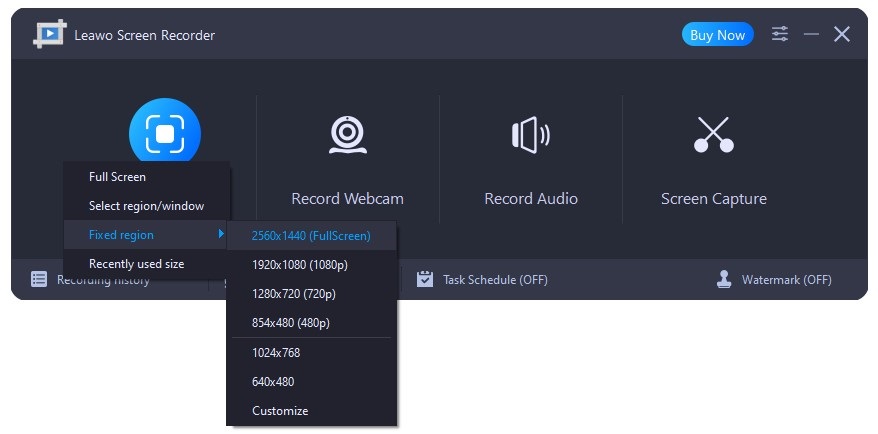
When you have changed the output settings, click “OK”. And then you can click the “Record Screen” button on the main interface to pop up a menu, where you can select the region of the recording. There are 4 options including “Full Screen”, “Select region/window”, “Fixed region”, or “Recently used size”. It allows you to adjust the size and resize the recording region as well.
Step 4. Start to record HTML5 video
When fix the recording region of the HTML5 video you want to download, you can start recording by clicking the “Record” button or pressing the hotkeys of “Ctrl + Alt + S” by default.
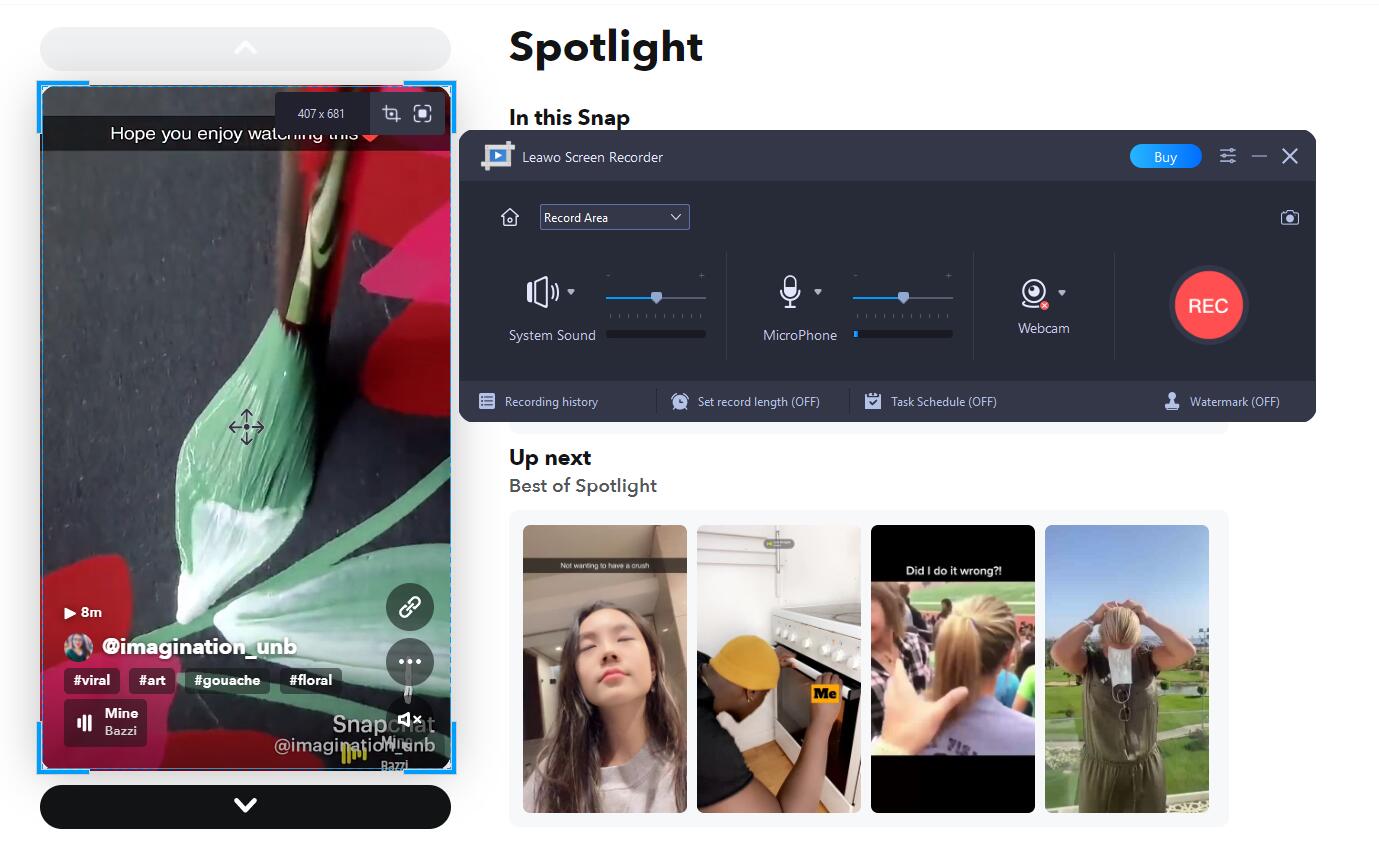
Once the screen recording process is complete, click the “Stop” button to stop recording, and the recorded HTML video will be listed in the “Record History” panel.
Part 6: Best HTML5 Video Player
It is claimed that the HTML5 video player was a monumental development for online video streaming. The HTML5 streaming technology was created as a more widely compatible alternative to Adobe’s Flash player. An HTML5 video player allows broadcasters to share video content with users over the internet and efficiently reach more audiences. When you watch HTML5 video online or have got HTML5 video downloaded, you’d like to get the best HTML5 video player to have a better experience in viewing.
-
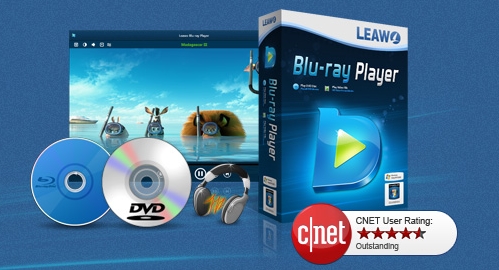
– Region-free Blu-ray player software to play Blu-ray disc and DVD disc for free, regardless of disc protection and region restriction.
– Play 4K FLV videos, 4K MKV videos, 4K MP4 videos, etc. without quality loss.
– Support the conversion from Blu-ray/DVD discs to MKV in the premium version.
– Deliver super high-quality stereo audio experience with the support of various advanced audio decoding technologies like Dolby, DTS, AAC, TrueHD, DTS-HD (including 5.1, 7.1 channels), etc.
Leawo Free Blu-ray Player would be one of the best HTML5 video players. It contains all media playback solutions you need and delivers superb movie experience. Acting as free video player with advanced image and audio processing technology, it delivers quality-lossless video images at 720P, 1080P, 1080i and 4K (2160P) in H.264/H.265, MP4, MKV, MOV, etc. Except for common video formats, it also supports media file types including UHD, Blu-ray, DVD, container formats, Network protocol clients and so on. It’s the best free software to play HTML5 videos.
-

How to Screenshot on Windows 10/11: Tools & ShortcutsSunny Wen/2026-03-30
-

Does Paramount Plus Have Live TV? Full GuideSunny Wen/2026-03-30
-

How to Download Videos from 9Now?Cassie J./2026-03-24
-

How to Disable YouTube Shorts: Simple Methods That WorkSunny Wen/2026-03-23
-

Hulu Screen Limits: How Many People Can Watch Hulu at Once?Cassie J./2026-03-24
-

From Flight to Hotel: How to Watch Netflix While TravelingCassie J./2026-03-24
-

How to Record on Canva: Step-by-Step Guide for BeginnersSunny Wen/2026-03-16
-

Paramount Plus Error Code 111: Causes, FixesLeia Liu/2026-03-13
-

4K Video Downloader Review: Is It Worth Using?Leia Liu/2026-03-13
-

ScreenPal Review: Is It the Right Screen Recorder for You?Sunny Wen/2026-03-12
-

How to Download OnlyFans Videos from Messages?Patrick Murray/2024-05-09
-

[2026] What is OnlyFans Media not Loading Issue & How to Fix?Patrick Murray/2024-02-21
-

How to Download OnlyFans Videos on Android/iPhone/PC?Patrick Murray/2024-06-28
-

How to Download Private YouTube Videos Without AccessPatrick Murray/2025-02-12
-

How to Download YouTube Members-Only Videos?Cassie J./2024-05-08
-

Latest List of the Best Free Movie Websites[2026]Patrick Murray/2024-05-07
-

[2026 Update] How to Download All Media from OnlyFans?Patrick Murray/2024-02-26
-
TK2DL: Features and Uses of this TikTok & Twitter DownloaderLeia Liu/2024-09-05
-

10 Best HDHub4u Alternative Sites for Movie DownloadPatrick Murray/2024-03-06
-

How to Turn Off Age Restriction on YouTube?Patrick Murray/2024-03-04
 English
 Deutsch
 日本語
日本語 French
 한국인
한국인 Italiano