


 Try for Free
 Try for Free
Share article:


How to Watch Hulu on Apple TV (Old & New Devices)?

2025-12-04 ・ Related to: CleverGet Hulu Downloader
58 Views
Summary:
- Hulu streaming is quite simple via Apple TV as long as you have an Apple TV HD or Apple TV 4K. However, older versions require workarounds. In case you have an older model and want to watch Hulu on Apple TV, you can do it through AirPlay, an HDMI wire, or by downloading the shows.
Hulu is not playing on your Apple TV? This is a common problem faced by many Apple TV users. The main issue is that different Apple TV models support different Hulu apps. When the compatibility is not there then this tiny detail will not let you stream Hulu on your Apple TV. In this article we will share some simple ways to play Hulu on both old and new Apple TV devices, as well as some simple fixes if things don’t load the way they should.
OutlineCLOSE
Check Hulu Availability on Apple TV
First, figure out whether your Apple TV can run Hulu or not. The thing is that the Hulu app doesn’t work with different generations of Apple’s TVs. Hulu is a streaming service that will be great with Apple TV 4K and Apple TV HD (the 4th gen model). But if you happen to have a 3rd generation Apple TV or any of the models that were before it, then those models are such that Hulu is just not available.
It makes sense to check apple tv model compatibility first. If by any chance you don’t know which model you have, you can refer to Apple’s compatibility list. Or you can simply look at the number that is printed on the bottom of your Apple TV box and find out which model you have. Everything is going to be very smooth on all supported models. You will have full access to the on-demand library, Hulu + Live TV. Plus, you can stream up to 4K where available. You will see everything running smoothly on the new Hulu interface. Basically, your Hulu app will just work like the other platforms like Roku, Fire TV, or smart TVs.
How to Download Hulu on Apple TV?
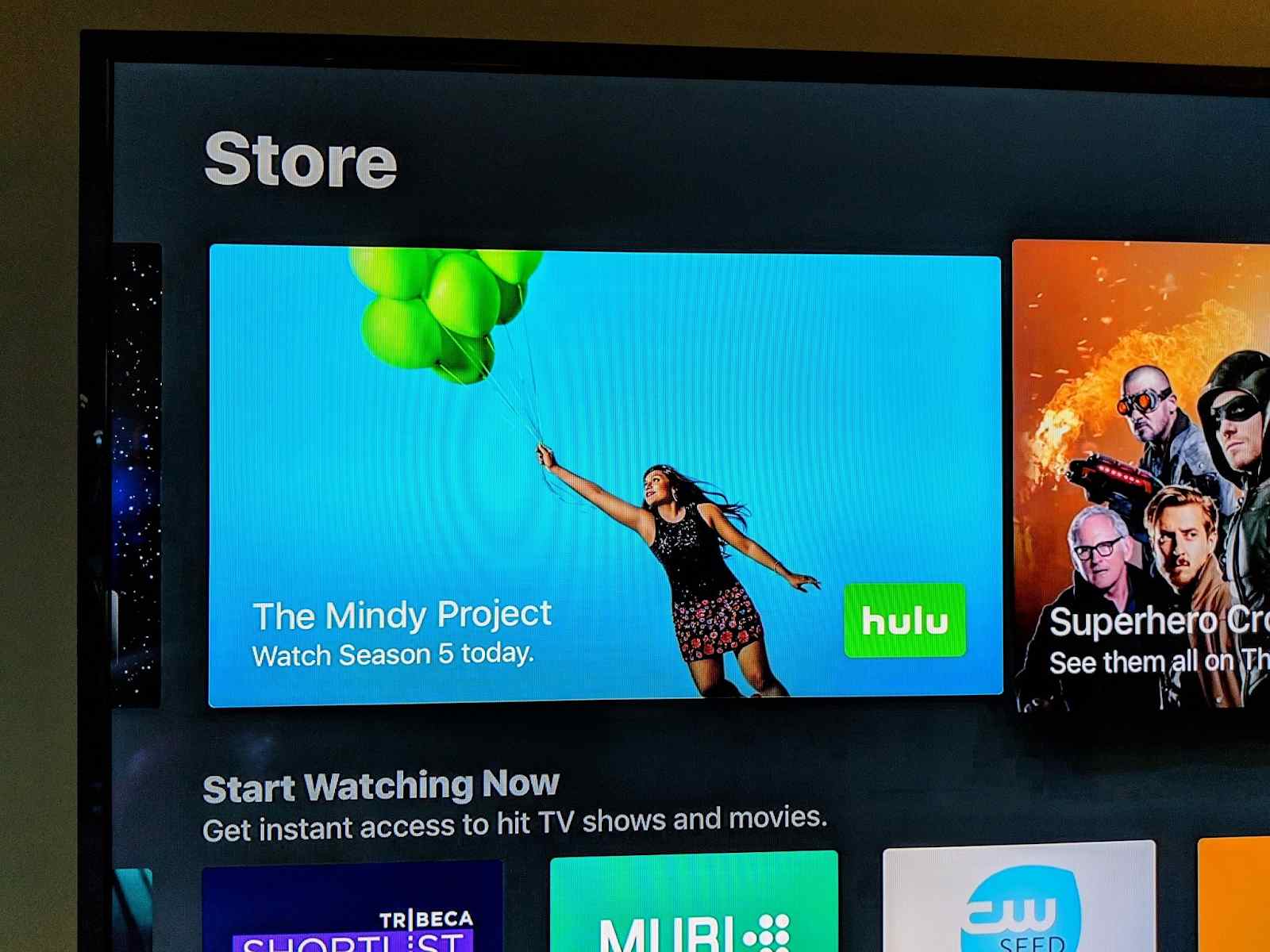
Apple TV users can easily download Hulu without any hassle. If your device is of a compatible version, it will take a moment only. Simply, open the App Store from the main screen of the Apple TV. Afterward, type “Hulu” in the search bar. When the app appears, press Get and allow the app to be installed. Later, you can activate Hulu, or directly log in with your account credentials and go on with the viewing without any delay.
There is no difference in downloading and installing Hulu with other apps on your Apple TV. You will go through the same process. In case the Hulu isn’t available in the App Store, it normally indicates that your Apple TV is of an older generation and that the Hulu app is not compatible with it.
How to Watch Hulu on Older or Unsupported Apple TVs?
Now if you have the Older Apple TV models, still the problem has the solution. You just need a workaround. There are 3 best solutions for this. Each option works differently, so the best choice depends on your viewing needs. Here are your top 3 options.
1. Use AirPlay
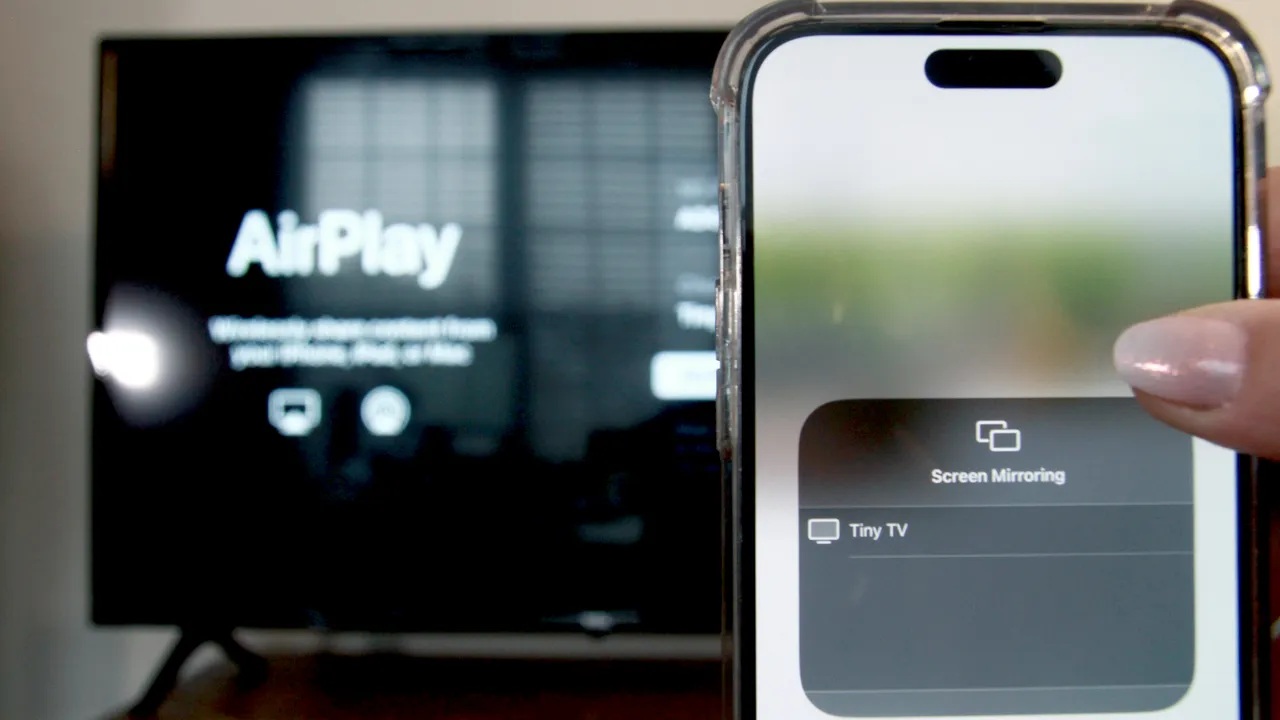
The first method is just using AirPlay. This is the least complicated method of how to get Hulu on an old Apple TV. To set it up all you have to do is open the Hulu app on your iPhone, iPad, or Mac. After that, if you want to watch a show, you simply tap the AirPlay symbol to transfer the video to your Apple TV. The condition is that your Apple TV and your device must be connected to the same Wi Fi network.
Here the limitation of this method you should keep in mind is, AirPlay quality depends heavily on your internet and your local network. This means if your Wi-Fi is weak, you will see stuttering and poor quality. But if the connection is good, AirPlay feels almost the same as watching Hulu through a built-in app. It’s a quick fix that requires zero cables and works for most people.
2. Connect Hulu from a Laptop to Your TV via HDMI
The second method is just connecting Hulu from your laptop to your TV. This method is best If you want something more stable. This connection will work the old-school way with an HDMI cable. You just need to open Hulu on your laptop, plug one end of an HDMI cable into your laptop and the other into your TV. After connecting just switch the TV input. Everything on your laptop screen mirrors onto the TV, including Hulu.
This method is great for older Apple TVs because it avoids all the compatibility problems. This method is more preferable than the 1st solution as the HDMI gives you consistent picture quality. There will be no buffering caused by Wi-Fi. The only downside is that you’ll have a cable running across the room, but the reliability often makes it worth it.
3. Convert Hulu to MP4 and Watch on Your TV
The final and most recommended option is just to download Hulu content, transfer it or cast to your TV and watch anytime anywhere. Once you convert Hulu to MP4 you will be able to watch without interruption and streaming limits. If your internet is slow or you prefer offline viewing, simply converting Hulu videos to MP4 gives you full control. For this you can use a third-party downloader tool on your computer to save the Hulu episode or movie. Next you just need to play it directly on your TV USB drive (if the TV supports it), or simply a media player.
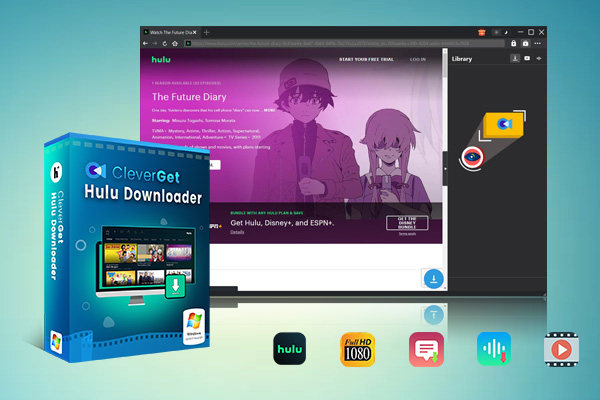
This method is particularly helpful for extremely old Apple TVs or non-smart TVs. After the downloading is done, there is no need to think about app support, Internet connection, or time limitations. CleverGet Hulu Downloader is one of the best tools you can use to quickly download all your Hulu content in batches within a few minutes.
-
Professional Hulu downloader to download Hulu movies and series at original 720P or 1080P quality with selected subtitles and audio tracks for ad-free viewing.
- Download Hulu video to MP4/MKV files.
- Batch download Hulu episodes of all/certain seasons.
- Save metadata info for easier management.
FAQs
1. Can I add the Hulu app to any Apple TV model?
No. Hulu can only operate on a 4th Generation Apple TV HD and Apple TV 4K. If you happen to have the older models i.e., Apple TV 2 and Apple TV 3, then it is just not compatible.
2. Can I watch Hulu offline on my TV?
Not really, there is no official method for that. Due to download limitations, the downloads are only allowed streaming on mobile apps. But if you have a reliable downloader such as CleverGet Hulu Downloader, you can download Hulu to MP4 files and then play them on your TV via HDMI, USB, or other compatible cast apps.
3. Does Hulu support 4K HDR on Apple TV?
Yes, you can watch 4K HDR content on your Apple TV if you meet two conditions. First, Hulu content must be in 4K. You also need an Apple TV 4K and a TV that supports 4K.
Conclusion
It’s easy to watch Hulu on Apple TV if you’re using a newer model. However older generations need a little help. The built-in Hulu app works smoothly on Apple TV HD and Apple TV 4K. On older models you can use workarounds that we discussed above. You can use AirPlay and HDMI mirroring to fill the gap for unsupported devices. Also, in case you are willing to watch a video offline or want to have full control over the files, then a conversion of Hulu videos to MP4 with CleverGet Hulu Downloader will provide you with the freedom to work with any TV setup. So, no matter the way you go, you can still enjoy streaming of the Hulu shows that you like to watch without the need of changing your whole Apple TV box.
CleverGet Hulu Downloader

 Try for Free
 Try for Free
 Download Hulu videos in up to 1080P resolution
Save Hulu content as MP4 or MKV files
Download Hulu originals, movies, and popular TV series
Batch download entire seasons and multiple episodes simultaneously
Retain original audio quality and subtitle options
 English
 Deutsch
 日本語
日本語 French
 한국인
한국인 Italiano