


 Try for Free
 Try for Free
Share article:


How to Screenshot on Mac: Step-by-Step

2025-12-30 ・ Related to: Free Screen Recorder
57 Views
Summary:
Do you really know how to take a screenshot on Mac? Don’t think it’s that simple—there are actually many tricks to taking screenshots. This article will teach you step by step how to take screenshots on Mac.
MenuCLOSE
Taking screenshots on a laptop is one of the most basic operations in digital work and study. Whether it is for saving important information, sharing wonderful moments, or creating content, screenshots play an indispensable role. Among various screenshot methods, Snipping Tool is widely used by users as one of the most frequently employed tools due to its simple operation and practical functions. It offers basic annotation and saving features, making it highly suitable for daily use. However, as user demands become more diverse, more powerful and smoother alternative tools have emerged in the market. Therefore, understanding and choosing the best snipping tools on Mac can further enhance efficiency.
Part 1: Built-In Screenshot Methods on macOS
How to screenshot on mac by using built-in screenshot? The following are the specific steps for four different methods.
1. Capture the Entire Screen
Press Command + Shift + 3 at the same time, and a screenshot of the entire screen will be taken and automatically saved. This is a simple way to quickly save the full-screen content.
2. Capture a Selected Area
When you only need to take a partial screenshot, you can press Command + Shift + 4 simultaneously, and the mouse pointer will turn into a crosshair. Drag to select the area you want to capture, and release the mouse to take the screenshot. While dragging, holding the Space key allows you to move the entire selection, holding the Shift key locks the adjustment to one direction, and pressing Esc key cancels the screenshot.
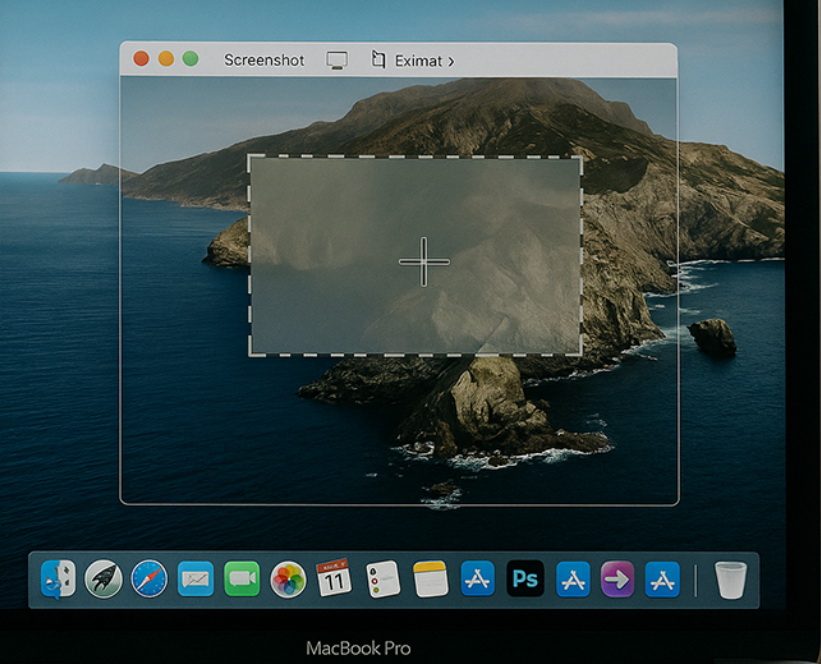
3. Capture a Specific Windows
To capture a specific window, first press Command + Shift + 4, then press the Spacebar. The pointer will turn into a camera icon. Move it over the target window, which will be highlighted, and click the mouse to capture that window. This method produces clean window images. To cancel the screenshot, press the Esc key.
4. Use the Screenshot Toolbar
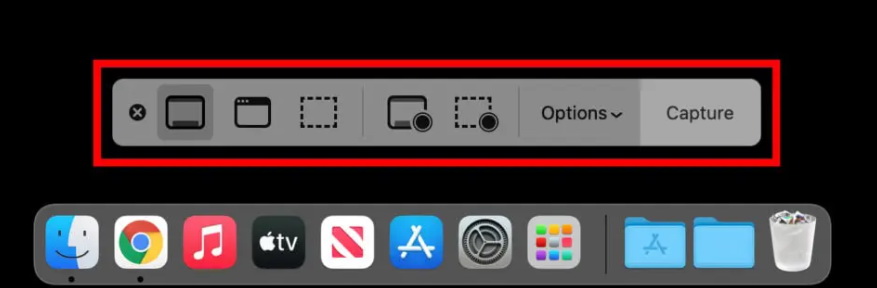
Press Command + Shift + 5, and the screenshot toolbar will appear at the bottom of the screen. It offers options to capture the entire screen, a selected portion, or a specific window, and it also includes a new screen recording feature. More importantly, you can set the save location for screenshots here and enable timed screenshots. Clicking Options also allows you to show or hide the mouse pointer, among other things.
Part 2: Best Third-Party Screenshot Software for Mac
The built-in screenshot method is certainly simple, but if your needs are more diverse, you’ll have to consider third-party tools. So, how to take a screenshot on mac by choosing the right tool? I will recommend three of the best snipping tools for PC. Please keep reading.
1. CleanShot X
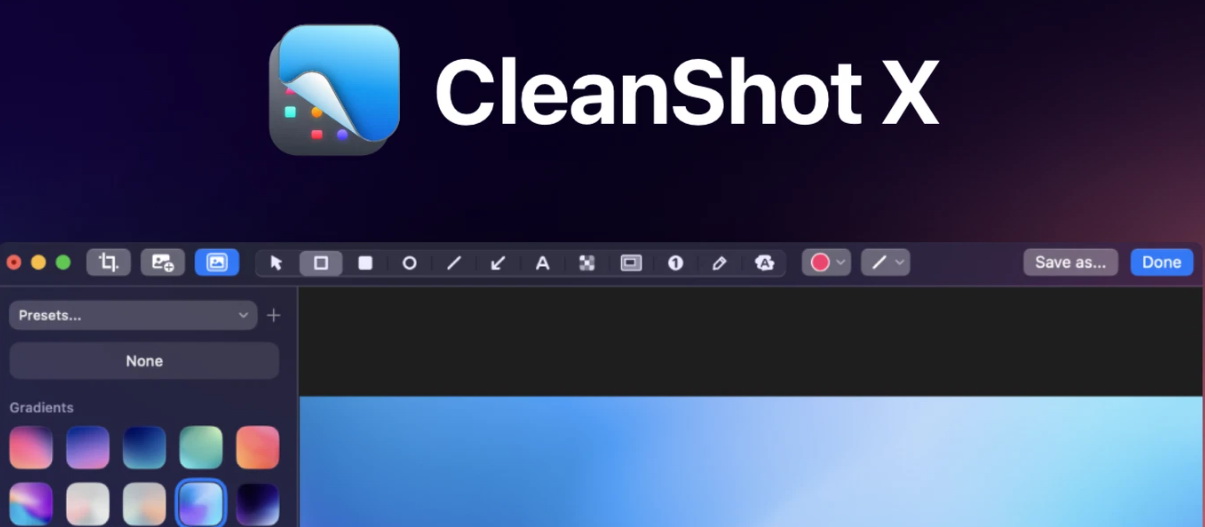
CleanShot X is a screenshot tool designed specifically for macOS. It not only meets your basic needs of mac screenshot but also offers more than 50 features. I personally think this screenshot Mac tool is highly recommended. Below, I will highlight some of its core features in detail.
1. Built-In Image Editor. This feature allows you to annotate, highlight, add arrows and text directly, and save or copy with one click.
2. Diverse Screenshot Options. you can choose to capture a selected area, a window, or a scrolling screenshot. The scrolling screenshot feature can perfectly capture entire webpages or long documents.
3. Hide Desktop Icons. When you screenshot on a Mac and want to hide clutter on your desktop, this feature lets you take screenshots without showing any icons, making it ideal for screen sharing.
4. Hover Feature. After a screenshot is taken, the captured image will hover in the lower-left corner of the screen, ready for use.
5. Text Recognition. This feature can extract text from images, videos, and scanned documents, automatically copying the content to the clipboard.
6. Online Sharing. CleanShot X offers cloud services that allow you to upload screenshots with one click and generate a shareable link.
2. Snagit
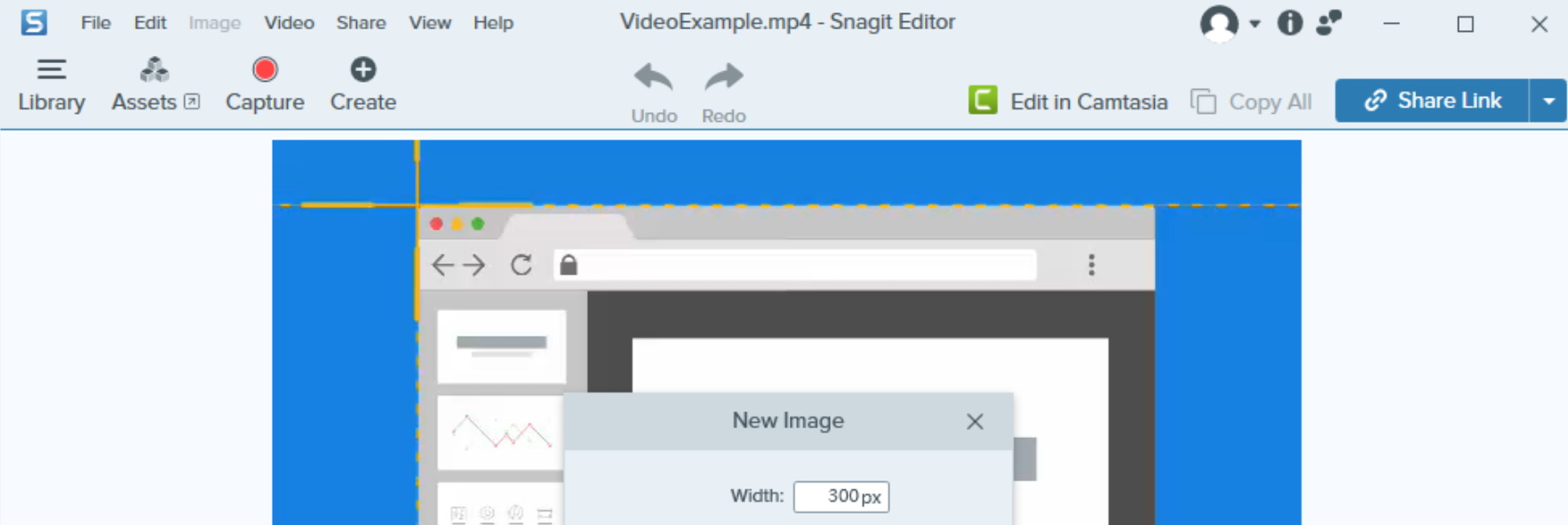
Snagit is a professional-grade screen capture and editing tool. It can capture dynamic images, static images, and audio, and save images in various formats such as BMP, PNG, and more. Here are its core features:
1. Multiple Capture Modes. Supports various capture modes, including full-screen capture, region capture, window capture, freehand capture, and scrolling capture.
2. Screen Recording Options. Can record the full screen or specific windows, while also supporting recording from the microphone and system audio.
3. Built-In Editor. Provides basic operations like cropping, trimming, and rotating, and allows you to add annotations such as arrows, text, and shapes. You can also adjust image colors and apply filter effects.
4. Convenient Sharing. When you need to share screenshots or videos with others, users can simply generate a link. Snagit allows users to easily share these links via email or instant messaging apps. Users can also control link validity and recipient permissions, such as view-only without download.
5. Cloud Storage Synchronization. Automatically uploading local screenshots to the cloud while keeping cloud and local files consistent. This feature saves the hassle of manual uploads and makes sharing content across different devices convenient.
3. Lightshot
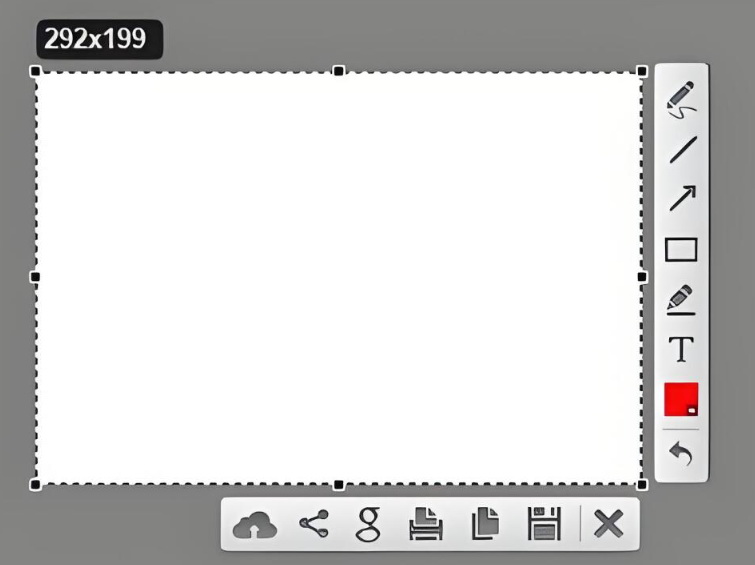
Lightshot is a free, lightweight screenshot tool available for PC and other mobile devices and can also be used as a browser extension. It is popular among users for its ease of use and practical features. Here are its main functions:
1. Convenient Sharing. You can directly upload the image to its cloud server, which automatically generates a short link for quick sharing. It can also be shared directly to certain social media platforms.
2. Built-in Editor. Provides basic annotation tools such as brush, arrow, rectangle, and text, but does not offer advanced editing functions.
3. Similar Image Search. You can select any image on the screen to find many similar images.
4. Multiple Output Formats. Supports saving screenshots in common image formats like BMP, JPEG, and PNG.
Part 3: When to Use Each Screenshot Tool
Use built-in tools when:
1. Pursue zero cost. No software installation is required.
2. Take simple screenshots. Just save the screen content, with little or no post-marking needed.
3. Occasionally record the screen. Use the screen recording feature for simple operation demonstrations.
Use CleanShot X when:
1. Focus on clean screenshots. Prefer floating previews and a smooth annotation workflow, aiming to keep the desktop tidy.
2. Often need to capture long pages. CleanShot X’s scrolling screenshot feature is able to perfectly capture web pages and long lists.
3. Require detailed editing. It can immediately annotate screenshots nicely, and upload or copy them with one click.
Use Snagit when:
1. Frequently create teaching guides. Tutorials and documents need to be detailed in steps and have a professional appearance.
2. Requires powerful editing functions. Snagit’s annotation features are very comprehensive, suitable for users with complex editing needs who pursue a polished final visual effect.
3. High demand for screen recording. Snagit can handle both static screenshots and dynamic screen recordings, especially exporting as GIF.
Use Lightshot when:
1. Prefers lightweight software. Lightshot uses minimal resources.
2. Has a limited budget and does not require advanced editing features. Lightshot’s editing functions are fairly basic and not professional-grade, but it is completely free.
3. Requires fast sharing. When you need to quickly capture and share a link, Lightshot is a good choice.
Part 4: Conclusion
There are a wide variety of screenshot methods on Mac, ranging from basic methods to more professional ones. The built-in screenshot tools on Mac are actually sufficient for most daily needs, but users’creative demands are becoming increasingly diverse. Therefore, third-party software like CleanShot X, Snagit, and Lightshot are also worth considering. As for which software to choose, it ultimately depends on your personal needs. By the way, if you are a Windows user, you might try professional-level tools such as Leawo Free Screen Recorder, which integrates both free screen recording and screenshot functions.
Free Screen Recorder

 Try for Free
 Try for Free
 Totally free to use.
Record desktop activities to MP4 files.
Record webcam content to MP4 files.
Record audio from system or microphone to MP3.
Take screenshot with annotation.
 English
 Deutsch
 日本語
日本語 French
 한국인
한국인 Italiano