


 Try for Free
 Try for Free
Share article:


How to Pause YouTube TV Subscription on Phone and PC

2025-12-31 ・ Related to: CleverGet Recorder
75 Views
Summary:
This is a guide on how to pause YouTube TV subscription on phone and PC. After reading it, you will have a comprehensive understanding of how to pause your YouTube TV subscription.
MenuCLOSE
YouTube TV is an online TV streaming platform that enables users to access various live channels and on-demand content from any device with internet access. Unlike traditional cable or satellite TV, it does not require a TV box or subscription to a specific cable service and has the YouTube TV DVR function. When users need to terminate the service, YouTube TV offers two main options: pause and cancel subscription. This guide will focus on how to pause YouTube TV subscription. Don’t miss it!
Part 1: Pause vs Cancel: What’s the Difference?
Pausing a subscription allows users to temporarily halt the service without losing their account data, whereas canceling a subscription completely terminates the service. The main difference between the two lies in the consequences.
First, pausing a subscription means that users can set the duration of the pause. Do you know how long can you pause YouTube TV? The answer is up to six months. During the pause, access to YouTube TV services is stopped, meaning users cannot access live channels, on-demand content, or DVR recordings, but account information, personal settings, and existing DVR recordings will be preserved, and you can continue watching until the end of the billing cycle. After pausing, users are not charged the monthly fee and can resume the service at any time without having to reset their account.
Canceling youtube TV subscription, on the other hand, means completely terminating YouTube TV services. After cancellation, users immediately lose access, the account is closed, and all DVR recordings, preferences, and viewing history are permanently deleted. Even if users resubscribe to the service, personal profiles and viewing preferences can be restored, but previously recorded content cannot be recovered.
Part 2: How to Pause YouTube TV Subscription on Phones
This part teaches mobile users how to pause their subscriptions, and the process is relatively simple. The specific steps are as follows:
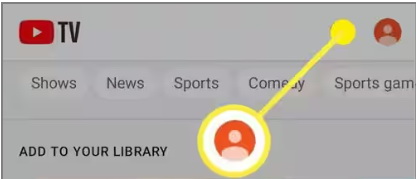
Step 1: First, click on your profile.
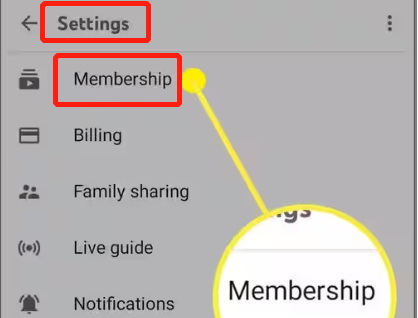
Step 2: Click on “membership” inside “settings”.
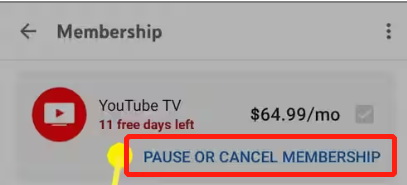
Step 3: Click “PAUSE OR CANCEL MEMBERSHIP” under “YouTube TV”.
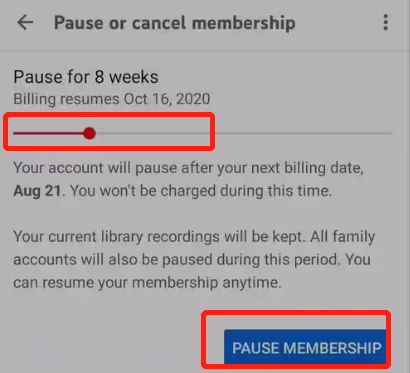
Step 4: Move the slider to choose the duration you want to pause your subscription, then click “PAUSE MEMBERSHIP”.
Part 3: How to Pause YouTube TV Subscription on PC
The final part is about how to pause a subscription on PCs, which is the method chosen by most users. The specific steps are as follows:
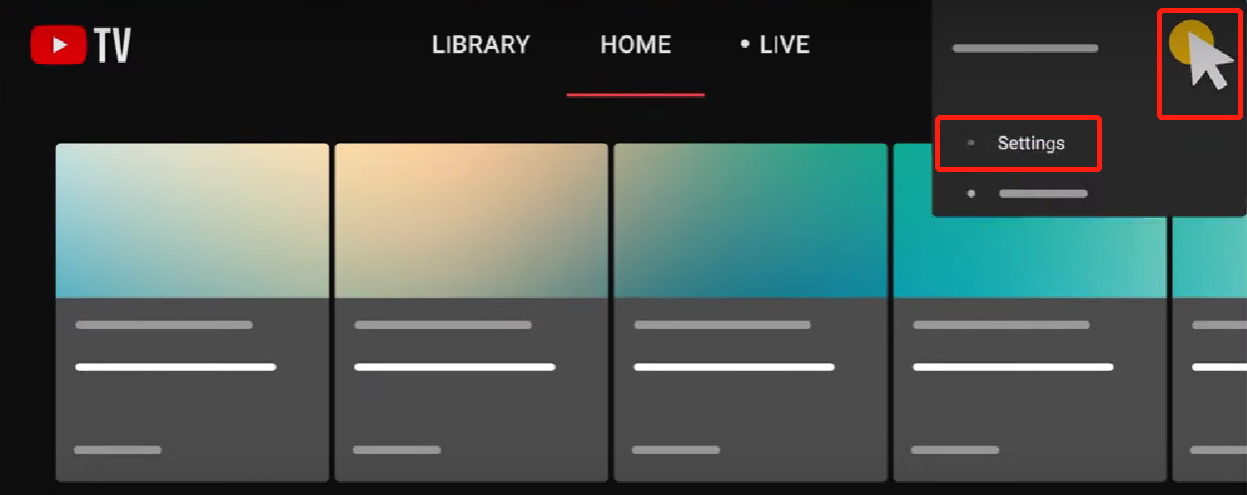
Step 1: After opening YouTube TV, first click on the profile icon in the top right corner, then click on “Settings”.
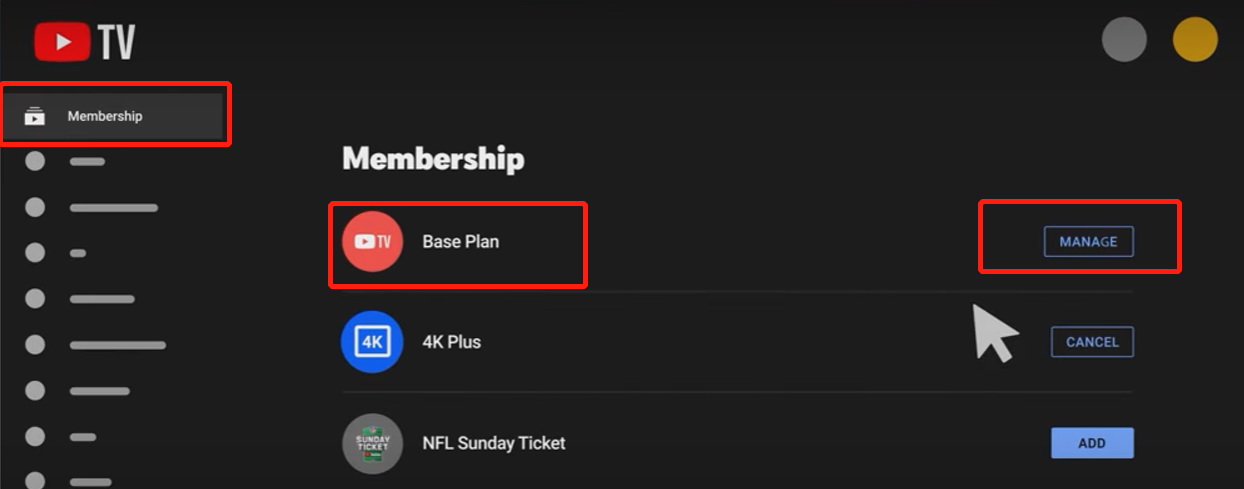
Step 2: Click on “membership”, then select pause membership.
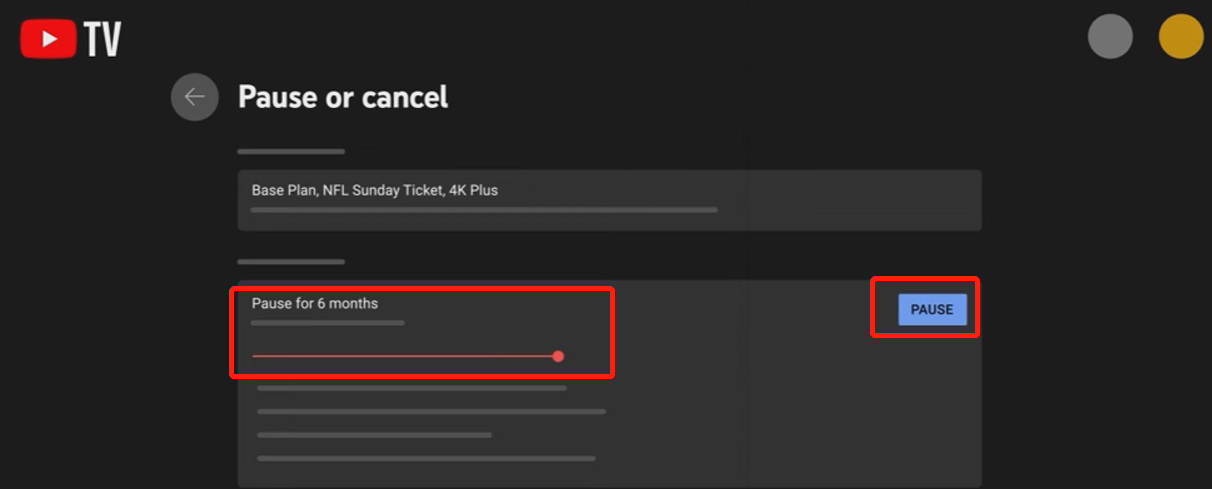
Step 3: Use the slider to choose the period you want to pause your subscription, then click pause to finish.
Part 4: Common Cases People Pause YouTube TV Subscription
Earlier, we mentioned the difference between pausing and canceling a YouTube TV subscription, so which option do you think suits you better? To help you make a decision, I’ve summarized several types and these types of people are suitable for pausing their subscriptionof. See if you fall into any of these categories.
1. Seasonal Viewing Habits
Some users only watch TV during specific seasons, such as sports seasons (like during the NBA or NFL) or holiday programs (like Christmas specials). Therefore, pausing a subscription when it’s off-season is a good option. This approach can save costs while allowing the service to be quickly resumed when the content of interest returns.
2. Favorite Shows Ending or Being Unavailable
Some users only use YouTube TV to follow the series they are interested in. Once the series ends or stops airing, they might stop using YouTube TV. When a new season of the show is released, they will return. This type of user is also well-suited for pausing their subscription service.
3. Low Using Frequency
For users who don’t watch TV often, the monthly subscription fee may not be very cost-effective. When they don’t need to watch, they might choose to pause the subscription and resume it when they want to watch.
4. Temporary Busy Schedules
Most people will inevitably go through a period of being very busy, and during such busy times, they may not be able to watch TV. In this case, pausing a subscription can help avoid paying for unused services during busy periods. For example, students might pause their subscription during exam months, or office workers might pause it when handling unexpected projects.
5. Switch to Other Service
Because some content may only be available on other platforms, users sometimes try other streaming services. For instance, if a user temporarily switches to competitors like Hulu + live TV, they might pause YouTube TV instead of canceling it. This way, it’s convenient for them to quickly return to YouTube TV when they want to watch content from other platforms.
Part 5: FAQs
1. Can you reactivate YouTube TV after pausing?
After pausing, you can reactivate the service. You just need to log in to your account and select restore membership on the subscription management page. Your previous settings will remain unchanged. Billing will resume from the next cycle after reactivation.
2. Will pausing my subscription delete my DVR recordings?
Your DVR recordings will not be deleted immediately. During the pause, YouTube TV will retain your DVR recordings, which are typically only kept for six months. If you resume the service during the pause period, your recordings will still be accessible; however, if the pause lasts too long, some older recordings may be automatically deleted to free up storage space.
3. Is there a limit to how many times I can pause my YouTube TV?
YouTube TV does not have a strict limit on the number of pauses; users can pause and resume their subscription multiple times, but each pause period cannot be extended consecutively, and frequent pauses may trigger a system review.
4. Will I lose my recordings if I pause my subscription?
As mentioned above, the recorded content is retained for 6 months during the pause period, but it will not be permanently stored. If you wish to permanently save the recorded content, you can consider using third-party tools such as CleverGet Recorder to download the video to your local device. It can not only download content you have already recorded, but it can also record on YouTube TV directly. This way, even if you pause or cancel the subscription, it will not affect your recorded content. Moreover, it is free to use and you can try it with confidence.
CleverGet Recorder

 Try for Free
 Try for Free
 Download Up to 8K Videos, Live Stream and even paid streaming videos in batch or individually from 1000+ websites like YouTube, Facebook, Twitter, Twitch.tv, Max, Netflix, Amazon, Disney+, Hulu, Apple TV+, Paramount+, Discovery+, etc. Record online video at up to 4K resolution and 5X recording speed from various streaming services to MP4/MKV files without ads.
 English
 Deutsch
 日本語
日本語 French
 한국인
한국인 Italiano