


 Try for Free
 Try for Free
Share article:


How to Cancel YouTube TV in Minutes (Step-by-Step Guide & Alternatives)

2025-12-19 ・ Related to: CleverGet Recorder
60 Views
Summary:
This article guides you on how to cancel their YouTube TV. You can also learn to choose the alternative streaming service that best fits their viewing needs.
MenuCLOSE
In the early stage, YouTube TV attracted lots of people worldwide with its vast content library and unlimited cloud DVR space. However, as market competition intensifies, or people’s watching habits are changing, many of them may reevaluate their subscriptions and want to cancel the services in order to save their expenses or switch to a platform that better meets their needs. But another question for you may arise: how do I cancel YouTube TV? Here’s the answer. This article will provide you with a detailed guide to help you cancel YouTube TV while understanding the consequences.
Part 1: Things to Know Before Canceling YouTube TV
1. What will Happen After Canceling
The cancellation will take effect immediately, but the remaining fees for the current billing cycle will not be refunded. It is recommended to cancel before the billing cycle ends in case of any unnecessary loss.
1) After you cancel the plan, you can still use all the functions of YouTube TV within the billing period. After the billing period ends, access will close and you will no longer be able to watch content on YouTube TV, or record programsin YouTube TV DVR.
2) The recorded content on YouTube TV, and your viewing history will be retained for 21 days. If you subscribe during this period again, access can be restored; Or the relevant data will be removed.
3) If you have subscribed to paid add-on services such as HBO Max and Showtime, after YouTube TV is canceled, these add-on services will also end.
2. Cancel vs Pause
To meet various needs, YouTube TV offers two choices: Cancel and Pause. The core differences between the two are as follows:
|
|
Cancel |
Pause |
|
Core Feature |
It will take effect after the billing cycle ends. |
The service will be suspended for a period of time as you have set (1-6 months). |
|
Applicable Scene |
For those who have subscribed to plans from other platforms, or have a limited budget for the rising charges |
For those who don’t need the service in the short term, for example, people who have to go to school or take a vacation |
|
Personal Information and Data |
The data will be removed 21 days after the billing period ends. |
After the suspension period ends, all data can be accessed again. |
Part 2: How to Cancel YouTube TV on Desktop
If you wonder how to cancel YouTube TV on desktop, the following are steps on how to manage it:
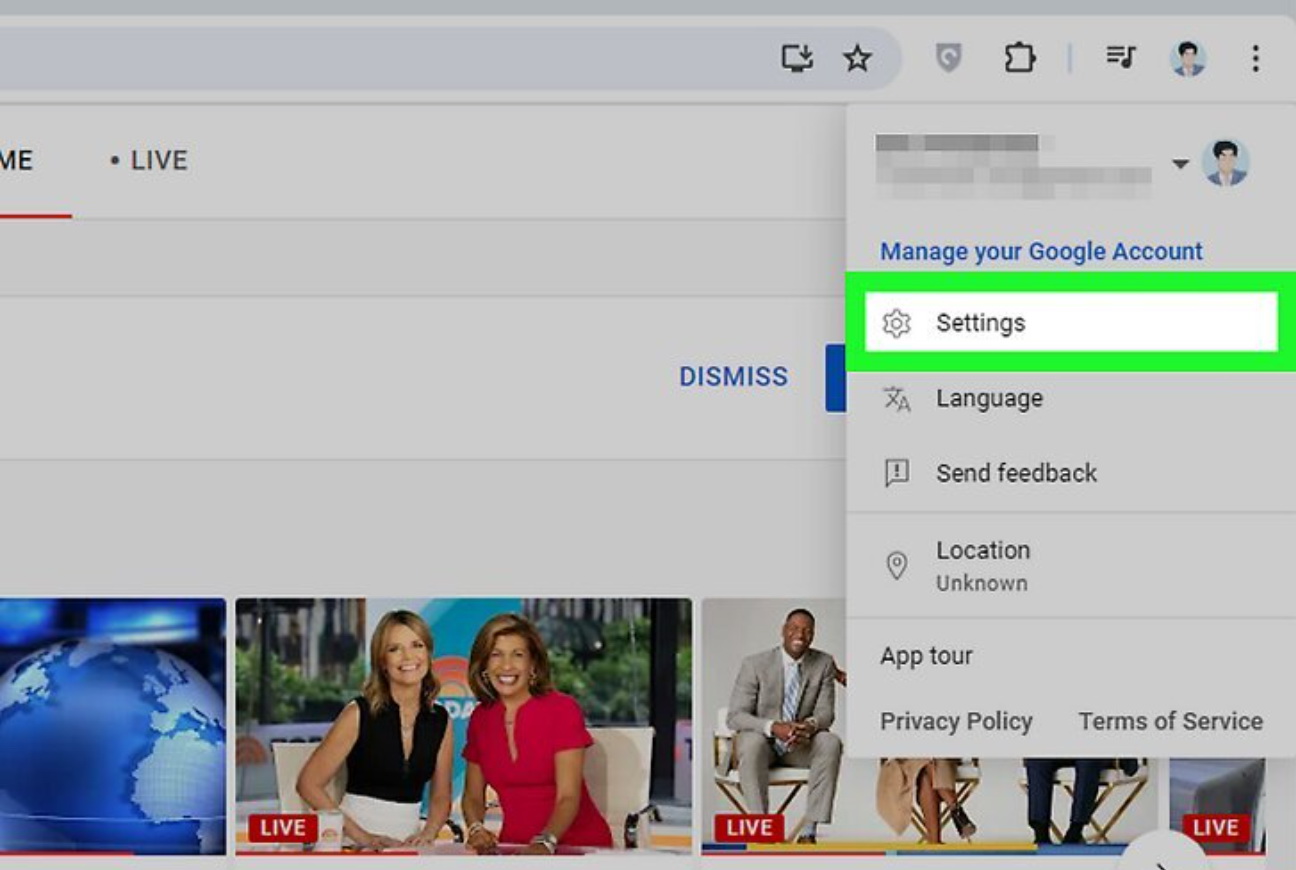
1) Visit YouTube in your browser. If you haven’t logged into your YouTube account, click the “Log In” button. Then click “avatar” at the top right corner of the interface.
2) After clicking the “Settings”, a menu will pop up from the bottom of the page.
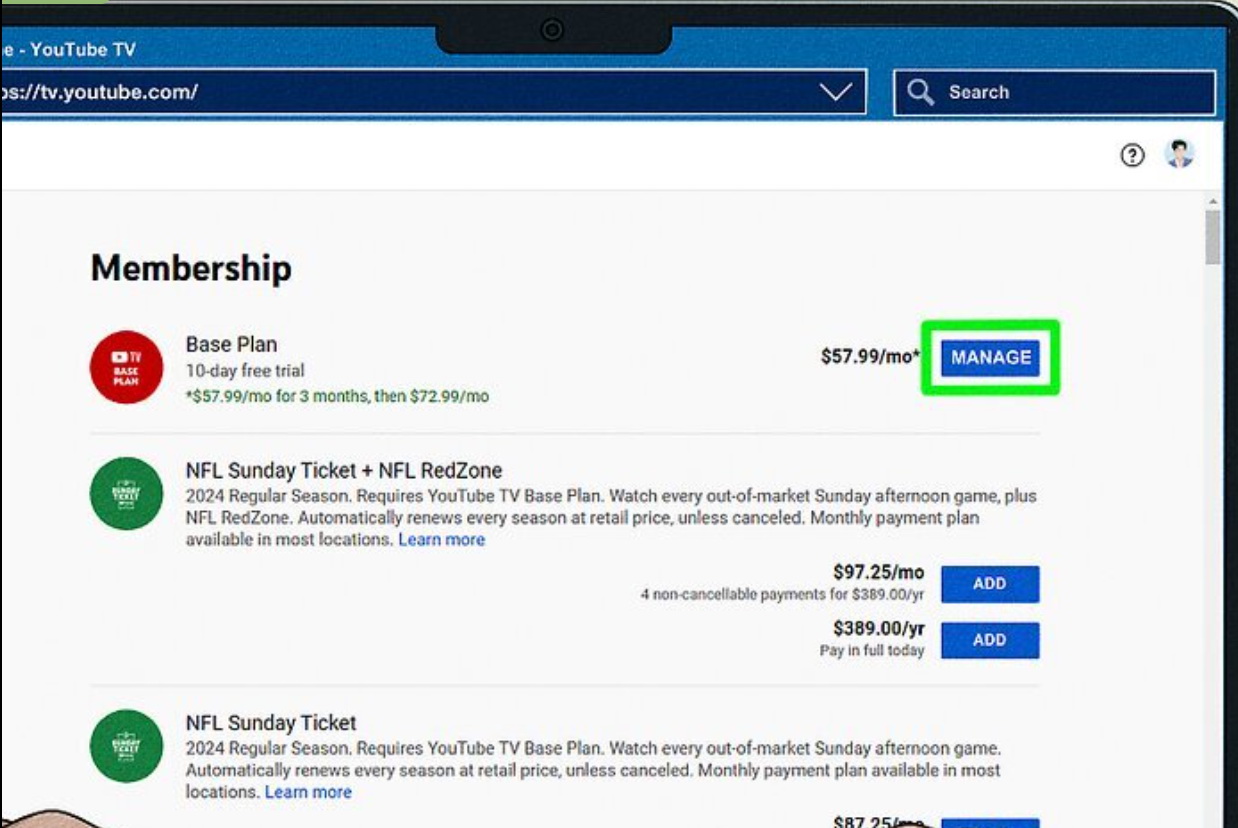
3) On this page, click the “Manage”. The system may offer an option to suspend the subscription as an alternative. If you don’t need this, just continue the process.
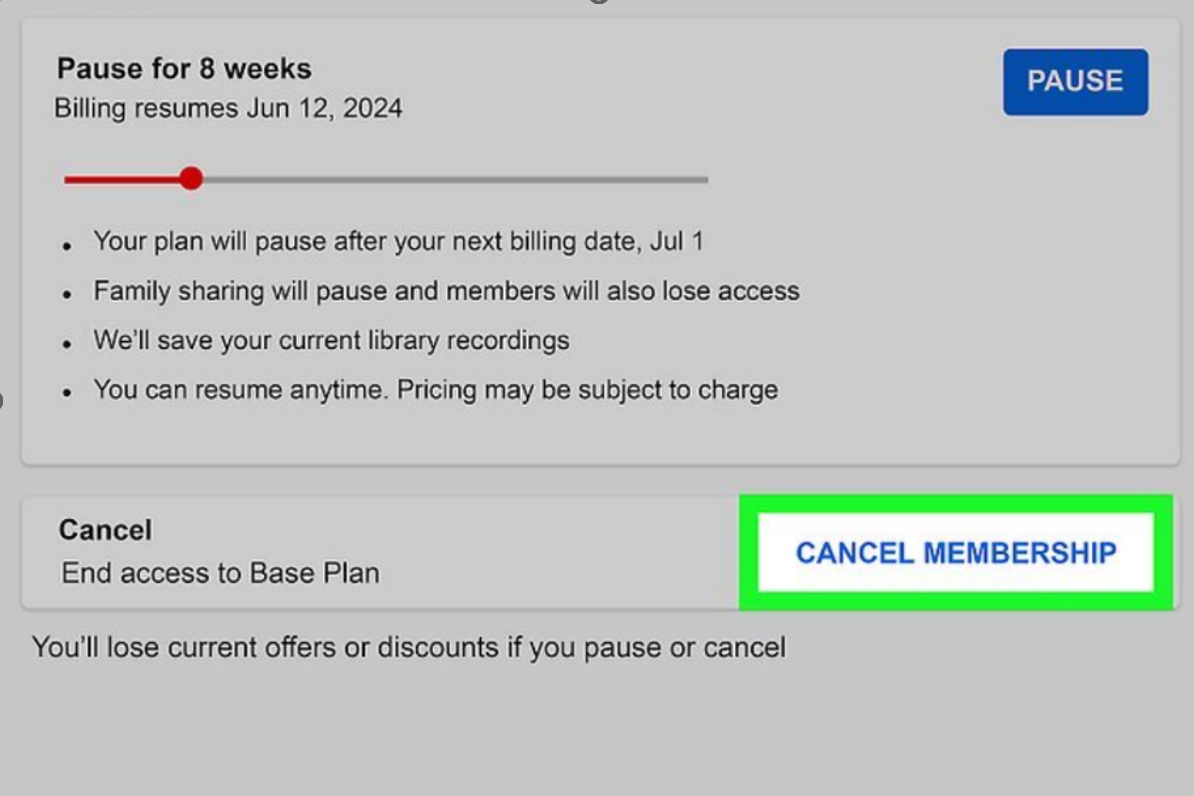
4) Click the “Cancel membership”. Then you will receive a confirmation email and can see on the “Membership” page that the subscription will end at the end of the billing period.
Part 3: How to Cancel YouTube TV on Mobile
Owing to YouTube official has set up different regulations for different devices. Ways to cancel YouTube TV on mobile may vary.
1. On Android
If you are an Android user, you can have it canceled directly through YouTube application on your device.
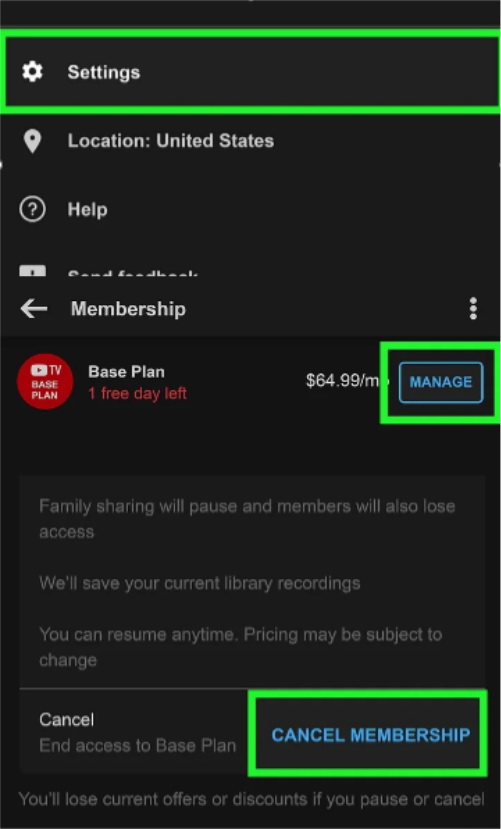
1) Open the YouTube TV app on your device and log in to your account. Then select “Settings”.
2) Open the “Membership” page, then click “Manage”.
3) Follow the instructions on the screen to continue cancellation. Once it’s done, you will receive a confirmation notification.
2. On iPhone & iPad
If you are an iOS user, you may not be able to cancel YouTube TV through your YouTube TV app. To cancel your subscription, you must visit the YouTube TV official website via a mobile browser. For detailed steps, please refer to the method for canceling subscriptions on the desktop above.
Part 4: How to Cancel YouTube TV via APP Store
If you subscribed to YouTube TV through the Apple App Store or Google Play Store, you may also need to cancel your subscription via these app stores. Please follow the steps below:
1. Cancel Through Apple App Store
1) Open the “Settings” on your phone or iPad. Click on your Apple ID at the top of the screen.
2) Select “Subscriptions”. Find and click on YouTube TV in the subscription list.
3) Click on the “Cancel Subscription” to end your YouTube TV plan.
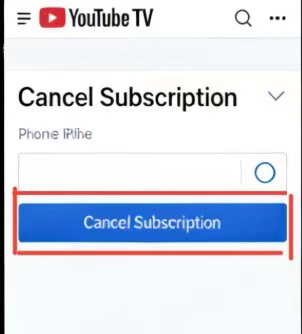
4) Confirm your selection according to the instructions. Once it’s done, you can still access the content library until the end of the billing period.
2. Cancel Through Google Play Store
1) Open the Google Play Store on your Android phone or tablet. Click the avatar on the top right corner, then select “Payments & subscriptions”.
2) Find and click “YouTube TV” in the list. Then click on the “Cancel subscription” .
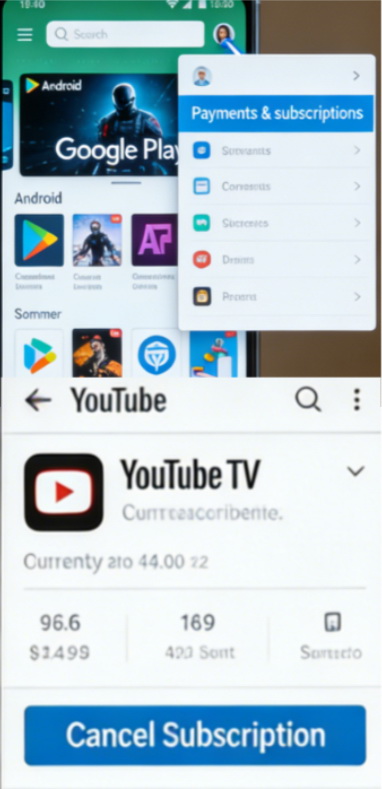
3) Follow the steps on the screen to continue the cancellation. Your subscription will end at the end of the period.
Part 5: Best Alternatives to YouTube TV
If you want to try other streaming services, here is a brief introduction to several popular streaming platforms. You can select the plan according to your needs and budget:
|
|
Core Feature |
Channels & Price |
Best for |
|
Hulu+ Live TV |
Integrate live TV with Hulu’s large content library including episodes and movies, offering a one-stop entertainment experience. |
Price: $82.99 per month |
Users who want to watch live-streaming content, new episodes and movies |
|
Sling TV |
Supports live TV streaming with popular cable channels online, without requiring a traditional cable subscription. |
Orange: $45.99 per month (30+ channels) |
Users who are on a budget and want to choose channel lists by themselves |
|
FuboTV |
Includes sports channels at home and abroad, such as football, basketball, and golf. |
Pro: $84.99 per month (230+ channels) |
Sports enthusiasts who love watching sports |
|
Philo |
One of the most cost-effective live TV services on the market |
Price: $25 per month |
Viewers or students who do not watch live sports broadcasts or news |
If the above streaming services are still too much for you, you can try some free live TV streaming sites. Moreover, if you want to record the content and store it for a long time, third-party recording software like CleverGet Recorder may meet your needs.
Part 6: FAQs
1. Can I get a refund?
No, YouTube TV does not offer refunds, but its features are still available until the current billing cycle ends.
2. Can I cancel YouTube TV on my TV?
No. You cannot cancel it through your smart TV. You must use a desktop browser or mobile device browser to visit the official YouTube TV website to cancel YouTube TV.
3. Can family members cancel my YouTube TV subscription?
Only the Family Manager is able to cancel YouTube TV. Ordinary family members cannot cancel it.
4. Can I cancel YouTube TV during a free trial?
Yes. If you cancel your subscription during the free trial, you will not be charged any fees. To avoid any automatic charges, it’s better to cancel your subscription before the trial ends.
CleverGet Recorder

 Try for Free
 Try for Free
 Record on-demand videos for free;
Record live streams for free;
Record DRM-protected streaming content;
Support up to 4K resolution;
Record videos as MP4/MKV files;
Allow scheduled recording;
Skip ads during recording.
 English
 Deutsch
 日本語
日本語 French
 한국인
한국인 Italiano