


 Try for Free
 Try for Free
Share article:


Can You Record Movies on Prime Video? Full Guide

2025-12-23 ・ Related to: CleverGet Amazon Downloader CleverGet Recorder Free Screen Recorder
70 Views
Summary:
This guide will talk about how to record Amazon Prime Video, and also give some ways to download and watch programs offline, such as using the official download function or using some other tools.
Amazon Prime Video is one of the most powerful streaming media platforms in the world, with various movies, TV series and Amazon originals. Many people want to save the programs on Prime Video to watch offline, so people often wonder “How to record on Prime Video” or “Can I record programs on Prime Video”. However, Amazon movies and TV series are protected by DRM(Digital Rights Management), which always leads to a black screen while screen recording. Don’t worry. This article will answer the question and tell you some ways to save the content and watch it offline without violating copyright regulations.
Part 1: Can You Record Movies on Prime Video?
Strictly speaking, Prime Video itself doesn’t support the recording feature. Although you can try to record Amazon Prime Video with ordinary screen recording software, you will soon encounter problems. Prime Video uses Digital Rights Management technology to encrypt the video stream, so most ordinary screen recording software can’t record the content. If you try to record a screen, you may end up with a black screen. You may wonder: Can I record Prime Video or not? The answer is yes, but you should use specialized third-party tools.
Part 2: Best Ways to Watch Prime Video Offline
There are several effective methods to save and watch Prime Video content offline. Below are the best ways to download movies on Prime Video or record content for later viewing.
1. Use Official Prime Video Download Features
Prime Video has an official download function, and you can watch videos offline. If you just want to download content directly from the App, this is the easiest way. The operation steps are as follows:
- Open the Prime Video app on your device (available on mobile or Windows 10/11).
- Find the movie or TV show you want to watch offline.
- Tap or click on the Download button next to the video.

After the download is completed, you can watch it without the network. But pay attention to the Amazon Prime Video download limits.
2. Use Leawo Free Screen Recorder
Leawo Free Screen Recorder is a free, powerful tool that allows you to record your screen, including Prime Video content. Here’s how to use it:
- Download and install Leawo Free Screen Recorder from the official website.

-
4-in-1 screen recorder suite to record gameplay, tutorial, training video, lecture, reaction video, webinar video, etc.
- Free online recorder to record window, browser tab or entire screen online.
- Free screen recorder to record screen in full-screen or custom area at up to 4K to MP4.
- Free webcam recorder to record webcam video.
- Free audio recorder to record audio from microphone or computer to MP3.
- Free screenshot snapper to snap screenshot to JPG.
- Open the Prime Video app or website and find the video you want to record.
- Open Leawo and select the area of your screen to record.
- Click Record to begin capturing the video.
- After recording, you can save the video in your desired format.
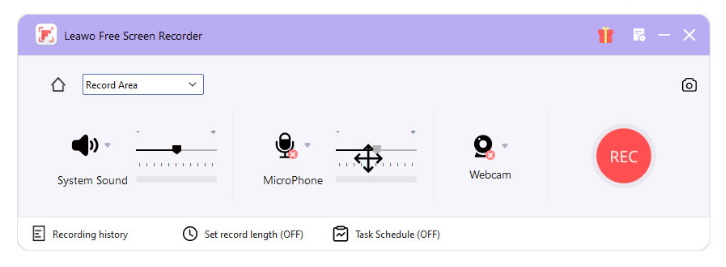
Leawo supports recording videos up to 4K, and there will be no watermark, which gives us a great choice when we need high-quality video recording.
3. Use CleverGet Recorder
CleverGet Recorder is a specialized tool for recording streaming content from various platforms, including Prime Video. Here’s how you can use it:
- Install the CleverGet Recorder from the official website.
-
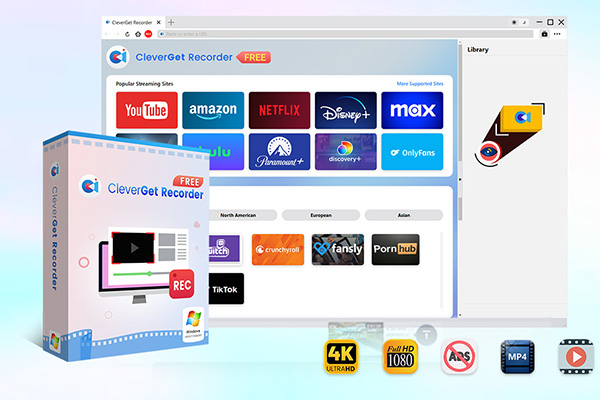
Free streaming video recorder to record online on-demand video and live streaming video without quality loss and cost.
- 100% free to use.
- Record movies, TV shows, game streams, lectures, live concerts, etc.
- Record up to 4K video with 60FPS in MP4 or MKV.
- Schedule recording upon preset recording length.
- No watermark, no time limit, and ad-skipping (beta).
- Open CleverGet and use its built-in browser to navigate to the Prime Video playback page.
- Play the video you wish to record, then click on the Record button in the CleverGet interface.
- The video will be recorded in up to 4K resolution and saved in MP4 or MKV format.
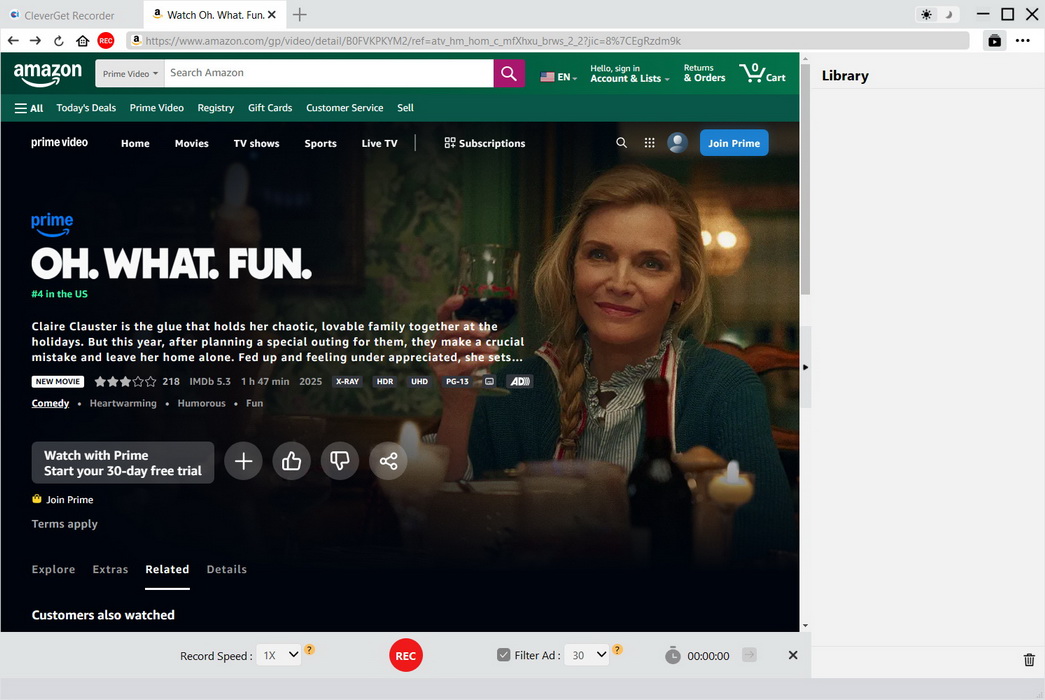
CleverGet Recorder can bypass DRM protection, so that when we record streaming media content, there will be no black screen problem like other screen recording tools. So, if we need to record the content on Prime Video and watch it offline, it is a great choice.
4. Use CleverGet Amazon Downloader
If you want to download Prime Video content directly to your device, CleverGet Amazon Downloader is one of the best Amazon Prime Video downloaders available. The using method is as follows:
- Download and install CleverGet Amazon Downloader.
-
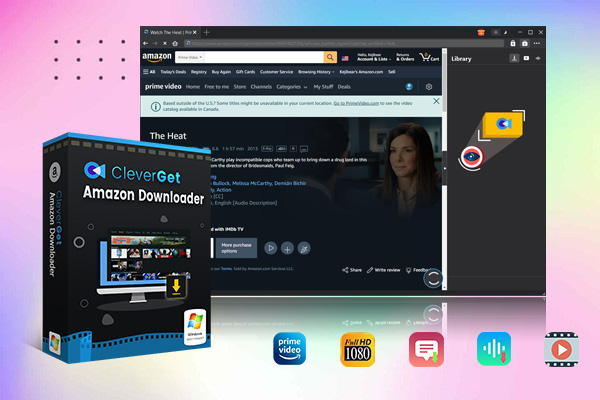
Professional Amazon Prime Video downloader to download movies and series at original 720P or 1080P quality with selected subtitles and audio tracks for ad-free viewing.
- Download Amazon Prime video to MP4/MKV.
- Batch download Amazon Prime Video TV episodes across seasons.
- Open the tool and log in to your Amazon account.
- Browse to the Prime Video page or paste the link of the video you want to download.
- Choose the video quality, audio tracks, and subtitles you prefer.
- Click Download to start saving the video.
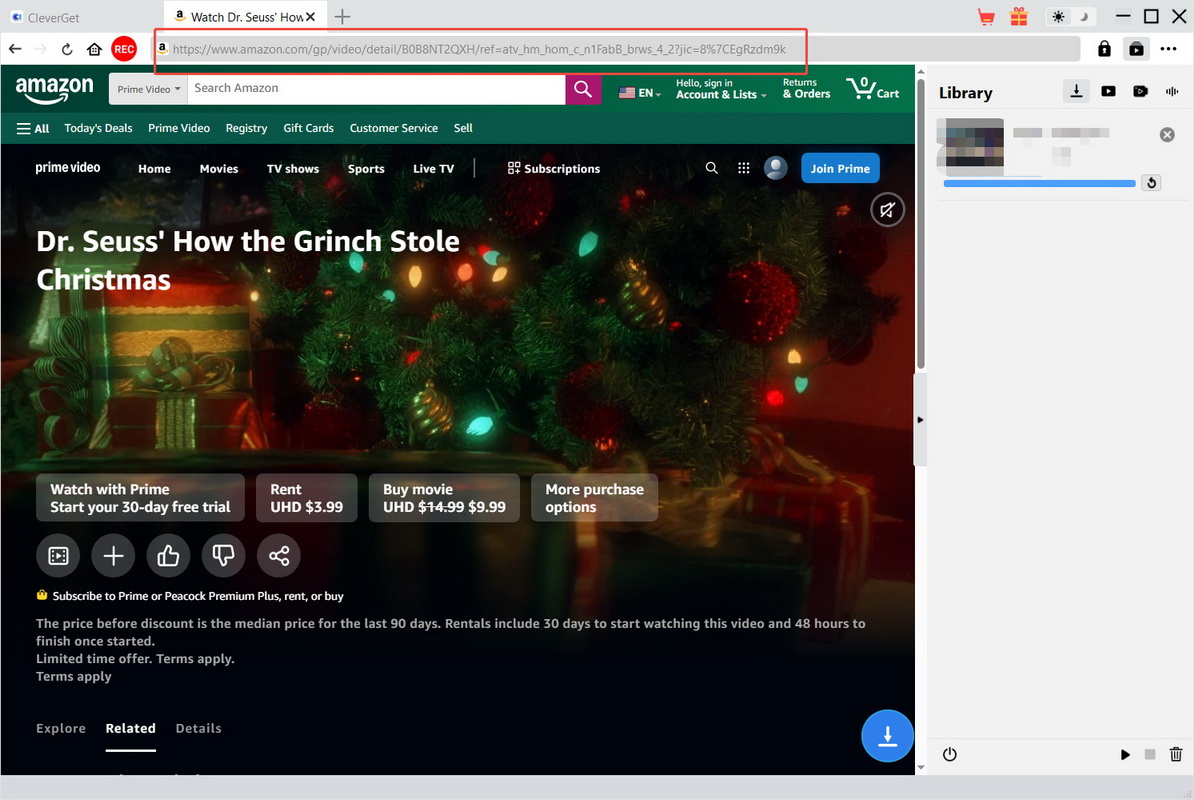
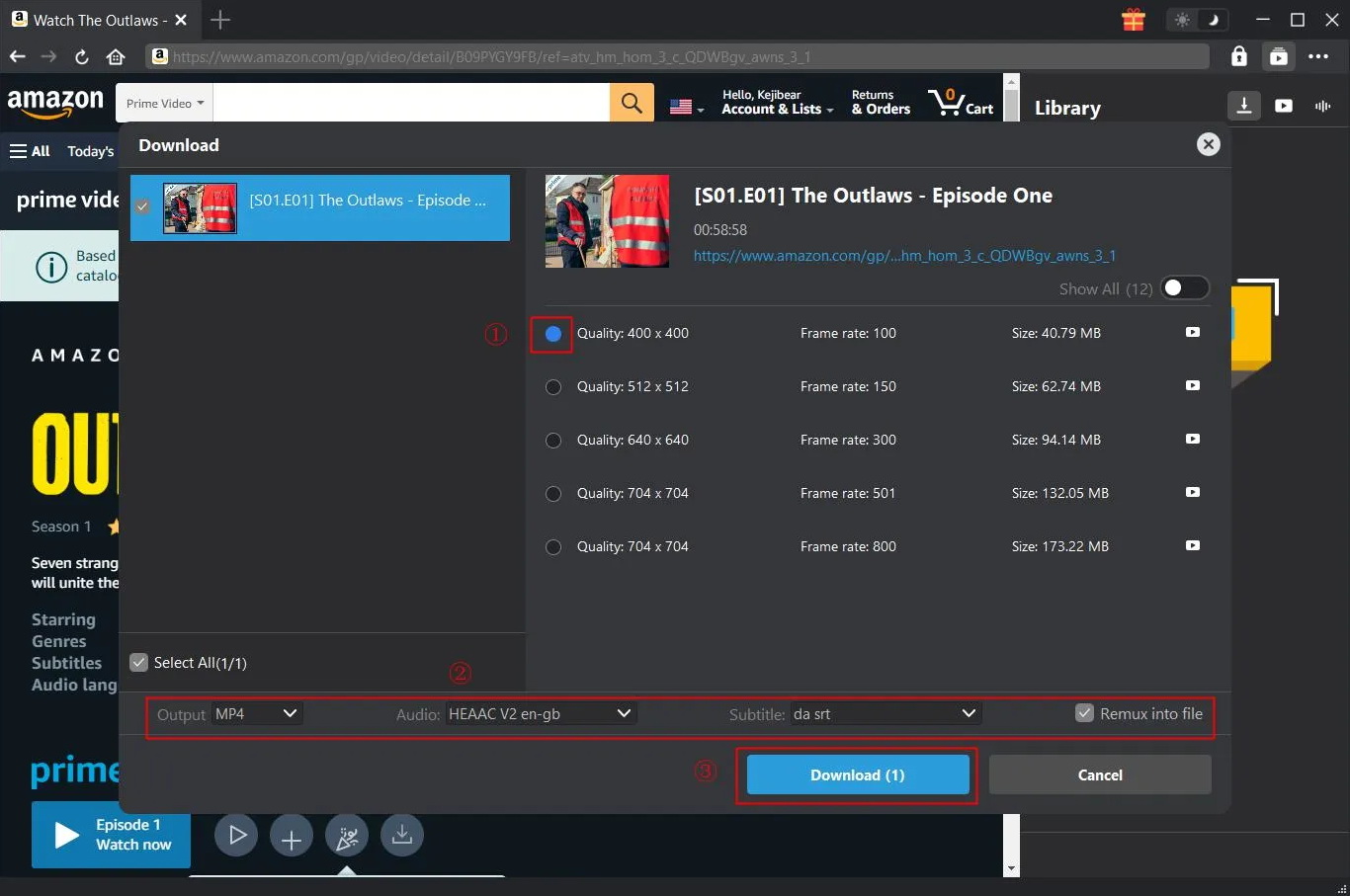
CleverGet Amazon Downloader is especially suitable for downloading whole season TV series at one time. Unlike the official Prime Video download function, videos downloaded with CleverGet will not expire and can be saved as long as you want. This tool also supports multilingual subtitles and audio tracks, which is very convenient for people who want to watch Prime Video content offline.
Part 3: FAQs
Q1: Can I record Prime Video on Windows/Mac?
Prime Video does not allow direct screen recording through official applications. And because of DRM protection, most ordinary screen recording software can only get black screens. If you want to record the content of Prime Video on Windows or Mac, you need to use a third-party tool, such as CleverGet Recorder or Leawo Free Screen Recorder.
Q2: Why do I see a black screen when I try to record?
Amazon Prime Video uses DRM protection to safeguard the copyright of its movies and TV shows, preventing unauthorized recording. As a result, traditional screen recording software cannot capture the content properly, often resulting in a black screen. However, there are alternative methods available to record or download Prime Video content without violating copyright laws.
Q3: How long can I keep downloaded videos?
Amazon always keeps your downloads for 30 days. And once playback begins, you need to finish watching it within 48 hours. For movies you purchased in the Prime Video app, you can download and watch them forever. If you use third-party tools like CleverGet to download videos, the content is stored permanently on your device without being subject to the expiration rules set by Amazon.
Q4: Can I download on multiple devices?.
Prime Video has a limit on the number of devices that can download content. Each video can only be downloaded to two devices at the same time, but the purchased video can be downloaded to up to four devices. In addition, Prime members can watch content on up to three devices at the same time, but the download limit is the sum of all devices. So, when downloading content on multiple devices, remember these restrictions.
CleverGet Amazon Downloader
 Try for Free
 Try for Free
 Download Amazon Prime movies and TV shows.
Support batch Amazon Prime video downloads.
Download Amazon Prime videos to 1080P MP4/MKV.
Save subtitles and audio tracks.
Save subtitles as SRT/SUP or pack into video.
Remove ads during Amazon Prime video downloads.
 English
 Deutsch
 日本語
日本語 French
 한국인
한국인 Italiano