


 Try for Free
 Try for Free
Share article:


Why Are My YouTube TV Recordings Missing or Not Showing Up?

2025-12-18 ・ Related to: CleverGet Recorder
70 Views
Summary:
Are you frustrated because your YouTube TV recordings are missing or not showing up? Then you definitely need to check out this article—after reading it, your problem will be solved!
MenuCLOSE
YouTube TV is an online TV streaming platform that enables users to access various channels and live content from any device with internet access. Unlike traditional cable or satellite TV, it does not require a TV box or subscription to a specific cable service. One of its core advantages is the provision of flexible cloud DVR functionality, allowing users to simultaneously record a vast amount of programs without worrying about local hard drive capacity. However, I believe that many users, like me, have encountered a troublesome problem where the recorded content disappears or cannot be displayed for no apparent reason. This seriously affects our experience.
Therefore, this article will deeply explore the common reasons for the loss of YouTube TV recordings, provide systematic troubleshooting steps, and offer practical suggestions to help you effectively manage and protect your recorded content.
Part 1: Common Reasons Your YouTube TV Recordings Missing
Based on my long-term experience, I have summarized the following possible causes of recordings missing:
1. Storage Limits
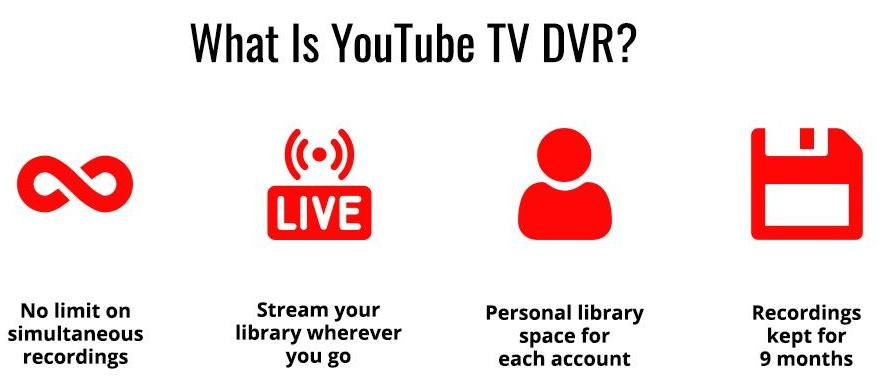
YouTube TV DVR does not support permanent storage. Please note that recorded content can be saved for 9 months from the date of recording, and the system will automatically delete recordings that exceed this period to free up space. So if you find that a recorded program is missing, you should first check whether it has exceeded the retention period.
2. Recordings Not Scheduled Properly
Before recording, many people tend to overlook the issues of time zones and air times. Because if you travel across time zones or if the time zone setting of your account does not match your current location, it may cause the program guide to display incorrect times, thereby preventing the recording plan from triggering at the time you expected. Additionally, if the recording setting is “by time” rather than “by program, it may not be possible to successfully record, as some programs may have their air times temporarily adjusted.
3. Network or App Glitches
When recording on YouTube TV, situations such as network interruption, poor network signal, and server failure of YouTube TV itself may all lead to recording failure or damage to the recorded files, thus preventing them from being displayed normally in the database.
4. Simultaneous Recordings
Although YouTube TV allows for the simultaneous recording of multiple channels, the number is limited by the number of live streams. It is known that with the basic plan of using YouTube TV, you can stream media on up to three devices simultaneously. Therefore, when the number of recorded programs exceeds the upper limit of available live streams, recording conflicts will occur. The system will stop the recording of some programs based on the priority order set by the user.
5. Recording Misfiled
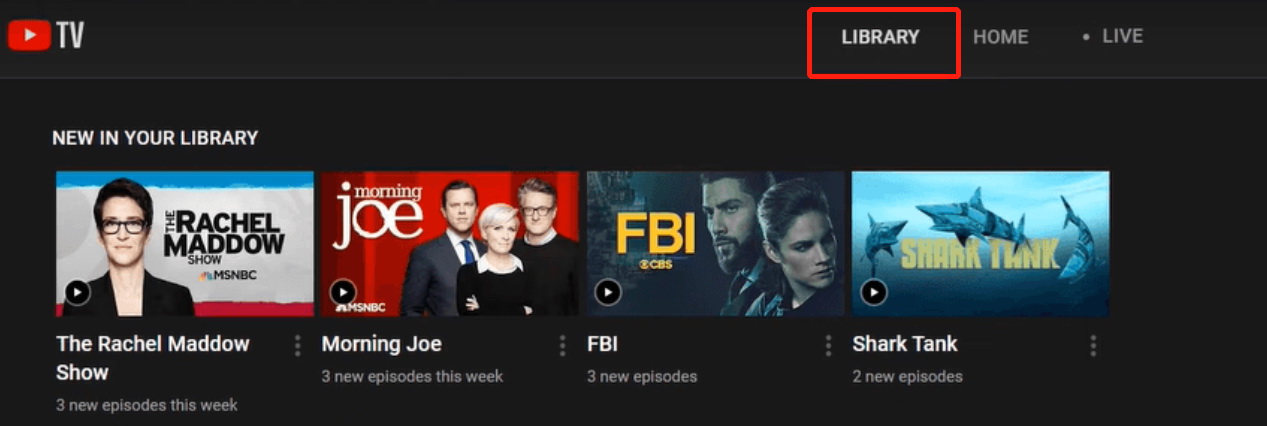
The recorded programs may not always appear under the “Recordings” because YouTube TV’s “Library” automatically categorizes them based on the program type, such as episodes, movies, sports, etc. Therefore, there are cases where individual episodes are wrongly archived or cannot be associated with the correct series, resulting in your inability to find them.
Part 2: How to Troubleshoot Missing Recordings
Based on the above reasons, you can systematically investigate the following ways.
1. Check Internet Connection
Play a live streaming channel to test whether the network connection is established and the network signal is stable. If the playback is not smooth, you can try restarting the router or directly contacting your network service provider for further assistance.
2. Restart the YouTube TV App or Device
YouTube TV may occasionally experience malfunctions and glitches, so you can restart YouTube. TV application or device. Completely close the YouTube TV application and then reopen it to see if the recorded content reappears. If it still doesn’t, you can try restarting the streaming device you are currently using.
3. Check Your DVR Library
Don’t limit yourself to the “Recordings”. Check each category such as “Programs”, “Sports”, “Movies”, etc. Especially, visit the dedicated pages of related series.
4. Verify Recording Settings
Please carefully check your recording settings, such as confirming whether you have selected “Record all episodes” or “Record only new episodes”, confirming whether all the desired programs and movies have been scheduled for recording, and confirming whether there is any possibility of recording conflicts. Finally, if the recording plan disappears, remember to add it again.
5. Contact YouTube TV Support
If none of the above methods can solve the problem, then you can contact the official customer service through the in-app help center or online chat. They can check your account, confirm whether the recording was successful or if it was deleted due to a system error, and may offer compensation or solutions.
Part 3: Tips to Avoid Recording Missing
You not only need to pay attention to why recordings are missing and how to troubleshoot missing recordings, but also need to care about how to avoid recordings from disappearing in the first place. The following measures can minimize the risk of recording loss to the greatest extent.
1. Regularly Check Available Storage
Remember to regularly check the storage status and expiration dates. For content that you wish to keep for a long time, schedule time to view it or take other preservation measures before the expiration date approaches. After all, YouTube TV keeps your recordings for 9 months only.
2. Schedule Overlapping Shows
Try to choose to record specific programs rather than specific time periods. This way, even if the air time changes, the system will automatically track and record it. Secondly, for the programs you particularly want to record, you can consider temporarily canceling the recording of other non-essential programs during the same time slot to ensure their recording. Having sufficient live streaming resources.
3. Save the Recording to Your Device Forever
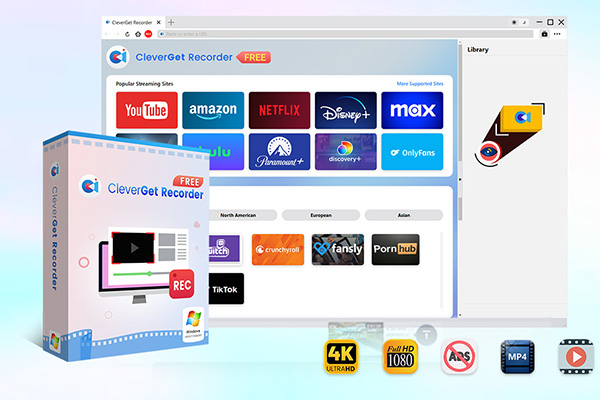
The YouTube TV recording limit is inevitable. So you can consider using a third-party professional tool, like CleverGet Recorder, to permanently save the content to your local device. CleverGet Recorder is a streaming media recording software for Windows and Mac, allowing you to record live shows on YouTube TV and other streaming services. It supports up to 4K resolution and 60FPS, and can be saved as MP4 or MKV files. Its prominent feature is that it can record DRM streaming videos, greatly meeting the recording needs of users. Moreover, after the recording is completed, you can watch it offline without being restricted by the recording time. Give it a try! It is completely free to use.
-
Free streaming video recorder to record online on-demand video and live streaming video without quality loss and cost.
- 100% free to use.
- Record movies, TV shows, game streams, lectures, live concerts, etc.
- Record up to 4K video with 60FPS in MP4 or MKV.
- Schedule recording upon preset recording length.
- No watermark, no time limit, and ad-skipping (beta).
Part 4: Conclusion
YouTube TV DVR is a convenient feature, but the “recordings missing” problem does indeed cause inconvenience to the user experience. Therefore, you’d better develop the habit of regularly managing the recording library and optimizing the recording settings. However, personally, I still strongly recommend that you try using CleverGet Recorder as a YouTube TV extension tool. You won’t have to worry about your favorite programs disappearing without a trace anymore.
CleverGet Recorder

 Try for Free
 Try for Free
 Record on-demand videos for free;
Record live streams for free;
Record DRM-protected streaming content;
Support up to 4K resolution;
Record videos as MP4/MKV files;
Allow scheduled recording;
Skip ads during recording.
 English
 Deutsch
 日本語
日本語 French
 한국인
한국인 Italiano