


 Try for Free
 Try for Free
Share article:


Netflix Not Working? How to Fix Netflix Errors

2022-06-16 ・ Related to: CleverGet Netflix Downloader
726 Views
Yes, Netflix is the most expensive streaming service, and yes it is facing stiff competition from other competitors such as HBO Max, Apple TV Plus and Amazon Prime Video, Hulu etc., but it is still the best on-demand streaming service available. More than other streaming services, Netflix stands-out for the immense number of TV shows, movies and documentaries that users can stream for tons of hours. Some of the best TV shows available on Netflix include Money Heist, Stranger Things, The Crown, Black Mirror and much more. Now, suppose you want to watch Netflix, only to get stopped by Netflix errors. We can all agree that “Netflix not working” or “Netflix errors” are super annoying, especially since you pay a premium price for it. So what is the solution if Netflix won’t load? We will discuss that in this guide, and therefore read along.
OUTLINECLOSE
Part 1: Why is Netflix not working?
Netflix won’t load? That could be due to Netflix errors. A Netflix error is anything that can prevent you to receive video or audio playback to your device from the Netflix servers, and this can be due to many reasons. In order to make it users to diagnose the errors, Netflix makes use of codes that you can use to troubleshoot and if you need support. These are the 11 most common Netflix error codes;
-
- No. 1 Error 11800
- This is the most common Netflix error code, and you will likely see it when there is a problem with the playback of your selected content on a mobile device.
-
- No. 2 Error M7111-1331
- This error appears when you access Netflix from a browser, specifically?Google Chrome. It may indicate you are using a link to a page which no longer exists, for example, and expired bookmark.
-
- No. 3 Error F7111-5059
- This error occurs if you try to access Netflix from a browser while using a Virtual Private Network (VPN). This is because Netflix only has the rights to show?some content in certain countries.
-
- No. 4 Error 10013
- This error code similarly arises when you are using the Netflix with a Virtual Private Network (VPN), specifically on the mobile apps when you are trying to download something for offline playback.
-
- No. 5 Error AVF:11800;OS:42800
- This error occurs because the downloaded file you are trying to watch has become corrupted, has been deleted, or moved.
-
- No. 6 Error UI-800-3
- This error comes up when you are using a device such as a Blu-ray player, Roku box, games console, smart TV, or Amazon Fire Stick. It indicates that the information stored on your device is out of date and needs to be refreshed.
-
- No.7 Error 10023-10008
- This error arises when a network connectivity issue affects your ability to download content via the iOS app. This usually happens when there is a block of some kind on the internet connection, such as a firewall.
-
- No. 8 Error 10025 or 30103
- These errors are usually accompanied by the message, “Cannot play title. Please try again later.” This may happen if your Netflix app is out of date.
-
- No. 9 Error NW-2-5/NW-3-6
- When using an iOS device, you might see these error codes. These codes indicate a network connectivity issue which is preventing your device from contacting the Netflix servers.
-
- No. 10 “Unexpected Error”
- One of the most common errors you?may see when using Netflix in a web browser is a message saying “There was an unexpected error. Please reload the page and try again.” This could be, because of browser cache.
-
- No. 11 Error 118119
- This error typically occurs on Apple devices running iOS, iPadOS, macOS, and tvOS. It happens when some of the data on your device needs to be refreshed.
Therefore, to answer the “Why is Netflix not working?” question, those could be the reasons.
Possible ways to fix “Netflix not working”
Thankfully, all the Netflix error you may encounter may be quick resolved by doing a few simple things, if Netflix won’t load. We have dug deep, and have come up with solutions that you can use to resolve all the Netflix errors listed above, and maybe even more if you do encounter them as dozens of error codes exist.
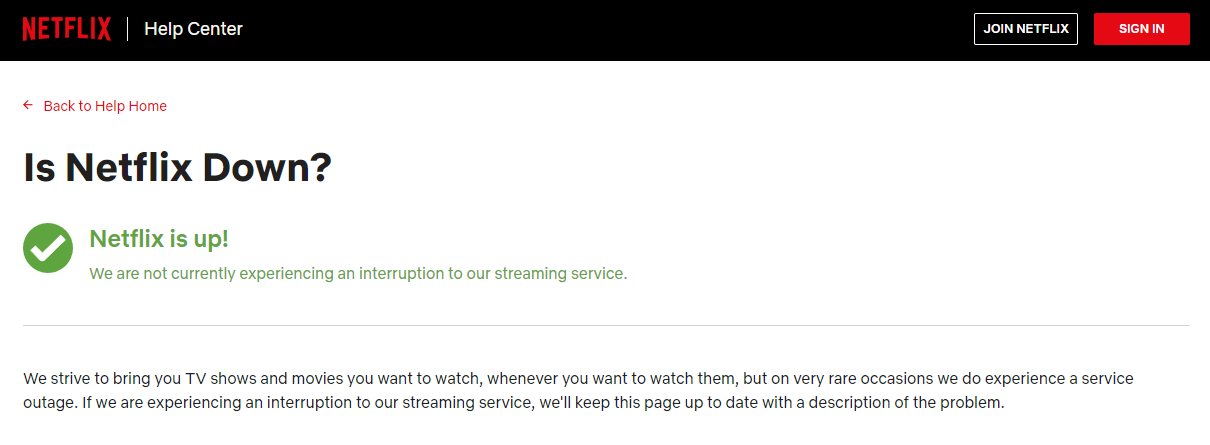
Solution 1: Check if the Netflix service is down
Some of the error codes mentioned above may occur if the Netflix service is down. If the Netflix service is down, there is no way you can access the content. To check it, visit this link.
Solution 2: Check if your internet connection
If your internet is down (whether its Wi-Fi, a wired connection or mobile data), Netflix will simply not work. Also, Netflix needs lots of data to provide the streaming capability and therefore, make sure your internet connection is fast.
Solution 3: Restart your device
If the data or cache on your device needs to be refreshed/ cleared, you must restart your device for this change to take place. In fact, restarting your devices from time to time is quite helpful for a smoother experience in whatever tasks you carry.
Solution 4: Update your Netflix mobile app and desktop browsers
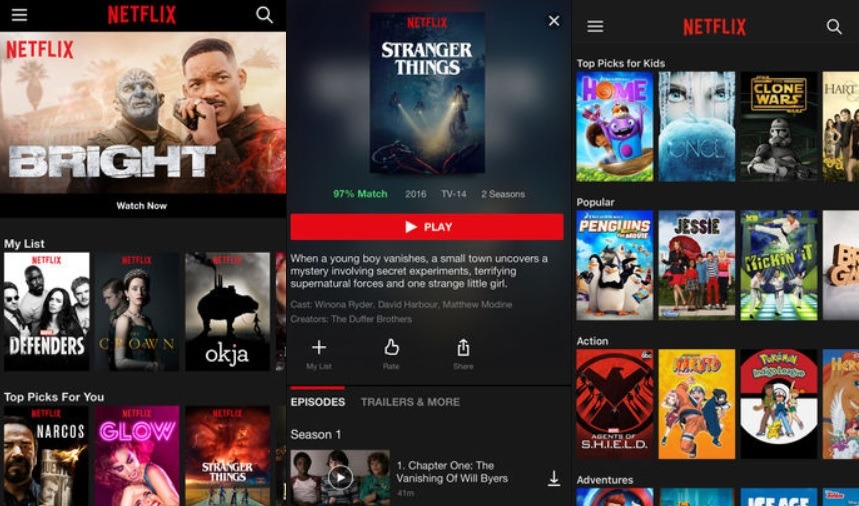
As with a system update, it is also important to keep the Netflix app, as well as your desktop browser up-to-date, as the latest versions may be needed to connect to the Network servers for streaming.
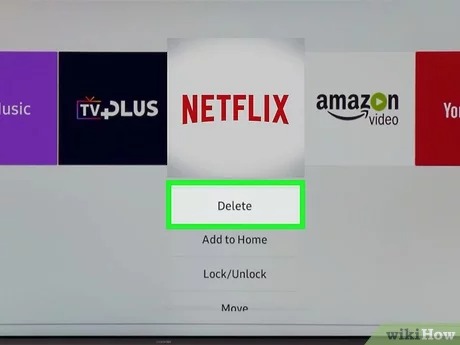
Solution 5: Reinstall the Netflix app
Often deleting the Netflix app and reinstalling it will fix any problems you may be experiencing, as this may delete any cache and bugs associated with it.
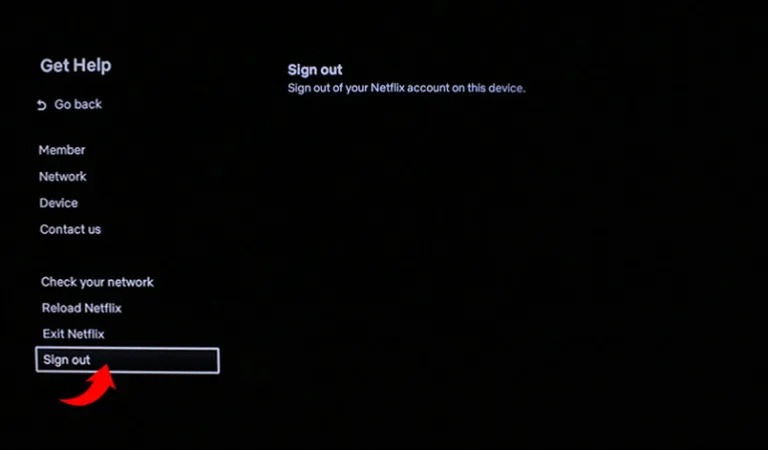
Solution 6: Log out of Netflix and Log in again
Believe it, this is a simple solution but an effective one and it only takes a few minutes to do, and it can fix some of the errors easily.
Solution 7: Call your internet service provider, or disable your VPN
If Netflix’s servers are working properly and you have tried all you can to fix it, then you can simply call your ISP, as Netflix might be down because of it. Disabling a VPN has also proven to work a lot of times.

Additional solution: Download the content from Netflix for an offline playback
We hope that the solutions mentioned above to fix the Network streaming errors if Netflix won’t load have worked out perfectly for you. While many people think that it is easy to download from Netflix, the reality is its a very difficult task which can not be handled by even the best video downloaders known by many users. This is why we developed CleverGet Netflix Downloader, an advanced and high performing downloader exclusively designed for Netflix. This application is the perfect companion for you, if you are a Netflix user, because of its features such as;
- It supports all kinds of Netflix videos, such as movies, TV shows and documentaries for download.
- You can download Netflix in 720p, 1080p and even 2160p without any quality loss whatsoever, guaranteed.
- It gives you the choice to choose either MP4 or MKV when you download the videos. Since most, if not all devices and players support the MP4 video format, it is generally recommended.
- You can download the video files while reserving all available languages and subtitles. Netflix content is available in a variety of languages, and you are free to download them all according to your preferences.
- It allows you to remux subtitle to video files. You can either save them in SRT/SUP formats according to your preference.
- It allows you to save all the Metadata info. Metadata is essential since it includes all information about each video, which will help to keep your library organized.
- It supports all versions of Windows, from Windows 7 to Windows 11, and macOS versions are in development and coming soon.
So how does CleverGet Netflix Downloader work, and how can you use it to download content from Netflix? Please note, you will still need an active subscription to download the content for off-line playback, otherwise if you do have a subscription, just follow the easy steps below;
-
CleverGet Netflix Movies Downloader
Support Netflix Movies and Shows Download
Download 720p/1080p Netflix HD Videos Without Quality Loss
Save Netflix Movies in MP4 or MKV Format
Reserve Multi-Language Audio Track & Subtitles
Remux Subtitles to Video
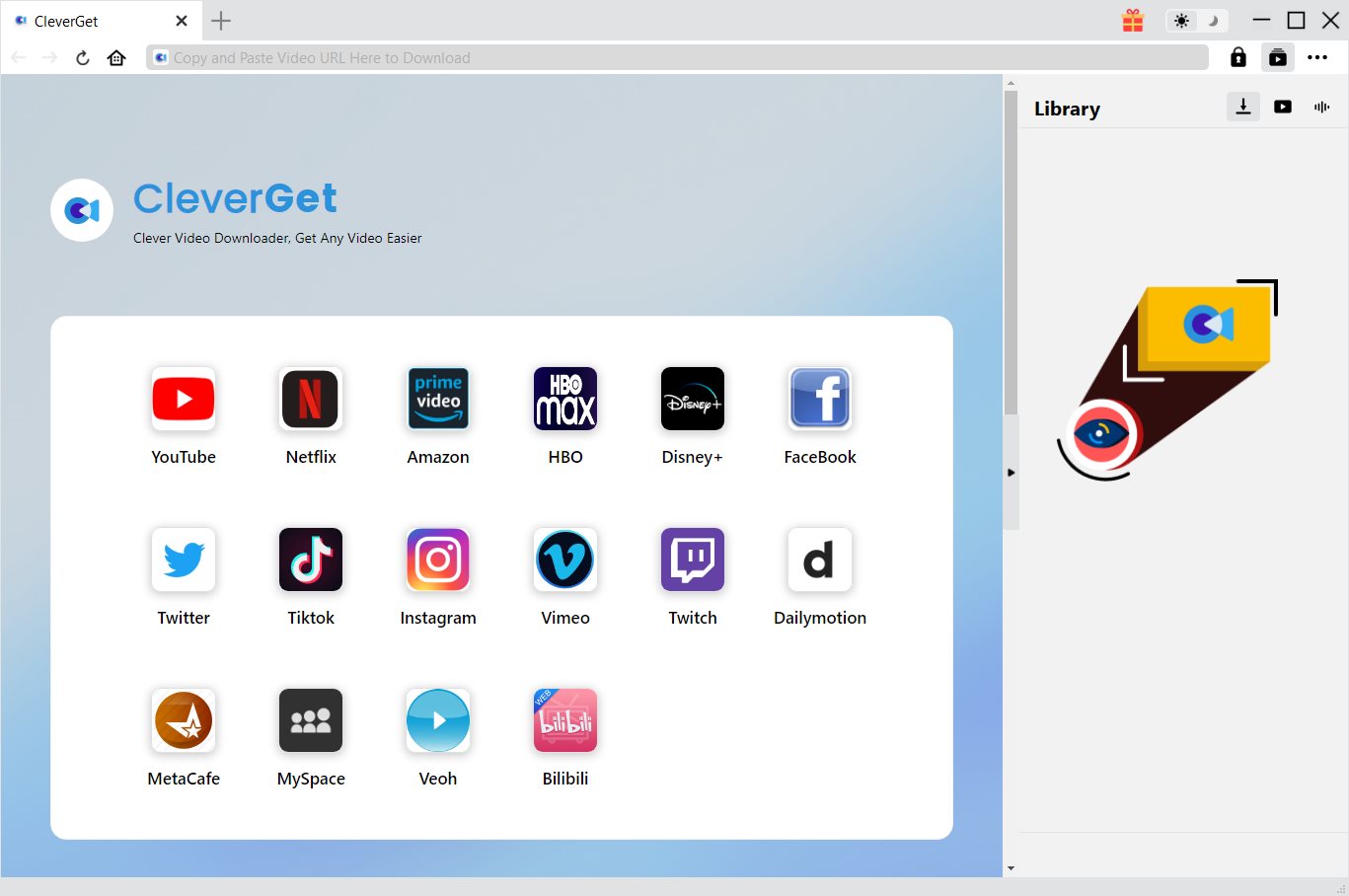
Step 1: Launch CleverGet Netflix Downloader
Visit Netflix and search for the movie you would like to download. Copy and paste the address from your address bar.
Step 2: Choose desired video to download
From the list presented, select the ideal video with parameters that suite your needs (such as quality and format).
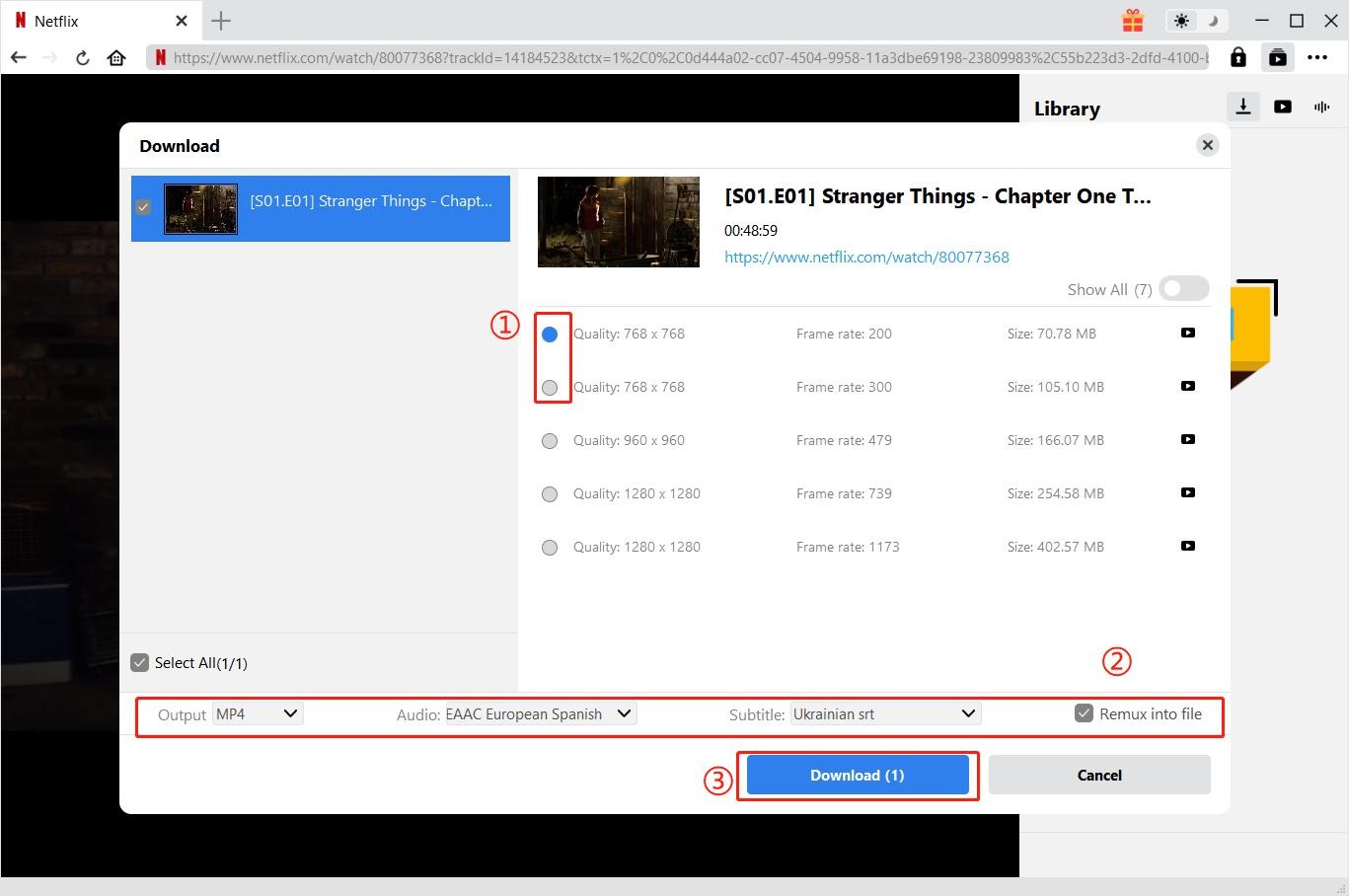
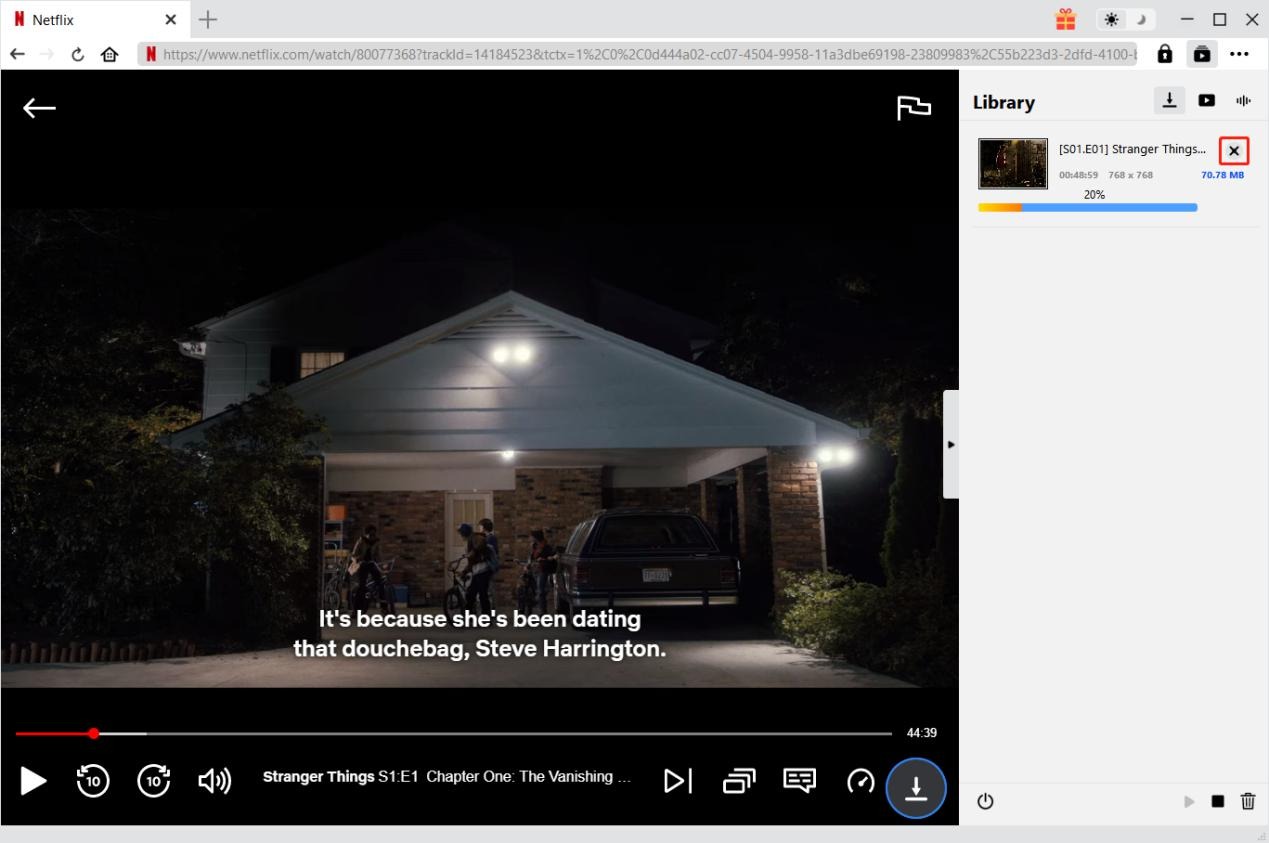
Step 3: Start to downloading Netflix movies
Once you have confirmed everything, click the download button to initiate your download.
CleverGet Netflix Downloader
 Try for Free
 Try for Free
 Download videos from Netflix in MP4/MKV;
Download Netflix episodes of all seasons in batch;
Download subtitles and audio tracks;
Pack subtitles into output video or save subtitles as SRT/SUP file;
Automatically remove ads during downloads.
 English
 Deutsch
 日本語
日本語 French
 한국인
한국인 Italiano