


 Try for Free
 Try for Free
Share article:


How to Fix YouTube Playback Error?

2026-06-18 ・ Related to: CleverGet YouTube Movies Downloader
24 Views
Quick Fixes
A YouTube playback error is frustrating because the video can freeze, go black, or fail to load at all. Here are the quickest fixes to get it working again.
| Possible Causes | Fixes |
|---|---|
| Unstable network connection | Check internet connection |
| Server-side transient error | Refresh the page or app |
| Conflict of expired data stored in the browser | Clear cache and cookies |
| Incompatible software version | Update browser or YouTube app |
| VPN or proxy interference | Disable VPN or Proxy |
| Restricted mode | Turn off restricted mode |
Introduction
Last Saturday night, I was watching a movie on YouTube at home when a playback error suddenly popped up halfway through. At first, I thought it was just a temporary glitch, so I refreshed the page a few times and even tried reopening the video. When that didn’t work, I checked my internet connection, switched devices, and looked for possible causes online. After going through a few common fixes, I finally figured out that playback errors can happen for several reasons. If you have run into the same problem, don’t worry – this guide may help you troubleshoot it step by step.
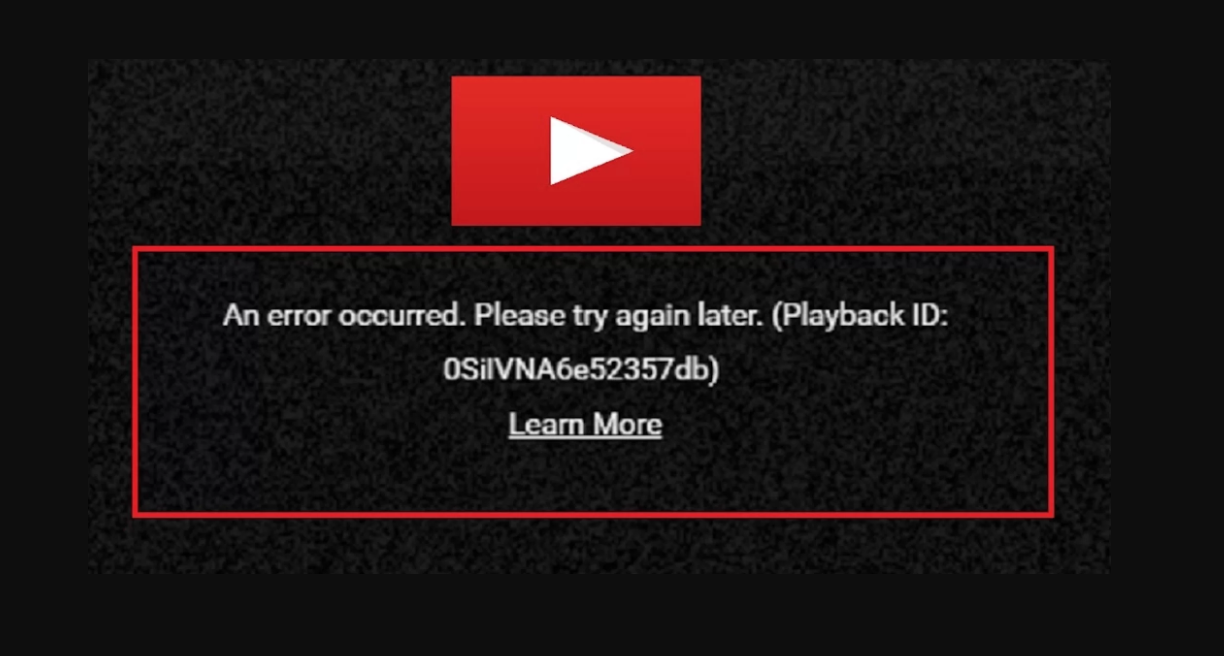
What Causes a YouTube Playback Error?
Generally, if there is a problem with YouTube’s data transmission link, playback errors will occur. Apart from server interruptions on YouTube and faults caused by backend maintenance, there are several other main reasons:
1.Unstable Network Connection
Slow network speed, direct network disconnections, and too many devices using the network simultaneously can all interrupt the buffering process, triggering errors.
2. Browser Cache and Data Conflicts
Corrupted old cache data and excessive cookie files can conflict with new data generated by the website, thereby preventing the player from initializing and loading, directly causing YouTube playback errors.
3. Software Version Incompatibility
If YouTube is not updated for a long time, it will lack new video encoding and decoding plugins, making it unable to adapt to the platform’s new video formats.
4. VPN or Proxy Interference
Some network proxy services can change traffic routing and playback regions, thereby triggering YouTube’s risk control checks.
5. Restricted Mode Enabled
When the platform’s restricted browsing mode is activated, the system may mistakenly identify compliant content as unplayable, causing video resources to be blocked.
How to Fix YouTube Playback Error: General Fixes
If you’re not sure where the problem lies, check step by step in the following order to resolve most YouTube playback not working issues.
1. Check Internet Connection
If the internet is very slow or nothing loads at all, unplug the router, wait for 2 minutes, and then plug it back in. If you are using mobile data, make sure your data is sufficient and the APN settings are correct.
2. Refresh the Page or App
Refreshing the page or app is one of the easiest ways to fix a YouTube playback error. In many cases, the issue is only temporary, and a quick refresh is enough to reload the video and get playback working again.
On a webpage: press F5 or Ctrl + R to force refresh.
On mobile: First, restart your device to clear extra background memory. Then go to your phone Settings, tap on App Management, find YouTube. First force Stop, then choose Uninstall Updates to restore the app to the factory version.
On TV: First, check if YouTube has an update. If it is already the latest version, try restarting the TV.
3. Clear Cache and Cookies
If refreshing the page does not work, the next step I usually recommend is clearing the cache and cookies. Over time, stored browser data can become outdated or corrupted, which may interfere with YouTube playback and cause errors to appear.
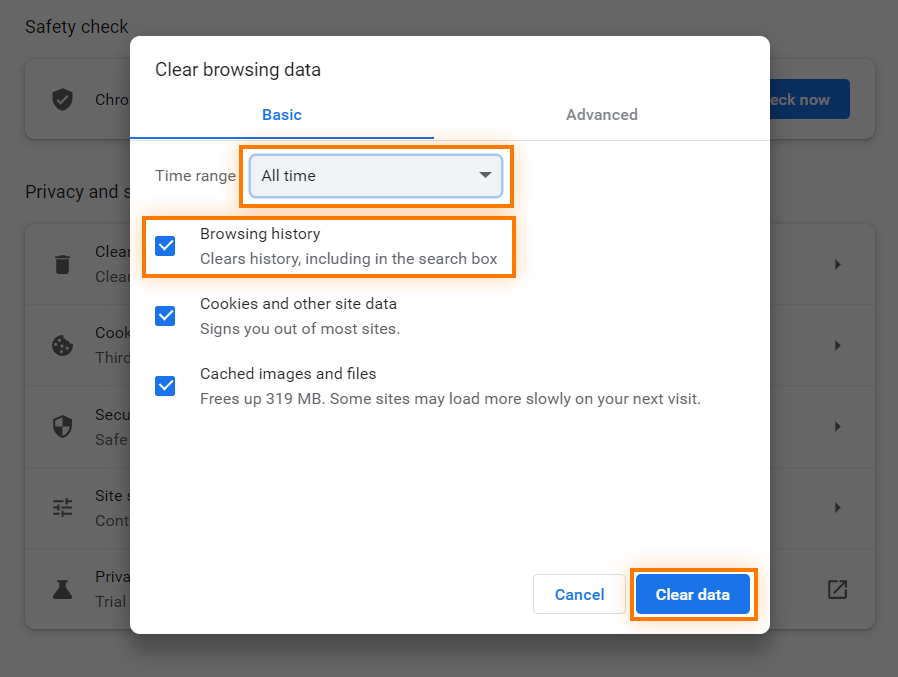
Steps: Open your browser and press Ctrl + Shift + Del, select All time as the time range, check cookies and other site data and cached images and files, then click Clear data.
4. Update Browser or YouTube App
In some cases, the problem is not with the video itself but with an older version of the app or browser that no longer works properly with YouTube. Make sure Chrome, Edge, or the YouTube app is updated to the latest version, as older versions may have compatibility issues with the decoding engine. In most cases, the browser and the app will check for updates automatically and prompt you to restart once the new version is installed.
Chrome: open Settings and look for About Chrome, in which you can check the latest version.
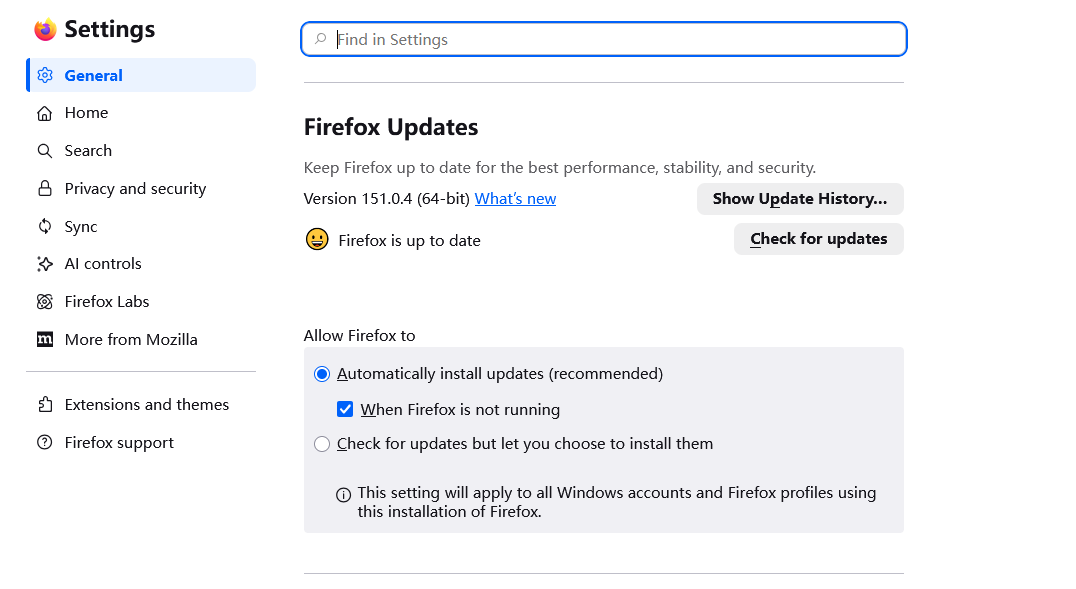
Firefox: open Settings and go General, scroll down until you see Firefox Updates.
Edge: open Settings and look for About Microsoft Edge, in which you can check the latest version.
YouTube App: open the App Store or Google Play Store, search for YouTube, and tap Update if a newer version is available.
5. Disable VPN or Proxy
A VPN or proxy can sometimes interfere with YouTube playback because it adds another layer between your device and YouTube’s servers. That extra layer may slow down the connection, cause the video to fail loading, or trigger location-related restrictions. If you are having trouble playing a video, try disabling the VPN or proxy first, then refresh the page or reopen the app to see whether the error disappears.
6. Turn off Restricted Mode
Restricted Mode is a YouTube setting that helps filter out potentially mature or sensitive content. Although it is useful for limiting certain videos, it can also hide content that should normally play without issues. If Restricted Mode is turned on, YouTube may block some videos, reduce search results, or make certain playback problems seem worse than they really are.
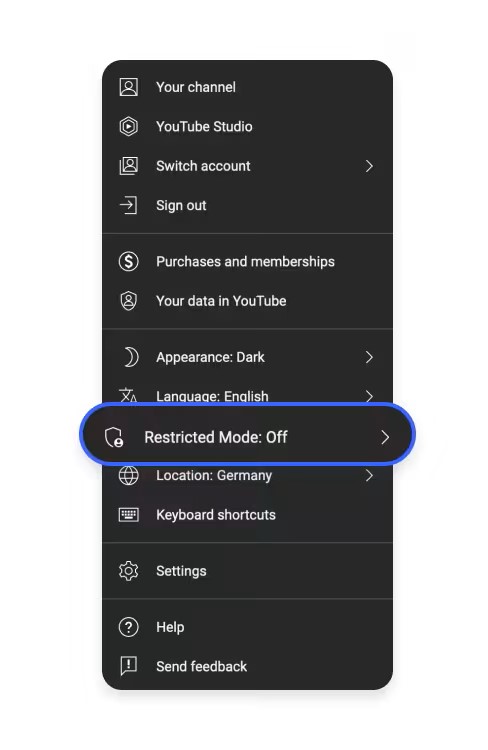
Desktop: click your Profile in the top right corner, find Restricted Mode and turn it off.
Mobile: tap Settings, find General, and then turn off Restricted Mode.
7. Disable Browser Extensions
You can first switch the hardware acceleration toggle on the settings page to troubleshoot browser hardware acceleration compatibility issues. Then try disabling all browser extensions, as they can easily block video resource requests. If that doesn’t work, you can enter chrome://settings/reset in the address bar to restore the browser to default settings.
Ultimate Fix for YouTube Playback Errors: CleverGet YouTube Downloader
If frequent YouTube playback errors are bothering you, and you want to completely eliminate them caused by various reasons. Then you can use a third-party tool to directly obtain the source files. I recently tried CleverGet YouTube Downloader, which is a professional video download tool. Its YouTube movie download module is specifically designed for the YouTube platform and can download almost all YouTube movies, including members-only videos.
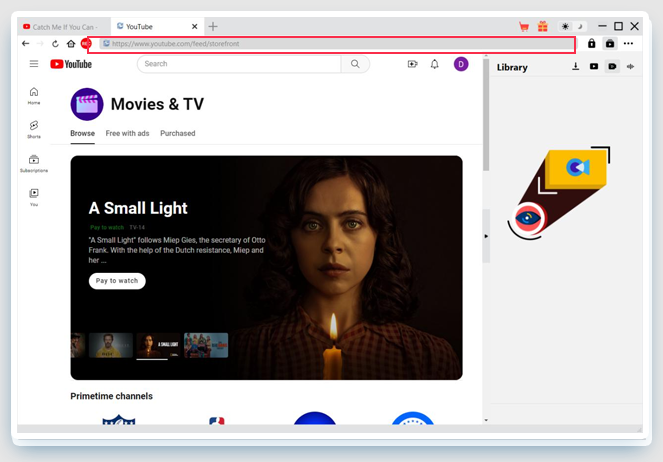
Here are the specific operation steps:
Step1: Download
CleverGet YouTube Movies Downloader and install CleverGet YouTube Movies Downloader from the official website.
Step2:Open YouTube in CleverGet and search for the movie you want to download.
Step3:Simply click the download button that appears and choose preferred download options.
Step4:Click Download and wait for the download to finish.
- Downloads are for personal use only. Please do not repost or redistribute copyrighted content without permission.
- All trademarks, logos, and brand names mentioned or displayed in this blog are the property of their respective owners.
FAQs
-
1.Why does YouTube keep showing playback error?
Common reasons include leftover expired site cache in the device, or the current network proxy triggering Google’s security check. Additionally, browser extensions can also be triggers.
-
Can VPN cause YouTube playback errors?
Yes. The encrypted tunnel may change the transmission path, and if YouTube recognizes it as a suspicious proxy, it will interrupt the connection.
-
Do browser extensions cause YouTube playback errors?
Yes. These extensions can modify page elements and request headers, disrupting the player script loading.
-
Why does YouTube playback error occur when casting to a TV?
It may be due to an inconsistent local network, an outdated TV or YouTube version causing decoder format mismatch, or issues with cache and casting plugins.
Conclusion
Playback errors on YouTube can happen for many reasons. The vast majority of YouTube playback errors stem from the local environment. Of course, some playback restrictions are also due to regional policies. But most of them are fixable with a few basic troubleshooting steps. Once I checked the connection, refreshed the app, and ruled out common issues, the problem became much easier to handle. I suggest that if you are frequently disturbed by playback errors, the most thorough way is to download YouTube videos for local backup, completely avoiding online failures.
CleverGet YouTube Movies Downloader

 Try for Free
 Try for Free
 Download free movies from YouTube Movies&TV channel.
Download YouTube members-only videos.
Download online videos in batch or individually.
Download subtitles and audio tracks.
Pack subtitles into output video or save subtitles as SRT/SUP file.
Automatically remove ads during downloads.
 English
 Deutsch
 日本語
日本語 French
 한국인
한국인 Italiano