


 Try for Free
 Try for Free
Share article:


How to Change the Language on Paramount+

2025-12-09 ・ Related to: CleverGet Paramount Plus Downloader
78 Views
Summary:
It can be confusing to change languages on Paramount Plus. If you are looking for a way to adjust the languages while watching videos, you can follow these simple steps for TVs, Roku, phones, browsers, and more. This article will show you all related information.
Outline
Learning how to change Paramount+ languages can greatly improve your viewing experience. Once, I downloaded a show on Paramount Plus, it started playing in German automatically. My family were unable to follow the video at all because they only spoke English. I spent some time exploring how the software functions as a result.
Thankfully, it’s not difficult. If you know how the app and device settings work together, the procedure becomes simple. During my testing, I also found something important: the Paramount Plus app typically uses the system language of your device: it is not always possible to change the user interface language within the app. This implies that before reopening Paramount+, we must change the language settings on our phone or TV. The app then automatically updates. After I learnt that, everything became clear. Keep reading if you’re looking for an easy way to change languages, it’s actually rather simple. You’ll avoid common problems and save time if you follow these tips.
How to Change Audio or Subtitle Language on Paramount Plus While Watching
The majority of individuals require this feature. Simply click the right icon to access Paramount Plus’s audio and subtitle options within the video player. You can easily change different languages without having to restart the video if you use these controls correctly.
Here’s how to do it:
Step 1: Visit the website or open the Paramount Plus app on your device. Access the official Paramount Plus website on your browser or launch the Paramount Plus app on your device.
Step 2: Turn on a show or film. Click on the episode after selecting a show. Let it begin to play.
Step 3: For the playback controls, tap the screen or move the mouse. Touch the screen on the phone. Wiggle the mouse on the laptop. Press "Up" or "OK" on the TV remote control.
Step 4: Search for the "CC", speech bubble, or gear icon. Typically, the gear icon opens the subtitle and audio options. Subtitle alterations can still be made by tapping the CC icon, which may be the only thing displayed on certain devices.
Step 5: Choose your preferred language by opening the menu. First, select "Audio", then select your main language, such as English or Spanish.

It’s common for certain titles to have fewer possibilities because different shows have different language lists. Before you watch, you can quickly review the list. Keep in mind that the initial language selections for newly added shows might be limited.
How to Change Interface (UI) Language on Paramount Plus
The language of the menu is dependent on your device. The system language of our device must be changed before you can change the menu language. When Paramount Plus opens, it reads the system language of your device.
1. Apps on mobile devices (iOS/Android)
Step 1: Visit Settings.
Step 2: Click General/System.
Step 3: Choose Input (Region) and Languages.
Step 4: Select or add the language of your preference.
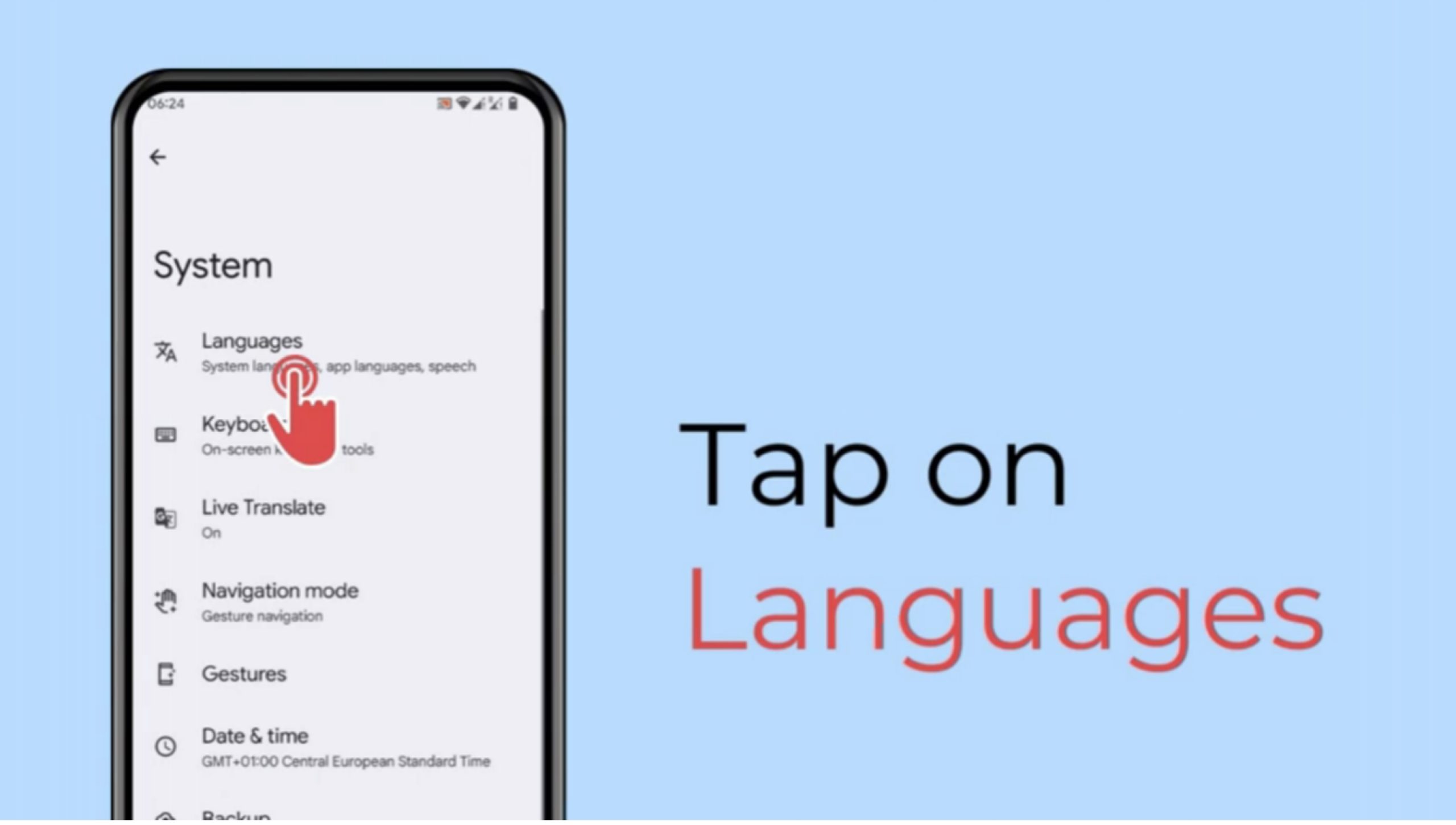
Step 5: Launch Paramount Plus again. Restarting the device also causes the app to load again if it is not updated immediately.
2. Web browser (Mac/PC)
Step 1: Launch your browser and navigate to Paramount Plus.
Step 2: Click the upper corner of your profile picture.
Step 3: Open your account and select a different language.
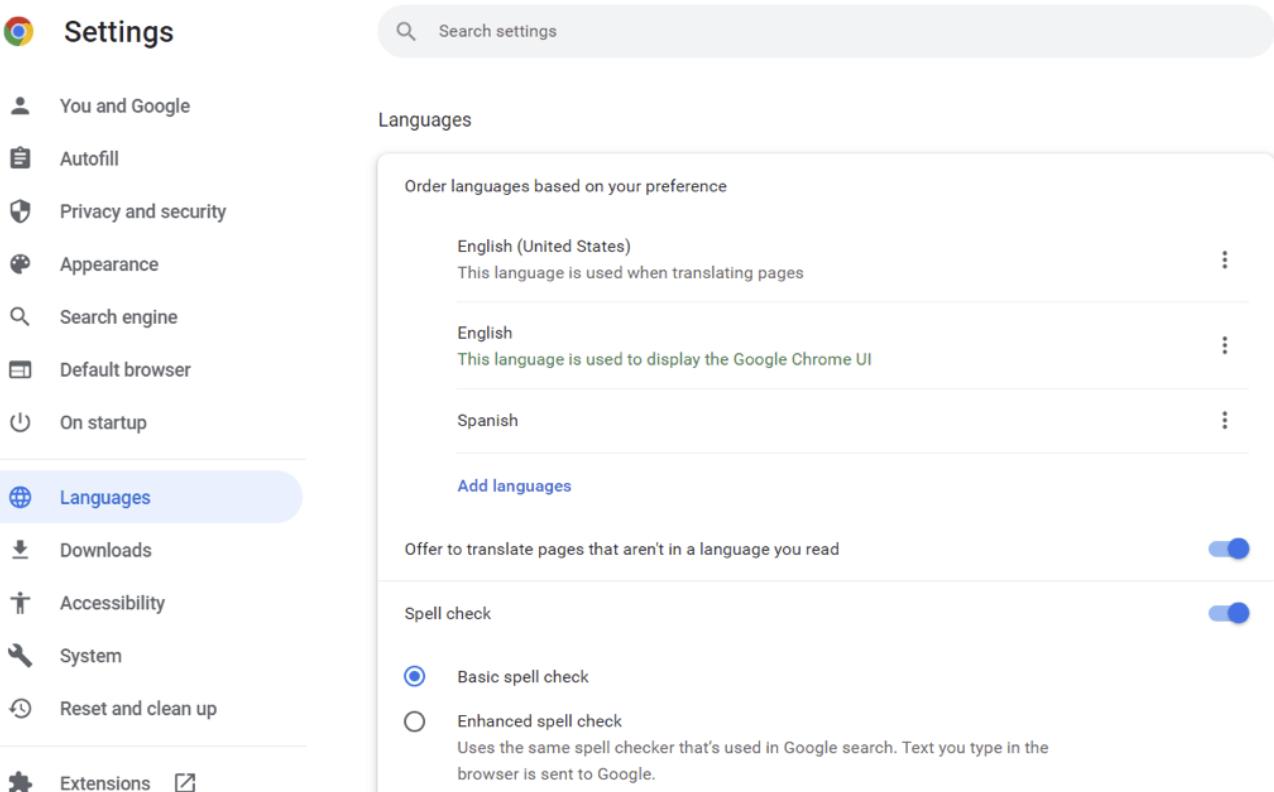
Step 4: Refresh the page. You need to change these settings separately for each device because they are not synced. Remember that altering one gadget has no effect on others.
How to Change Paramount Plus Language on Roku
Languages and subtitles are centrally managed by Roku. This implies that all streaming apps, including Paramount Plus, are impacted by your preferences. Setting a default language for all material is a practical method.
Step 1: Press the Roku remote’s Home button.
Step 2: Go to Settings and Accessibility.
Step 3: Activate Captions Mode.
Step 4: Choose your preferred language or English when selecting Caption Language.
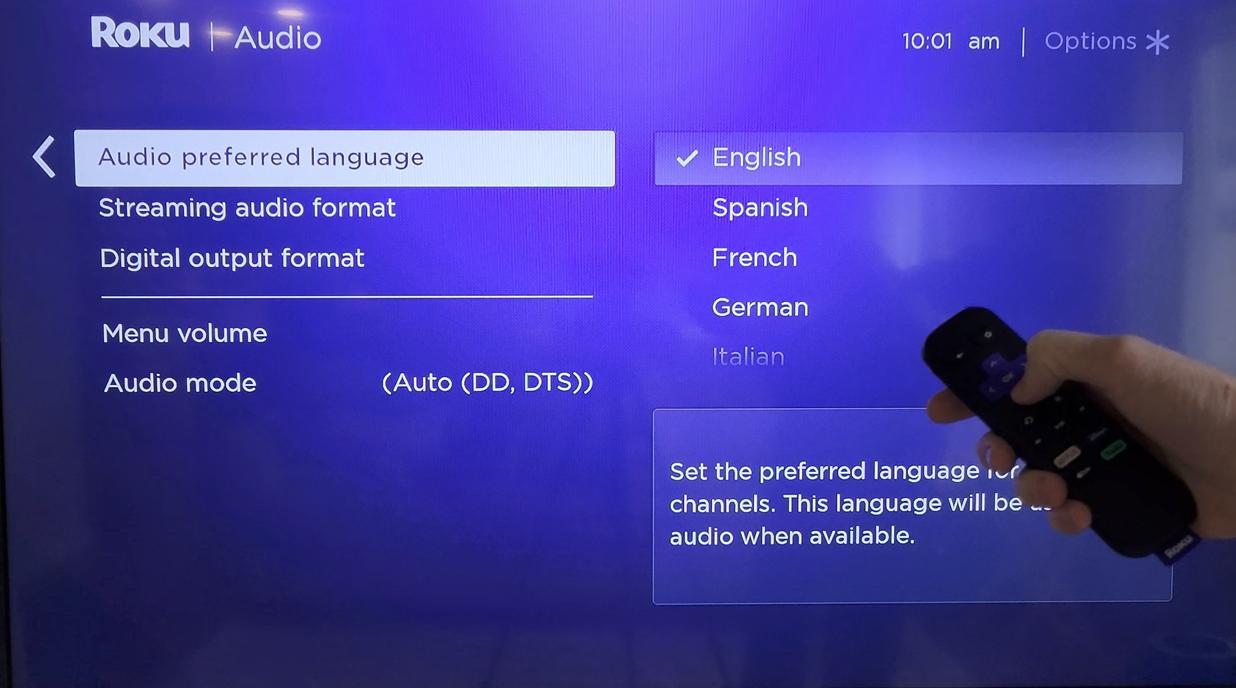
To improve the experience, Roku can now automatically update Paramount Plus with the language that will be used for the audio or subtitles.
Common Issues & Troubleshooting
There are also some other universal problems. However, every solution is also simple.
1. The language menu is absent or greyed out.
This means there are no more languages available in your region for the show. Try a different title; for example, Halo or 1923 typically have several language tracks.
2. Subtitles don’t match audio timing.
This is often a small bug. After 10 seconds of pause, play the video again. Close the episode and reopen it if it’s still not synchronized. If necessary, restart your device.
3. The old language is still used on menus.
The program continues to operate in the background. Close it completely, then resume.
4. Language listings vary from episode to episode.
This happens because various seasons might have different upload or licensing schedules. Check each episode separately.
Alternative Way: Save Paramount+ Videos with the Language You Want
Users who desire offline videos should use this section. Videos with stable audio and subtitles are much more convenient if you frequently watch episodes with friends or family who speak different languages. For children, elderly family members, and anybody else unfamiliar with navigating menus within streaming apps, it avoids confusion. Because offline files always play well even when travelling, this strategy also helps if your internet connection is erratic.
In-app downloads don’t always keep the correct audio or subtitle track, I discovered. I began using CleverGet Video Downloader, which could help you download Paramount Plus shows, movies and other on-demand videos to 1080P MP4/MKV files for unlimited playback on various media players and devices.
Anyone can play the video in VLC without changing the selected language once it has been saved as MP4. This is especially useful when watching videos offline, learning a language, or sharing them with friends and family.
FAQs
1. Does Paramount Plus automatically recognize a viewer’s language?
Yes, it can read the system language on your device. It is unable to automatically identify the user’s preferences or spoken language.
2. Are translations included in subtitles?
It is possible to translate subtitles. Spoken lines are precisely matched with captions.
3. Is the frequency of language switching limited?
No, when you’re viewing, you can switch at any time.
4. Do downloads made offline expire?
Downloads made in-app can expire. Downloader-stored files never expire. You can use Paramount Plus downloader to save your favorite Paramount Plus shows.
5. Can we change language from the kid safety mode?
Yes, the CC or gear icons can still be accessed during playback. This ensures parental controls don’t block language settings.
Conclusion
I hope this guide helps you change the language on Paramount Plus without any stress. Now, you can quickly change the audio and subtitles while you’re watching. You can also adjust your device’s settings to change the language of the app’s interface. To refresh the changes, just don’t forget to restart your app.
No matter what device you use, you can always set Paramount Plus to the language of your choice using these tools and instructions. It saves a great deal of time and becomes second nature once you become used to it. It’s easy now, so enjoy your shows.
CleverGet Paramount Plus Downloader

 Try for Free
 Try for Free
 Download Paramount Plus movies, TV shows, sports, and other on-demand videos;
Download videos in MP4/MKV;
Download multiple episodes or seasons of TV series in batch;
Download subtitles and audio tracks;
Pack subtitles into output video or save subtitles as SRT/SUP file;
Automatically remove ads during downloads.
 English
 Deutsch
 日本語
日本語 French
 한국인
한국인 Italiano